
Upload a JPG or PNG and generate a short caption, a detailed description, or an image-generation prompt as text or a Word document. Open Image to Caption.
Choose what the words are for
Open Image to Caption and select Choose images, drag in a supported file, or use the sample. On a phone, open Settings to reach the same controls.
Select Short caption, Detailed description or Image generation prompt.
A caption should summarize what matters to the reader. A generation prompt instead describes visual characteristics that may help create another image.
Generate and check the description
Select Start and compare the wording with the actual picture.
Descriptions can infer things that are not visible. Check colors, counts and small details against the original; correct names, objects or events that the image does not establish.
The example in this guide
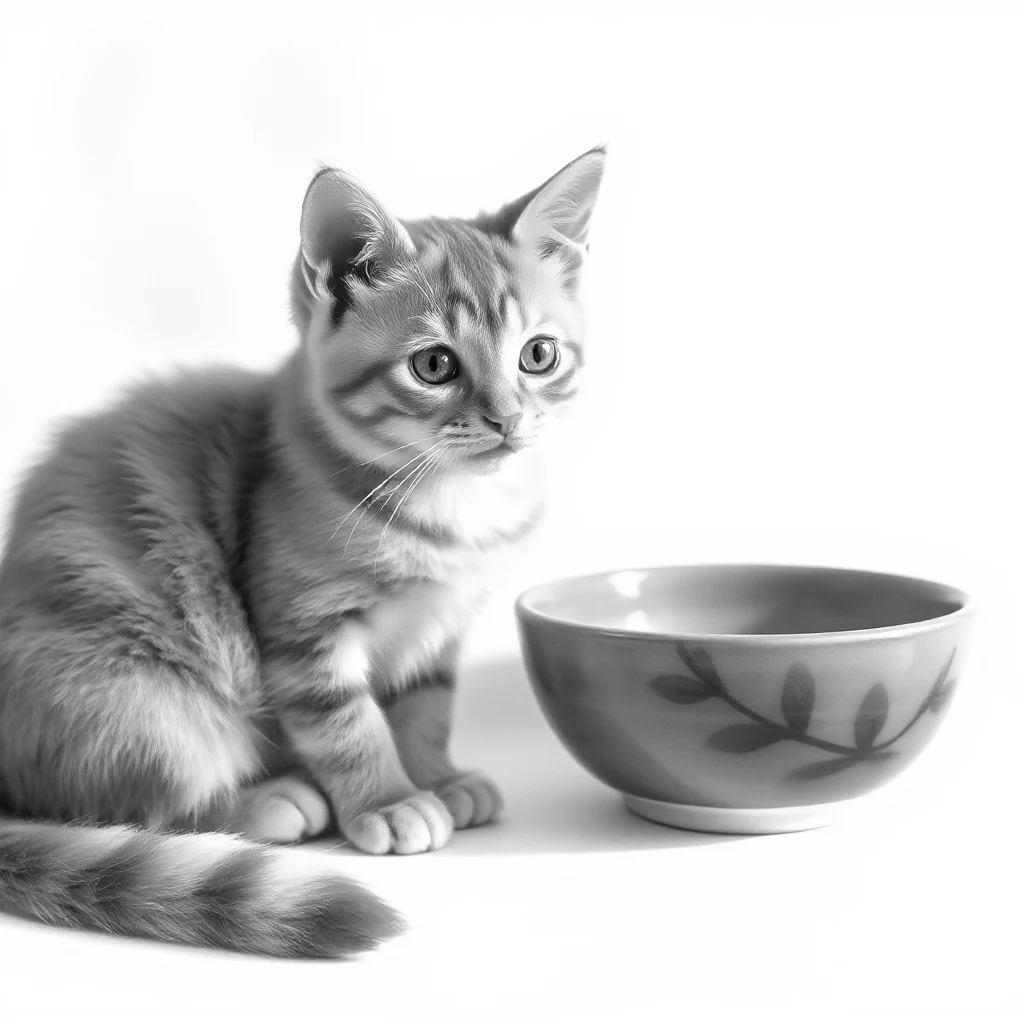
Description: Short caption
- Input
- 1,024 x 1,024 px
- Output
- Editable text
- Input file
- 580,493 bytes
- Downloaded file
- 89 bytes
Keep an editable copy
Choose Text or Word and download the result.
Keep the downloaded copy before starting a new task. Refreshing an editor or download page returns to the main tool page; normal Back navigation can restore the current workflow.
For an accessibility description, adapt the wording to the surrounding page and avoid repeating information already in nearby text.
Common questions
What should I check in the downloaded result?
For an accessibility description, adapt the wording to the surrounding page and avoid repeating information already in nearby text.
How does Image to Caption work?
Upload a JPG or PNG and generate a short caption, a detailed description, or an image-generation prompt as text or a Word document.
Does this put a caption on the picture?
No. It creates text. Use Add Text to Image if you want to place that wording on the image itself.
Try this with your own file.
Try a sample or use your own file, and review the result before sharing.