Open a JPG, PNG or WebP, add editable text on the canvas, and export the finished design as an image. Open Add Text to Image.
Write and position the message
Open Add Text to Image and select Choose images, drag in a supported file, or use the sample. On a phone, open Settings to reach the same controls.
Add a text layer, enter your wording and adjust the font, size, color and position. Keep it inside the visible image boundaries.
Use enough contrast between letters and the image. Review small text at the final display size, not only at a large editor zoom.
Review the layers and history
Use the editing toolbar above the image to add or adjust text, shapes and image elements. Use undo or history to compare changes.
Inspect the edges and small details at a useful zoom level. The original on your device remains separate from the exported copy.
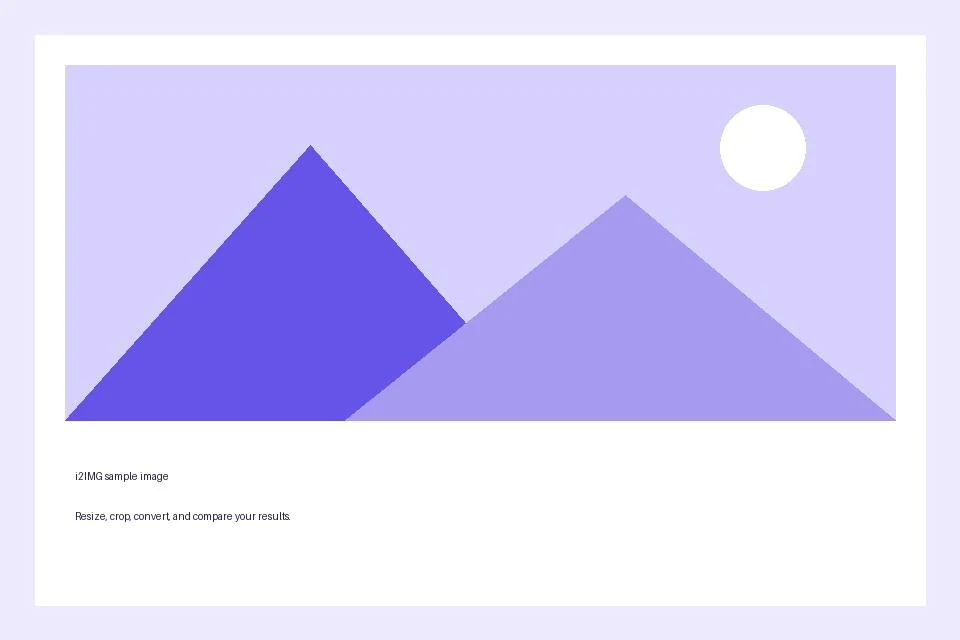
The example in this guide
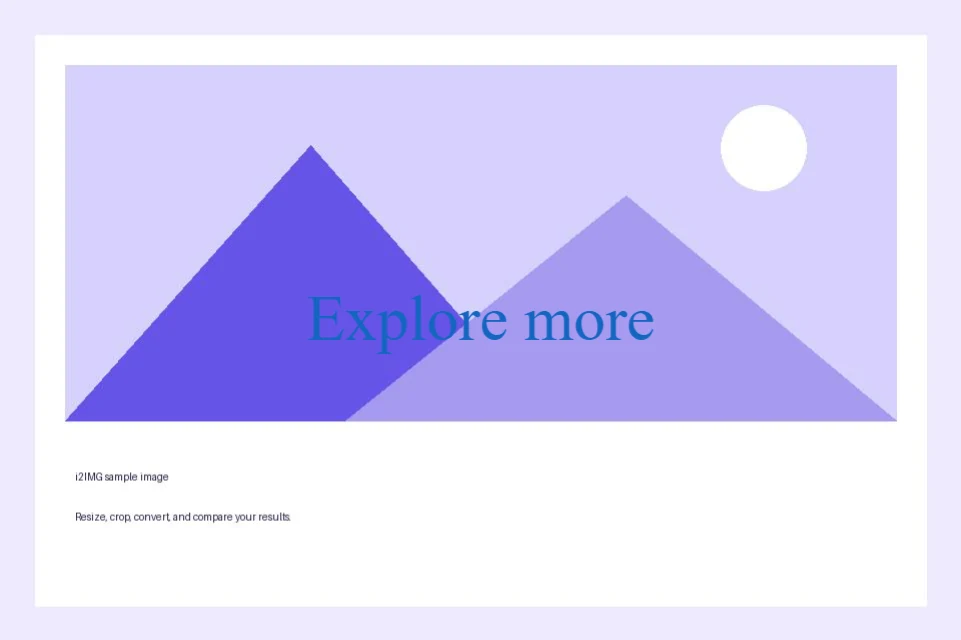
Text: Explore more
- Input
- 960 x 640 px
- Output
- 961 x 640 px
- Input file
- 21,970 bytes
- Downloaded file
- 111,267 bytes
Export the edited picture
Choose the offered PNG, JPG or WebP format and save the result.
Keep the downloaded copy before starting a new task. Refreshing an editor or download page returns to the main tool page; normal Back navigation can restore the current workflow.
PNG or WebP can carry transparency; JPG needs a solid background. Review the saved image rather than relying only on the editor preview.
Common questions
What should I check in the downloaded result?
PNG or WebP can carry transparency; JPG needs a solid background. Review the saved image rather than relying only on the editor preview.
How does Add Text to Image work?
Open a JPG, PNG or WebP, add editable text on the canvas, and export the finished design as an image.
Can I edit the text layers in the downloaded file?
No. Text, shapes and overlays are combined into the downloaded pixels. Keep the editor open until you are happy with the design.
Try this with your own file.
Try a sample or use your own file, and review the result before sharing.