
Turn a written prompt into one image. Add optional style keywords, choose a canvas and seed, and generate a PNG without an editor step. Open Text to Image.
Write the scene in your own words
Enter a prompt describing the subject, setting and the most important visual detail. The Cute cat and Sharp-looking car examples can provide a starting point.
Keep the prompt readable. A clear subject and composition are more useful than a long list of competing instructions.
Add optional visual directions
Use the Style, Artist, Quality, Color and Mood toolbar to open the matching tab. Selected keywords stay separate from the prompt and can be removed individually or cleared with the trash button.
Choose a few compatible directions first. Too many conflicting choices can make it harder to understand why the result changed.
The example in this guide
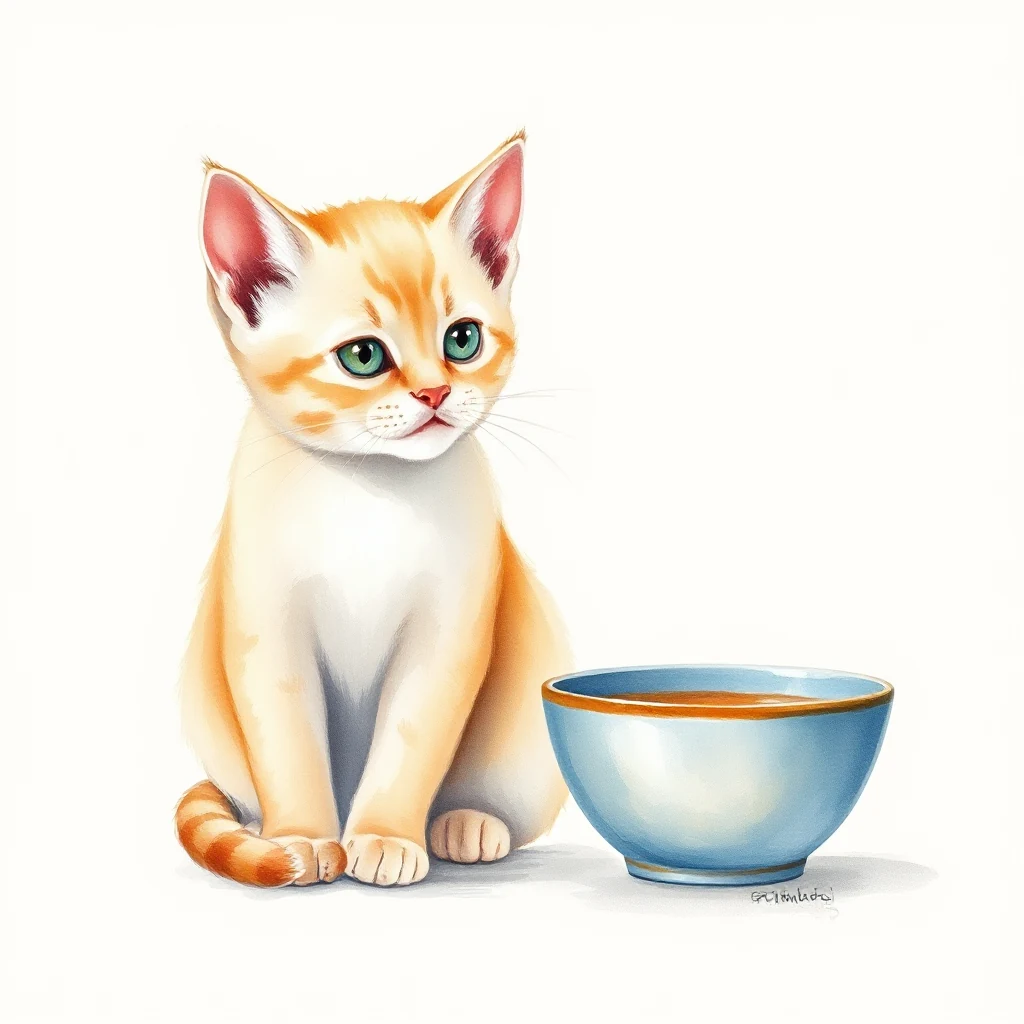
Prompt: A cute orange cat sitting beside a small blue ceramic bowl, soft morning light, simple cream background, natural photo; Canvas: 1024x1024; Visual style: Watercolor
- Input
- Editable text
- Output
- 1,024 x 1,024 px
- Input file
- 118 bytes
- Downloaded file
- 864,097 bytes
Set the canvas and generate
Choose the canvas, Seed, Detail steps and Prompt guidance in settings, then select Generate. Each request makes one image.
Keep the downloaded copy before starting a new task. Refreshing an editor or download page returns to the main tool page; normal Back navigation can restore the current workflow.
A new seed can explore another variation. Keep the prompt and settings if you want to compare experiments; read the Generative AI Additional Terms of Use before using the result.
Common questions
What should I check in the downloaded result?
A new seed can explore another variation. Keep the prompt and settings if you want to compare experiments; read the Generative AI Additional Terms of Use before using the result.
How does Text to Image work?
Write a prompt or adapt a community example, choose your settings on this page, and select Generate to create one PNG image.
When does image generation start?
Select Generate on the tool page to request one image. Changing the prompt, styles or settings only prepares your draft. New outputs are not automatically added to the community gallery.
Try your own idea or address.
Try a sample or use your own file, and review the result before sharing.