
Upload a supported image, choose its recognition language and area, and extract editable text with Future or Classic. Compare the result with the source, correct it, translate it, or download TXT, Word or PDF. Open Image to Text.
Prepare the text area
Open Image to Text and select Choose images, drag in a supported file, or use the sample. On a phone, open Settings to reach the same controls.
Upload the image, choose the language and adjust the selection frame. Use Enhance image if contrast, background or rotation makes the words hard to read.
Keep the text upright and avoid cutting through letters. Recognition quality depends on the source, so inspect names, numbers and punctuation afterward.
Choose Classic or Future
Use the OCR engine menu before Start. Complete the verification step when prompted.
Both engines need review. Future and Classic can interpret difficult layouts differently; no recognition result should be treated as an exact transcription without checking.
The example in this guide
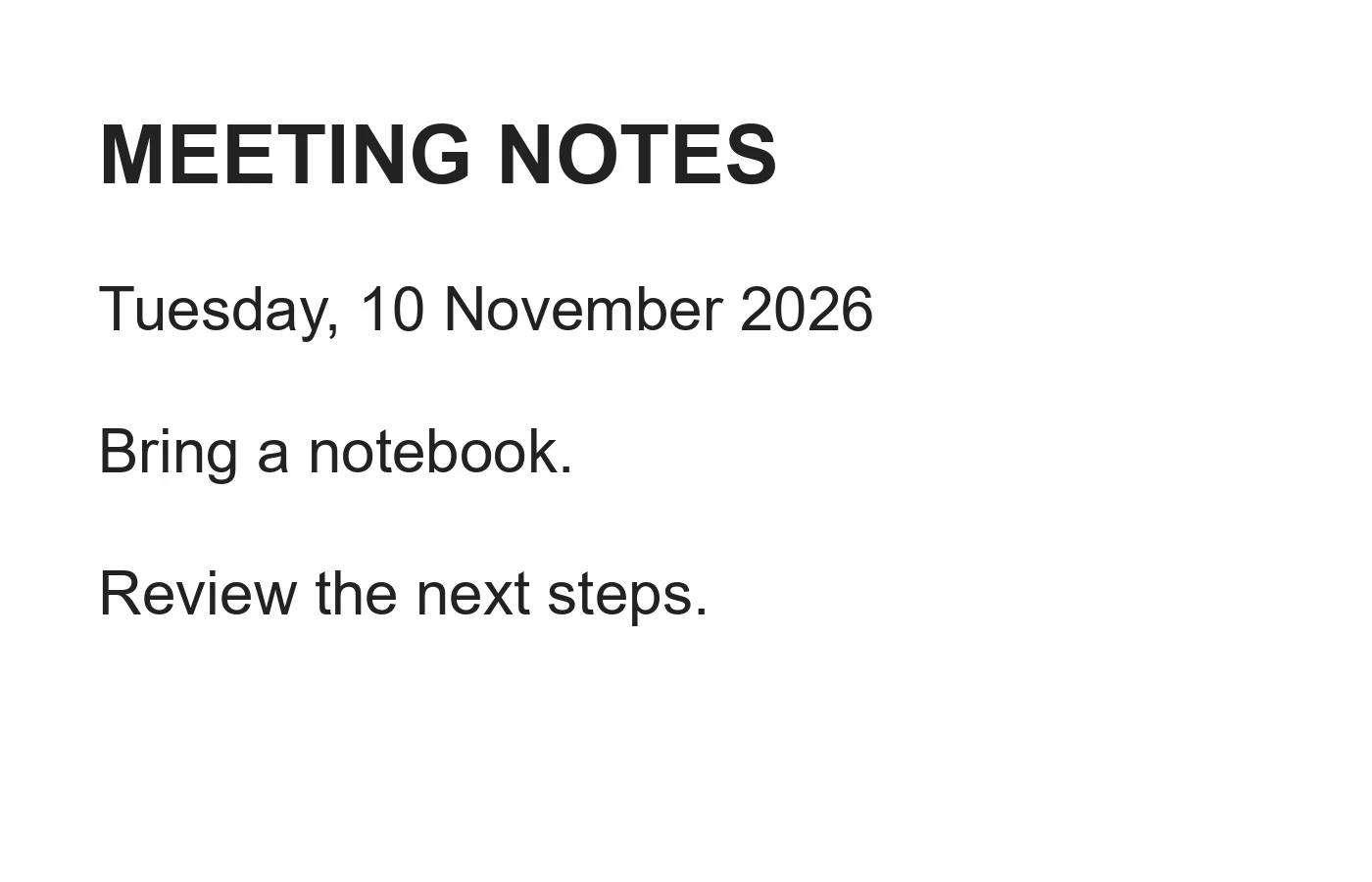
OCR engine: Classic
- Input
- 1,400 x 900 px
- Output
- Editable text
- Input file
- 47,334 bytes
- Downloaded file
- 82 bytes
Correct and export the text
Compare the source image with the editable result. Use Smart edit or Translate text when needed, then choose Text, Word or the available PDF output.
Keep the downloaded copy before starting a new task. Refreshing an editor or download page returns to the main tool page; normal Back navigation can restore the current workflow.
Text and Word follow your corrections. Classic's Searchable PDF keeps the original recognition layer; confirm the behavior before using it as a corrected document.
Common questions
What should I check in the downloaded result?
Text and Word follow your corrections. Classic's Searchable PDF keeps the original recognition layer; confirm the behavior before using it as a corrected document.
How does Image to Text work?
Upload a supported image, select the recognition language and area, then select Start and complete verification. Compare the source image with the recognized text, make corrections, and copy, translate or download the result.
Which image files can I convert to text?
Image to Text accepts PNG, JPG, JPEG, TIF, TIFF, BMP, GIF, WebP and HEIC. For an animated or multipage image, only its first frame or page is processed.
Try this with your own file.
Try a sample or use your own file, and review the result before sharing.