Upload a JPG or PNG, choose the source and target languages, and download the translated text as Text or Word. Open Translate Image.
Frame readable source text
Open Translate Image and select Choose images, drag in a supported file, or use the sample. On a phone, open Settings to reach the same controls.
Choose the source language, then the target language. Arabic is the initial target. Adjust the image selection and use Enhance image when necessary.
The image is read before the text is translated. A recognition error in a name or number can carry into the translation.
Translate the selected area
Select Start and compare the recognized source with the translated wording.
The result is text, not a new image with translated lettering. Use an image editor separately if you need to place the words back into a design.
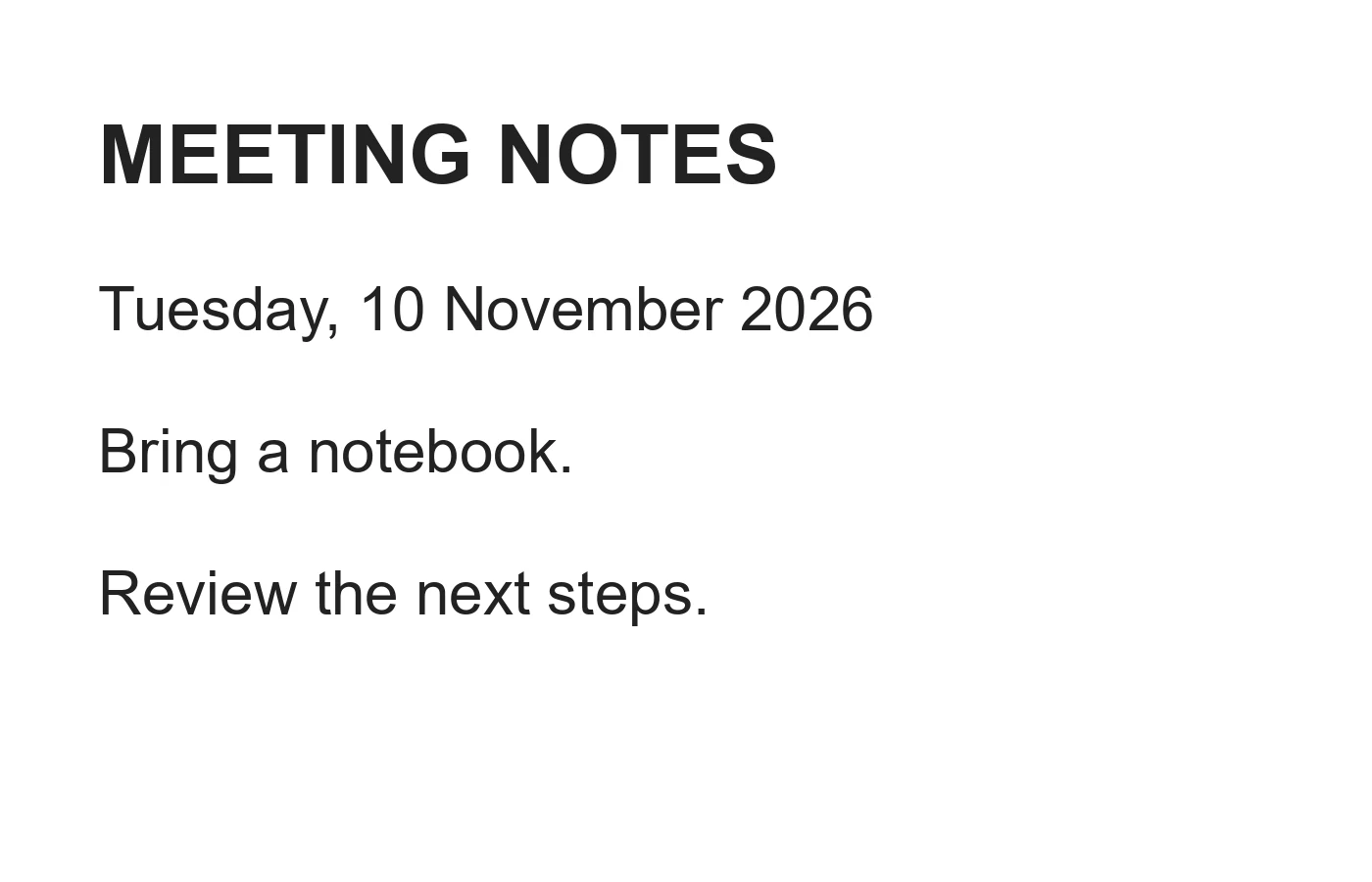
The example in this guide
File format: Text
- Input
- 1,400 x 900 px
- Output
- Editable text
- Input file
- 47,334 bytes
- Downloaded file
- 134 bytes
Edit and download the wording
Correct the result or use Smart Editor to refine a passage. Choose Text or Word beside Download.
Keep the downloaded copy before starting a new task. Refreshing an editor or download page returns to the main tool page; normal Back navigation can restore the current workflow.
Review important wording in context. Smart Editor's formatted Word, PDF and HTML exports serve a different purpose from preserving the source image layout.
Common questions
What should I check in the downloaded result?
Review important wording in context. Smart Editor's formatted Word, PDF and HTML exports serve a different purpose from preserving the source image layout.
How does Translate Image work?
Upload a JPG or PNG, choose the source and target languages, and download the translated text as Text or Word.
Does this keep the original image layout?
No. The download contains translated text. It does not reproduce the image’s layout, fonts, or graphics.
Try this with your own file.
Try a sample or use your own file, and review the result before sharing.