Use Compare Images to inspect a before-and-after pair with Swipe, Side by side, Overlay or a Difference heatmap. Align the second image, inspect both with synchronized zoom and export the view you need. This example compares two owned design revisions with exact pixel statistics. Open Compare Images.
Load two versions in a consistent order
Open Compare Images and choose two files, or open the sample to load the two sample design revisions. A is the first image and B is the second.
The first image determines the comparison frame. For the example, both sources are 1200 × 850 pixels, so Original pixels · centered with 100% second-image scale and zero offsets compares matching positions without resizing.
Inputs may be JPG, PNG, WebP, GIF or BMP, up to 25 MB each. The tool accepts exactly two images for a comparison. Animated inputs use their first still frame.
For a fair export comparison, use the same crop and dimensions where possible. A shifted image can produce a large pixel difference even when its content is unchanged.
Inspect the pair with the right view
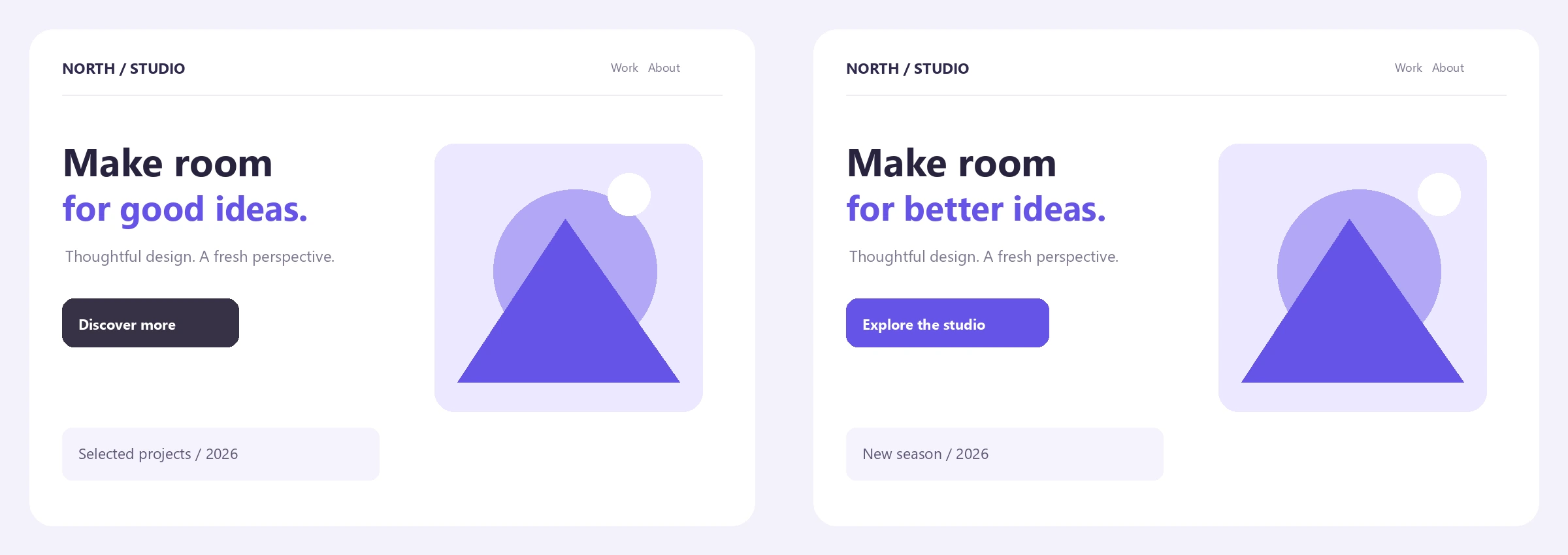
Swipe starts with a divider across the images. Drag it at 100% viewer zoom or use Reveal / overlay to move the boundary. The example revisions change a headline, a button and small illustration details.
Side by side shows both full aligned frames next to each other. Overlay blends them, which can make a shifted edge easy to spot. Difference shows an intensity heatmap rather than the source colors.
Viewer zoom ranges from 100% to 400%; drag the enlarged view to pan. Both images move together. The zoom affects inspection only, so the saved comparison still includes the complete frame.
Use Swipe for a design review, Overlay for alignment and Difference for small pixel changes.
The example in this guide
Two 1200 × 850 PNG design revisions; Original pixels · centered; 100% second-image scale; zero X/Y offsets; Difference tolerance 0%; Difference view; PNG export.
- Compared grid
- 1200 × 850 / 1,020,000 pixels
- Changed pixels
- 35,683 / approximately 3.50%
- Mean RGB difference
- Approximately 1.08%
- Output
- 1200 × 850 PNG heatmap
Align and interpret the measurements
When sizes differ, Second image alignment offers Original pixels · centered, Fit inside first image and Fill first image frame. Use scale and pixel offsets for finer adjustment. Content outside the first image’s frame is excluded.
For this pair, keep the original-pixel defaults and Difference tolerance at 0%. The actual measured result contains 35,683 changed pixels out of 1,020,000, approximately 3.50%. Mean RGB difference is approximately 1.08%.
Changed-pixel share counts pixels whose largest RGB channel difference exceeds the tolerance. Mean RGB difference measures the average absolute channel change across all compared pixels and does not disappear when you raise tolerance.
Transparency is composited over white. A grid larger than 16 megapixels or 8192 pixels per side is reduced and explicitly labelled as resampled. Scaling a source also creates resampled measurements. These numbers are pixel comparisons, not perceptual quality scores.
JPEG compression can change many subtle pixel values. A tolerance can suppress those small changes, but it cannot determine whether a design revision is better.
Export a single comparison image
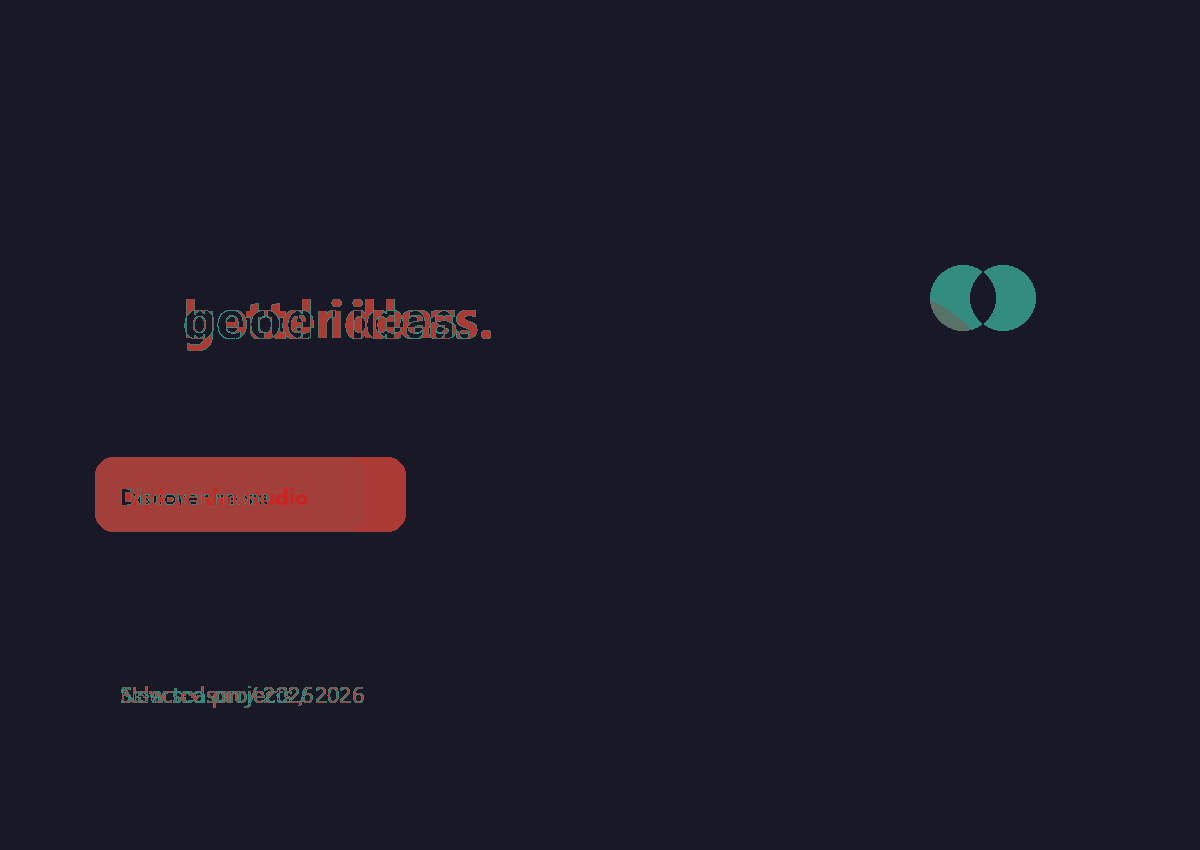
Select Difference, choose PNG and select Start for the example. Download saves the actual 1200 × 850 heatmap shown in the comparison above.
The Before panel contains both source designs side by side; it is a contact sheet made for this article. The After panel is the genuine exported heatmap. Dark areas indicate no change above the zero threshold; colored areas show differences.
Other view modes export their matching composition. Side by side doubles the grid width, while Swipe and Overlay remain a single frame. The export grid is bounded to 16 megapixels, allowing a two-panel result up to 32 megapixels.
Keep both original images for further work. The output is a flattened PNG or JPG comparison rather than an editable project, and viewer zoom does not crop the exported result.
If you need an exact file identity check, pixel comparison is not sufficient: metadata, encoding and pixels outside the measured frame may differ.
Common questions
Does 0% changed mean the files are identical?
It means the measured aligned pixels do not exceed your tolerance. Files can still differ in metadata, encoding, transparent RGB values or content outside the measured frame. Use zero tolerance to detect every represented RGB difference.
Can I compare different image sizes?
Yes. Choose how the second image fits the first frame and adjust its scale or offset. The interface labels resampled measurements, and anything outside the first frame is excluded.
Why does a JPEG show changes when it looks the same?
Lossy encoding can alter small pixel values across the image. Raise Difference tolerance to exclude small channel differences, while remembering that mean RGB difference still reports all measured differences.
Does the export include my zoomed-in crop?
No. Viewer zoom and pan are for inspection only. The download uses the full comparison frame in the selected view.
Are image differences calculated with AI?
No. The tool computes absolute RGB pixel differences in your browser. It does not use semantic recognition or claim a perceptual similarity score.
Can I export the side-by-side comparison?
Yes. Choose Side by side before Start. It exports both aligned frames into one PNG or JPG image, with twice the comparison grid width. Viewer zoom does not crop it.
Make your own carefully checked result
Try a sample or use your own file, and review the result before sharing.