Adjust brightness and contrast, compare the live preview with Original, and export one selected image or frame as PNG, JPG or WebP. Open Contrast Image.
Choose the image or frame
Open Contrast Image and select Upload Image, drag in a supported file, or use the sample. On a phone, open Settings to reach the same controls.
Upload the picture and, for a multi-frame source, select the frame or page you want to edit.
The export is one selected still frame. It does not rebuild an animated GIF or a complete multi-page TIFF.
Adjust brightness and contrast
Move Brightness and Contrast, each from -50 to 50, and compare with Original. Open Enhance image for presets, color modes, background, sharpness and cleanup tools.
Increase contrast gradually. Strong contrast can remove pale details or close up dark regions even when the image looks more dramatic.
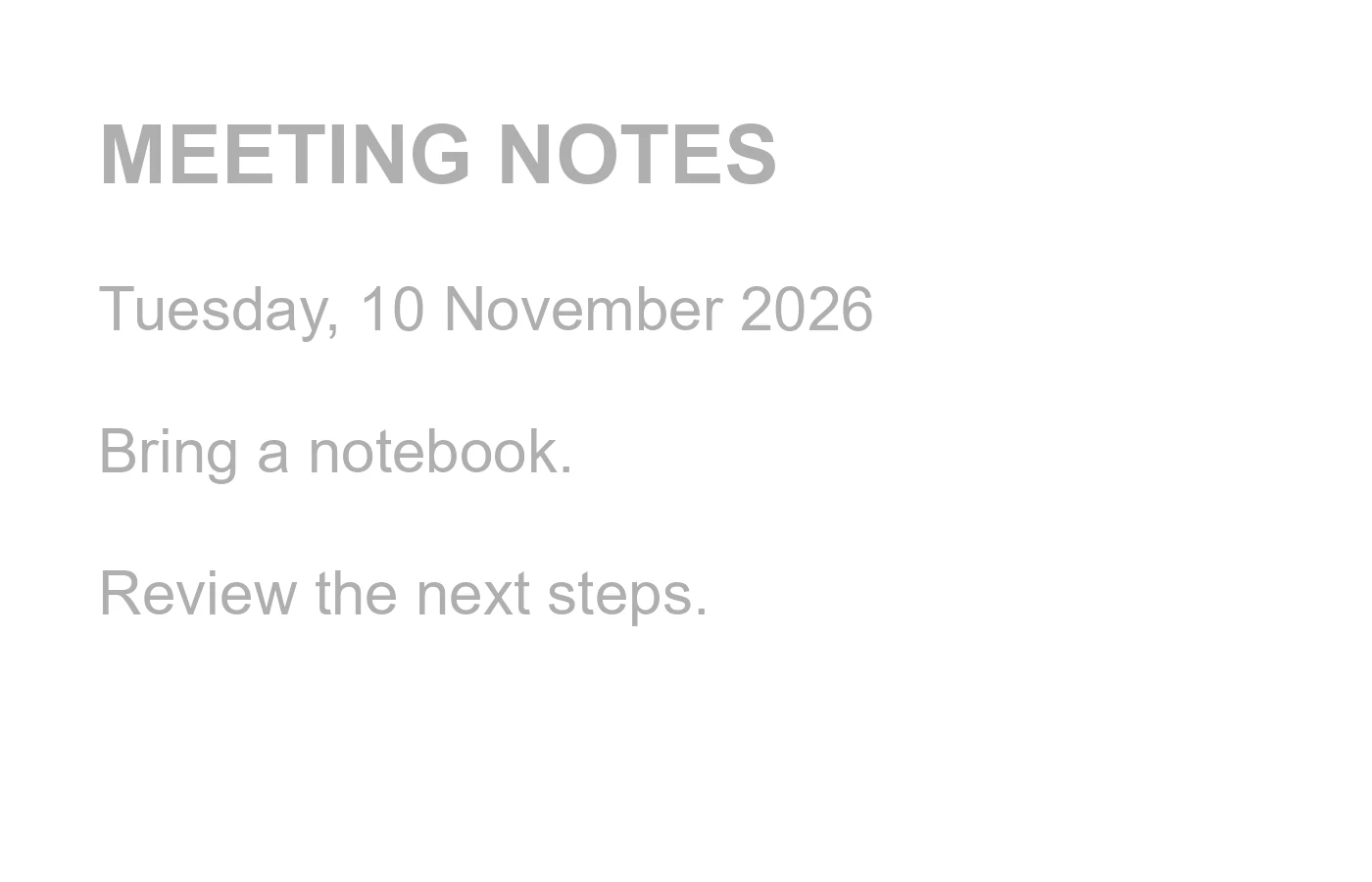
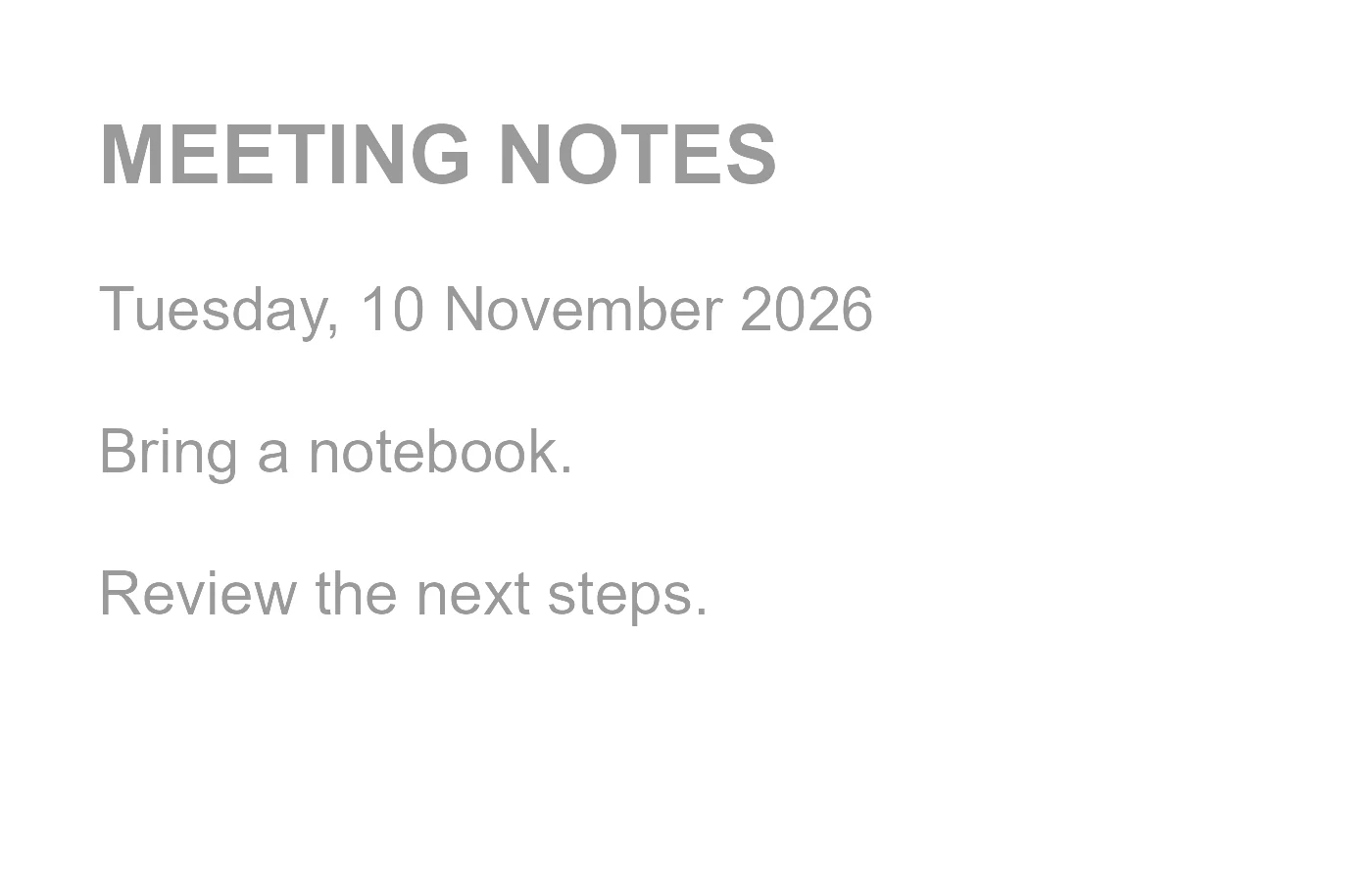
The example in this guide
Brightness: -30; Contrast: 30
- Input
- 1,400 x 900 px
- Output
- 1,400 x 900 px
- Input file
- 38,225 bytes
- Downloaded file
- 35,362 bytes
Choose a lossless or JPEG export
Choose PNG or WebP for a lossless image, or JPG for a JPEG copy with a white background where transparency existed.
Keep the downloaded copy before starting a new task. Refreshing an editor or download page returns to the main tool page; normal Back navigation can restore the current workflow.
The export converts embedded color profiles to sRGB and strips metadata while keeping valid DPI. Review important details in the downloaded image.
Common questions
What should I check in the downloaded result?
The export converts embedded color profiles to sRGB and strips metadata while keeping valid DPI. Review important details in the downloaded image.
Can I change brightness without changing contrast?
Yes. Brightness and Contrast are independent controls, each from -50 to 50. Leave one at 0 while changing the other.
Does this keep an animated GIF animated?
No. Choose the frame you want; the result is a still PNG, JPG or WebP image.
Try this with your own file.
Try a sample or use your own file, and review the result before sharing.