
Choose shadow and highlight colors for a JPG or PNG, preview the duotone effect, and save it as PNG, JPG or WebP. Open Duotone Image Filter.
Choose a color pair
Open Duotone Image Filter and select Choose images, drag in a supported file, or use the sample. On a phone, open Settings to reach the same controls.
Select a style from the gallery, or set the shadow and highlight colors yourself.
Shadow color maps the darker parts of the picture; highlight color maps the lighter parts. A strong difference keeps faces and lettering readable.
Inspect important details
Watch the live preview while comparing two or three palettes. Use dark and light colors that suit the background where the image will appear.
Duotone replaces the original color relationships. Keep a copy of the source if those colors carry information.
The example in this guide
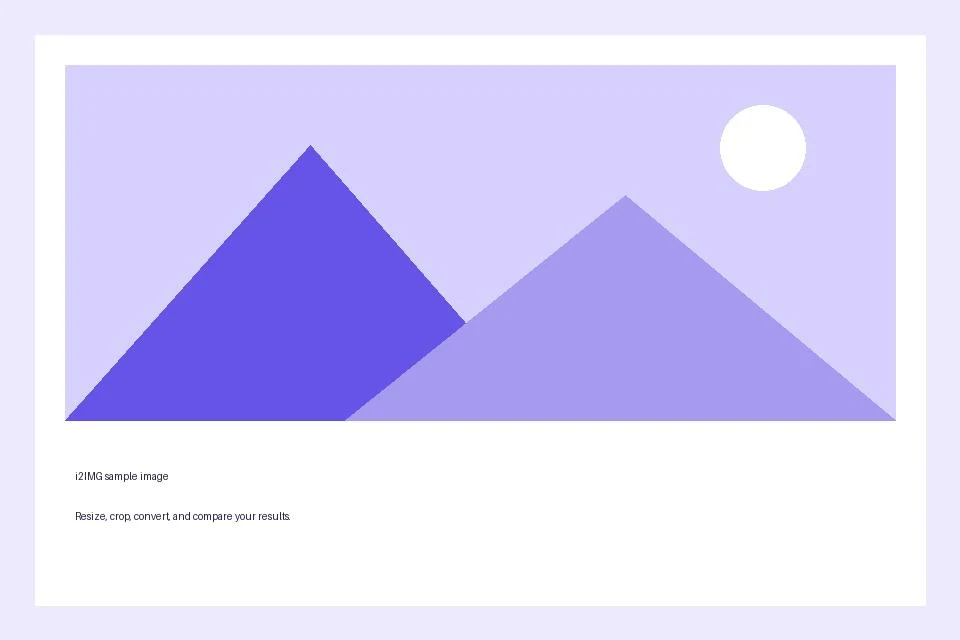
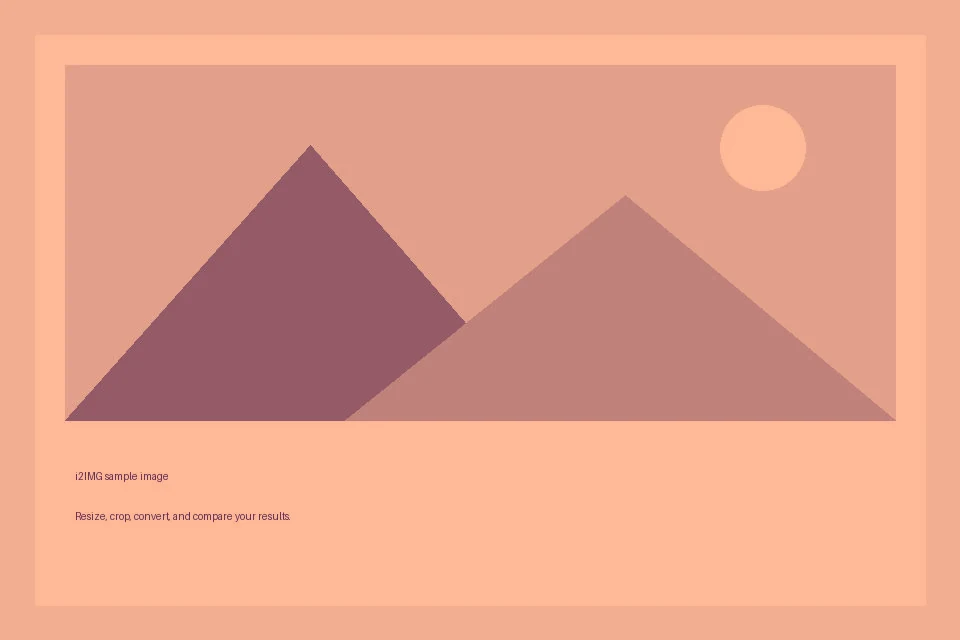
Preset: Sunset duotone
- Input
- 960 x 640 px
- Output
- 960 x 640 px
- Input file
- 21,970 bytes
- Downloaded file
- 50,758 bytes
Export for the destination
Select PNG, JPG or WebP and choose Start.
Keep the downloaded copy before starting a new task. Refreshing an editor or download page returns to the main tool page; normal Back navigation can restore the current workflow.
Check the final output at its intended display size. A palette that looks striking large can lose small details in a thumbnail.
Common questions
What should I check in the downloaded result?
Check the final output at its intended display size. A palette that looks striking large can lose small details in a thumbnail.
How does Duotone Image Filter work?
Choose shadow and highlight colors for a JPG or PNG, preview the duotone effect, and save it as PNG, JPG or WebP.
Can I use my own two colors?
Yes. Choose the Shadows and Highlights colors directly, or start with a palette and customize them.
Try this with your own file.
Try a sample or use your own file, and review the result before sharing.