Tools95

MAKE SOMETHING GREAT

Compare Images.

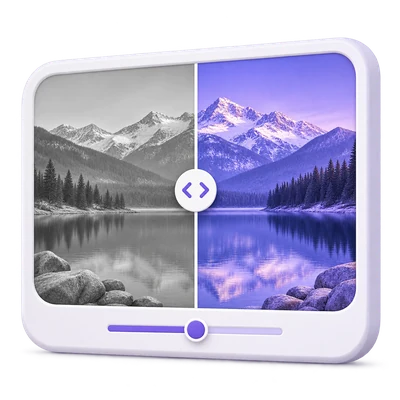
Compare two images using a slider, overlay, side-by-side view or pixel difference heatmap. Align and zoom, measure changed pixels, and save PNG or JPG.

Advertisements
Your image workspace
On your device
or drag and drop here
JPG, JPEG, PNG, WEBP, GIF, BMP
Choose your image to get started.IMAGE
Advertisements
Blog How to compare two images and find what changed Read the guide

Compare two images visually and measure their differences

Load two images and inspect them with Swipe, Side by side, Overlay or a Difference heatmap. Align the second image to the first, zoom both together and export a single comparison image.

Two design versions share one aligned frame and a measurable difference view.
QUICK VIDEO TUTORIAL See what changed. Compare two images. Compare two design images with a swipe divider, inspect their pixel-difference heatmap and download one PNG comparison. English narration Watch the video

See what changed. Compare two images.

Features and controls

Choose the view that answers your question

Swipe reveals changes under a divider; Side by side keeps both images visible.

What each comparison view shows

Overlay blends the second image over the first using Reveal / overlay. Difference shows a heatmap of per-pixel RGB changes. The source labels identify A and B. Swipe can be dragged at 100% viewer zoom or controlled with the Reveal slider and arrow keys. Choose a mode before saving; the export follows that mode.

Align the comparison fairly

Choose original pixels, fit inside or fill the first image frame.

Alignment, scale and offsets

The first image defines the comparison frame. Original pixels centers the second without scaling. Fit inside preserves all its edges; Fill covers the frame and may crop. Second image scale and horizontal/vertical offsets refine alignment. Offsets are measured in first-image pixels. Content outside the first frame is not included in the measurement.

Inspect details with synchronized zoom

Viewer zoom enlarges both images together from 100% to 400%.

Zoom and pan without changing the export

Drag the enlarged view to pan. Both sides share the same zoom and movement, so the same area stays aligned. Reset view resets viewer zoom, pan and second-image scale and offsets. Viewer zoom changes inspection only; the export includes the full aligned frame.

Read measured differences accurately

The statistics show changed-pixel share and mean RGB difference.

How the pixel statistics are calculated

A pixel is counted as changed when its largest RGB channel difference exceeds Difference tolerance. Mean RGB difference is the average absolute channel difference expressed as a percentage of 255, independent of that tolerance. Transparent images are composited over white. The label distinguishes actual aligned pixels from a resampled grid. Statistics are capped at 16 megapixels and 8192 pixels per side; larger sources are reduced for responsiveness. These are pixel metrics, not a perceptual similarity or quality score.

Export a useful review image

Save your selected comparison as PNG or JPG.

Dimensions of your comparison export

Side by side produces a two-panel image; Swipe, Overlay and Difference produce one aligned frame. The comparison grid is bounded to 16 megapixels, so a two-panel export may reach 32 megapixels. PNG preserves the rendered comparison losslessly; JPG offers Image quality. The downloaded result contains the comparison, not editable source layers.

Files and processing

Input
JPG, JPEG, PNG, WebP, GIF and BMP
Output
One PNG or JPG comparison image

25 MB maximum per file. Up to 2 input files per run.

25 MB per image, up to 32 megapixels and 16,384 pixels per side. Animated inputs use their first still frame.

Image decoding, editing and export run in your browser without AI or uploading the image for processing. The site may use other network services; browser image processing is separate from those services. Refreshing the editor or results page returns to the tool page.

This tool processes and exports files in your browser. The downloaded image is a separate file; the source on your device is not overwritten.

For an image result, use Continue to below the download results to choose a compatible next step. You can select which images to carry over; the next tool starts with its own settings.

Refreshing an editor or download page returns you to the tool page. Download the result before starting a new workflow. See our Privacy Policy for file handling.


FAQ

Good to know.

A few answers before you get started.

On your device
Does 0% changed mean the files are identical?

It means the measured aligned pixels do not exceed your tolerance. Files can still differ in metadata, encoding, transparent RGB values or content outside the measured frame. Use zero tolerance to detect every represented RGB difference.

Can I compare different image sizes?

Yes. Choose how the second image fits the first frame and adjust its scale or offset. The interface labels resampled measurements, and anything outside the first frame is excluded.

Why does a JPEG show changes when it looks the same?

Lossy encoding can alter small pixel values across the image. Raise Difference tolerance to exclude small channel differences, while remembering that mean RGB difference still reports all measured differences.

Does the export include my zoomed-in crop?

No. Viewer zoom and pan are for inspection only. The download uses the full comparison frame in the selected view.

Are image differences calculated with AI?

No. The tool computes absolute RGB pixel differences in your browser. It does not use semantic recognition or claim a perceptual similarity score.

Can I export the side-by-side comparison?

Yes. Choose Side by side before Start. It exports both aligned frames into one PNG or JPG image, with twice the comparison grid width. Viewer zoom does not crop it.

Advertisements

Language38

English العربية Français Italiano Deutsch Español Português Nederlands Русский Türkçe 日本語 中文 हिन्दी Bahasa Indonesia Bahasa Melayu 한국어 Tiếng Việt ไทย Polski Svenska Українська Norsk বাংলা Ελληνικά فارسی اردو Čeština Dansk Magyar Română Suomi Български Filipino ქართული Slovenčina Azərbaycanca עברית Slovenščina

Choose your language. Video tutorials currently use English narration.