
Enter a public HTTP or HTTPS URL, choose a browser width and capture settings, and download PNG, JPG, WebP or an image-based PDF. Open URL to Image.
Enter a public page address
Paste an http:// or https:// address in the upload-style form and select Continue.
Use a page available without your personal login. A URL that works in a signed-in browser may show different content to the capture service.
Choose width and maximum height
Set Browser width between 64 and 4,096 px. The default maximum height is 16,000 px; choose a shorter limit or Full page when appropriate.
Width changes the page's responsive layout. Full page remains subject to capture pixel and dimension limits.
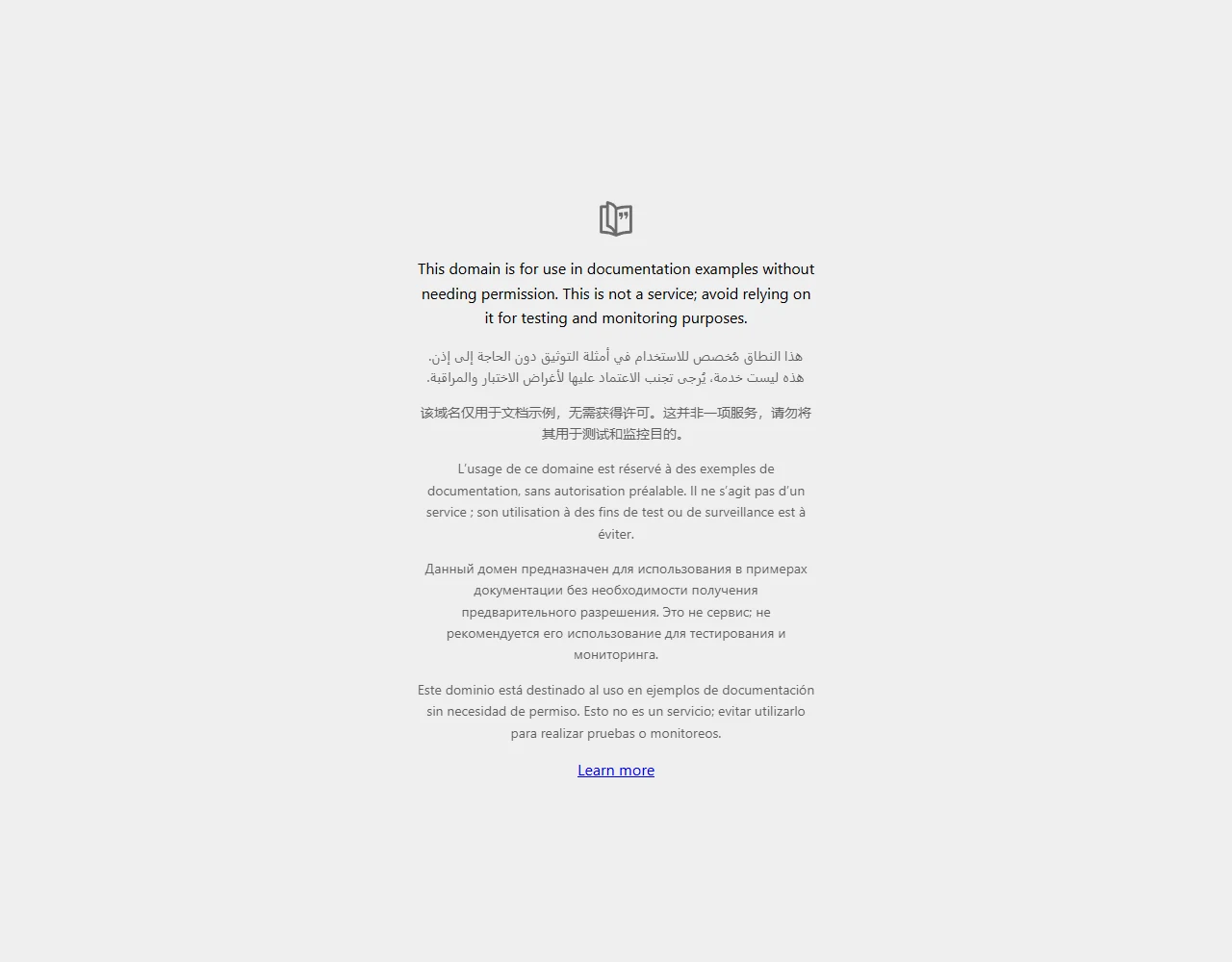
The example in this guide
Link: https://example.com/; Browser width: 1280 px
- Input
- Editable text
- Output
- 1,280 x 1,000 px
- Input file
- 20 bytes
- Downloaded file
- 56,119 bytes
Review the captured content
Choose the offered format and rendering options, then select Start.
Keep the downloaded copy before starting a new task. Refreshing an editor or download page returns to the main tool page; normal Back navigation can restore the current workflow.
Websites can load late content, consent dialogs or large empty areas. Inspect the saved capture before using it as a record of the page.
Common questions
What should I check in the downloaded result?
Websites can load late content, consent dialogs or large empty areas. Inspect the saved capture before using it as a record of the page.
How does URL to Image work?
Paste a public HTTP or HTTPS URL on the tool page and select Continue. Choose browser width, maximum height and file format, then select Start. Download PNG, JPG, WebP or an image-based PDF.
Will the capture use my login session?
No. It visits the public URL in a fresh browser context and does not use your personal cookies or authenticated browser session.
Try your own idea or address.
Try a sample or use your own file, and review the result before sharing.