

Tools95

MAKE SOMETHING GREAT

JPG to SVG.

Convert JPG and JPEG artwork into SVG paths. Adjust colors, smooth edges and remove small speckles, then compare the vector preview and download your files.

Advertisements
Your image workspace
Temporary server processing
or drag and drop here
JPG, JPEG
Choose your image to get started.IMAGE
Advertisements
Blog How to turn JPG artwork into black-and-white SVG shapes Read the guide

Trace JPG artwork into scalable vector shapes

Convert JPG and JPEG artwork into SVG paths. Control the palette, smooth the traced edges and remove small speckles, then compare the vector result with the original image.

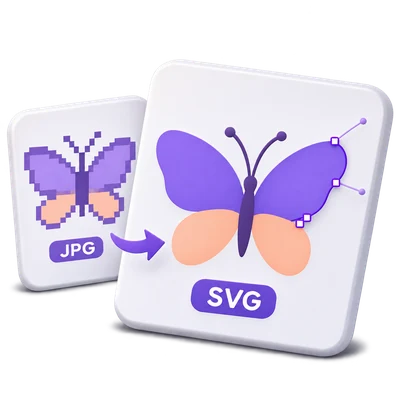
JPEG artwork becomes editable SVG paths after checking colors, edge noise and background treatment.
QUICK VIDEO TUTORIAL How to trace JPG to SVG with the Illustration preset Upload JPG artwork, choose the Illustration preset for a color trace, select Start and download the SVG result. English narration Watch the video

How to trace JPG to SVG with the Illustration preset

Features and controls

Choose JPG artwork with clear edges

Simple logos and illustrations usually trace more cleanly than photographs.

Which preset fits your image

JPG and JPEG store the same type of raster image. Start with the largest clean source available rather than a screenshot of the logo. JPEG compression can create halos or small blocks around edges, which tracing may turn into extra shapes. Logo, Illustration and Line art offer starting points for different artwork; compare the preview before increasing detail.

Control the palette

Use Color or Black and white, then adjust the relevant control.

Colors and threshold

Color mode lets you request between 2 and 32 colors; the source may contain fewer usable colors than the requested palette. Black and white uses Black and white threshold from 0 to 255 to decide which areas become dark shapes. These are conventional image-processing and tracing controls; no generative AI is used.

Balance smooth edges and useful detail

Use Smooth curves and Remove small speckles to simplify noisy edges.

How the controls change the vector

Detail ranges from 1 to 5. Smooth curves reduces small edge variations, while Remove small speckles discards isolated marks. These controls can simplify traces affected by JPEG artifacts, but stronger cleanup can also remove dots or small lettering. Open Refine edges and background in the Edges & background card, then update the preview after each adjustment.

Choose how the background is traced

JPG has no alpha transparency; color tracing includes its visible background.

Existing transparency and opaque images

Preserve transparency does not identify a subject or erase a solid JPG background in Color mode. Black-and-white tracing keeps the dark shapes and leaves light areas transparent; selecting White adds an opaque white canvas. If you need photographic background removal, use Image Background Remover before tracing and inspect its result.

Compare a real vector preview

Select Update preview, then use Original, Vector or Compare.

Preview and final tracing resolution

The selected image is traced for preview at up to 1200 pixels on its longest side. Compare uses a divider to inspect the source and trace. Final conversion traces up to 2048 pixels on the longest side, while the SVG keeps the original dimensions and viewBox. The preview may therefore differ in small details from the final file. Changing a control requires a new preview to show that setting.

Download editable vector paths

Save one SVG or a ZIP containing the batch.

What you can edit afterward

The result contains vector paths rather than an embedded copy of the original bitmap. Open the SVG in a compatible vector editor to adjust paths and fills. Lettering is traced into shapes, not recognized as editable text. Each input uses the same settings and keeps its basename where possible; duplicate names receive a suffix.

Files and processing

Input
JPG and JPEG
Output
SVG; ZIP for multiple results

25 MB maximum per file. Up to 10 input files per run. 250 MB maximum combined upload.

Sources are limited to 60 megapixels each. Preview tracing uses up to a 1200-pixel longest side; final tracing uses up to 2048 pixels. Resource and output-complexity limits can reject unusually detailed images.

Files are processed on the server. Preview preparation may also upload a file when browser decoding is unavailable or a document preview is needed. Server downloads are available to your session for up to two hours.

For an image result, use Continue to below the download results to choose a compatible next step. You can select which images to carry over; the next tool starts with its own settings.

Refreshing an editor or download page returns you to the tool page. Download the result before starting a new workflow. See our Privacy Policy for file handling.

FAQ

Good to know.

A few answers before you get started.

Temporary server processing
Is the result a real vector SVG?

Yes. The tracing process creates SVG paths and fills. It does not simply place the original PNG or JPG inside an SVG wrapper.

Which images work best?

Logos, icons, line drawings and illustrations with clear edges work best. Photographs can create many shapes and a stylized result, so compare the preview and keep the raster original when photographic detail matters.

Can I make the white background of a JPG transparent?

In Black and white mode, light areas become transparent and dark shapes remain. In Color mode, Preserve transparency does not remove an opaque JPG background. Adjust the threshold and inspect fine lettering before exporting a black-and-white trace.

Can I edit text in the SVG?

Visible letters become traced vector shapes. They are not editable text objects. Use Image to Text if you need recognized text.

Why is the final trace different from the preview?

Preview tracing is limited to a 1200-pixel longest side, while the final trace uses up to 2048 pixels. A larger final trace may retain more small edges and details. The SVG still uses the original image dimensions.

Advertisements

Language38

English العربية Français Italiano Deutsch Español Português Nederlands Русский Türkçe 日本語 中文 हिन्दी Bahasa Indonesia Bahasa Melayu 한국어 Tiếng Việt ไทย Polski Svenska Українська Norsk বাংলা Ελληνικά فارسی اردو Čeština Dansk Magyar Română Suomi Български Filipino ქართული Slovenčina Azərbaycanca עברית Slovenščina

Choose your language. Video tutorials currently use English narration.