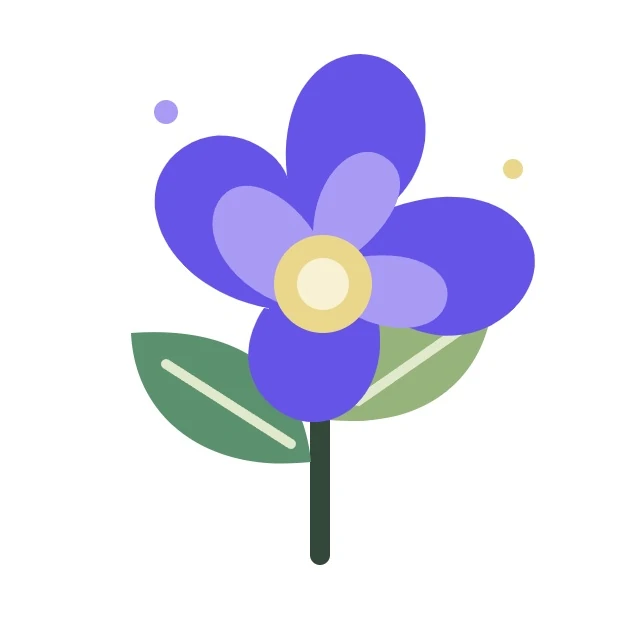
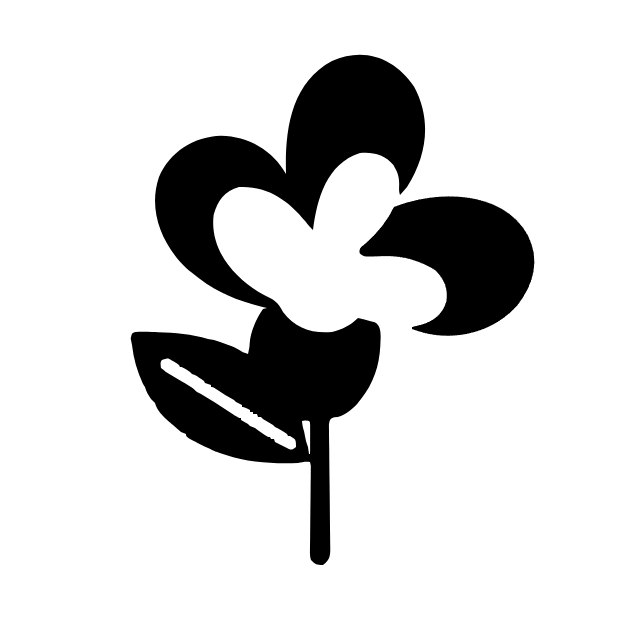
The worked example turns a color flower into two black SVG paths. Compare which details survive the threshold and which become transparent. Open JPG to SVG.
Choose JPG artwork and Line art
Open JPG to SVG and upload a JPG or JPEG. Logos and flat illustrations trace more predictably than textured photographs. The example uses the white-background JPG version of the sample flower.
Choose Line art. This selects Black and white tracing with starting values for detail, smoothing and cleanup. For a color treatment, choose Logo or Illustration and use Color mode.
Use a clean original when available. Compression artifacts can become unwanted vector edges.
Adjust threshold and compare
Black and white threshold decides which pixels become dark shapes. This example uses 128, with Line art defaults: Detail 3, Smooth curves 70 and Remove small speckles 4. Select Update preview after changing settings.
Use Original, Vector or Compare to inspect the result. The example produces two black paths. Dark flower and leaf regions remain; light petal areas, small dots and the white background disappear. This is threshold tracing, not a reconstruction of the original colors.
Under Refine edges and background, Preserve transparency leaves light regions clear in Black and white mode. Choose White for an opaque canvas. In Color mode, an opaque JPG background is traced as content instead of removed automatically.
Monochrome is deliberate simplification. Check whether pale lines, dots and lettering still communicate the design.
The example in this guide
Preset: Line art; Black and white mode; Threshold: 128; Detail: 3; Smooth curves: 70; Remove small speckles: 4; Background: Preserve transparency.
- Input
- 640 x 640 px
- Output
- 640 x 640 px
- Input file
- 26,681 bytes
- Downloaded file
- 8,650 bytes
- Vector paths
- 2
Check the downloaded vector
Select Start and download the SVG. The result keeps a 640 x 640 canvas and measures 8,650 bytes with two paths. Open it in a vector editor and check gaps and thin strokes at your intended display size.
If details disappear, adjust Black and white threshold or reduce Remove small speckles and update the preview. If subtle color distinctions matter, try Color mode or keep the JPG. Tracing cannot restore details lost to JPEG compression.
Batches use the same settings and produce a ZIP. Preview tracing uses up to a 1200-pixel longest side; final tracing uses up to 2048 pixels while retaining the original SVG canvas size.
Tracing text creates editable shapes, not its original font or editable text objects.
Common questions
Why did the white background disappear?
Black and white tracing keeps dark shapes and leaves light regions transparent. Selecting White adds an opaque canvas afterward.
Can I trace in color instead?
Yes. Choose Color under Tracing mode or start with Logo or Illustration. Colors requests a palette from 2 to 32.
Why did pale artwork disappear?
Threshold classifies light and dark regions. Change it, try Color mode or keep the source if pale details are essential.
Will every photo work well?
No. Photos can produce many irregular shapes or a strongly stylized result. Clean logos, drawings and flat artwork are generally better candidates.
Try the workflow with your own image, and keep your original file for future edits.
Try a sample or use your own file, and review the result before sharing.