


Tools95

MAKE SOMETHING GREAT

SVG Compressor.

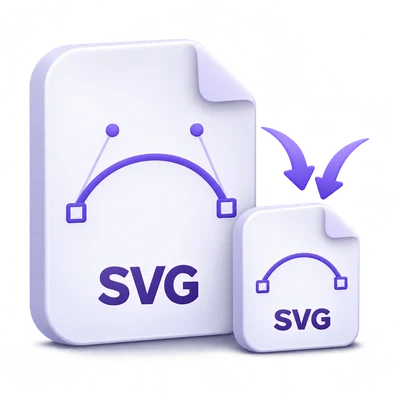
Compress and minify SVG files with a live comparison and size totals. Adjust precision, keep titles and descriptions, and download one SVG or a batch ZIP.

Advertisements
Your image workspace
On your device
or drag and drop here
SVG
Choose your image to get started.IMAGE
Advertisements
Blog How to compress SVG files Read the guide

Make SVG artwork lighter while reviewing every change

Optimize static SVG icons and illustrations with a side-by-side preview and file-size comparison. Adjust precision, keep accessible descriptions and download the optimized SVG or a ZIP of files.

A clear before-and-after view makes vector optimization easier to judge.
QUICK VIDEO TUTORIAL How to compress an SVG with a preview Choose an SVG, review the comparison, adjust precision and download the optimized vector. English narration Watch the video

How to compress an SVG with a preview

Features and controls

Upload SVG files or paste markup

Use the upload form or the Paste SVG tab.

Accepted SVG input

Upload up to 20 SVG files, each no larger than 2 MB. Paste SVG accepts one markup document and opens it as an image. The file must be well-formed SVG. Standard SVG document declarations are removed without loading external files; custom entity declarations and internal document subsets are rejected. The tool is intended for static vector artwork rather than interactive or animated SVG applications.

Compare sanitized original and optimized output

Two panels show the same artwork before and after optimization.

What the original preview means

Both previews contain sanitized static SVG. The Original panel is not a rendering of unsafe source markup. The optimized panel updates after a settings change. Byte counts compare the uploaded file size with the finished output, and the status reports a reduction or an increase accurately. An already compact SVG may not become smaller. File sizes appear next to Original and Optimized so you can compare the source bytes with the saved result.

Choose a practical level of precision

Decimal precision ranges from 1 to 5, starting at 3.

Numbers, curves and small details

Lower precision rounds geometry more aggressively and can reduce file size. It can also move fine edges or change a very small shape. Start at 3, compare the previews and raise precision for intricate artwork. Optimization also removes redundant metadata and simplifies eligible shapes and path data.

Keep accessible descriptions and useful IDs

Accessible titles and descriptions are kept by default.

Accessibility and external references

Keep accessible titles and descriptions retains the SVG title and description elements. Shorten internal IDs is enabled initially; internal references are updated together. Disable it when external CSS or JavaScript depends on specific IDs, then verify the SVG in its destination page. Readable output markup trades some compression for indented code.

Prepare responsive vector files

Responsive dimensions removes fixed sizing when a viewBox is available.

Sizing and markup inspection

A viewBox defines the vector coordinate system. Responsive dimensions allows CSS and the embedding context to set the display size without a fixed width and height on the SVG. It does not turn an image into a different aspect ratio. Open View optimized SVG markup to inspect the exact text that will be downloaded.

Save one file or the full batch

Original basenames are kept and multiple files download as one ZIP.

Local processing and sanitation

Parsing, sanitization and optimization run in the browser, using a local optimization worker with a time limit. Scripts, event handlers, external resources, animation and embedded raster images are removed. Your original file is not modified. Select Start to create the optimized output; check its appearance and behavior in the destination project before replacing a source asset.

Files and processing

Input
SVG files or pasted SVG markup
Output
Optimized SVG, or one ZIP for multiple SVG files

2 MB maximum per file. Up to 20 input files per run.

Up to 20 files at 2 MB each. Each SVG may contain up to 20,000 elements; complex files can reach the 15-second optimization limit.

SVG parsing, sanitation and optimization run on your device. Uploaded SVG files are not sent to the server for this tool.

This tool processes and exports files in your browser. The downloaded image is a separate file; the source on your device is not overwritten.

For an image result, use Continue to below the download results to choose a compatible next step. You can select which images to carry over; the next tool starts with its own settings.

Refreshing an editor or download page returns you to the tool page. Download the result before starting a new workflow. See our Privacy Policy for file handling.

FAQ

Good to know.

A few answers before you get started.

On your device
Will the optimized SVG look exactly the same?

The optimizer aims to preserve static appearance, but rounding and removal of unsupported content can change a file. Compare the previews and test the saved SVG in your project.

What does decimal precision change?

It controls the precision used for numeric geometry and path data. Lower values can reduce size but may shift fine details. The default is 3.

Does it keep the title and description?

Yes, by default. Leave Keep accessible titles and descriptions enabled to preserve those SVG elements.

Why are scripts or raster images missing?

This tool creates a static vector output. Scripts, events, external resources, animation and embedded raster images are intentionally removed during sanitation.

Can I keep IDs referenced by CSS?

Turn off Shorten internal IDs when external code depends on specific IDs. Verify the optimized file in the target page before replacing the original.

Are SVG files uploaded for optimization?

No. The tool performs parsing and optimization in the browser and downloads the result locally.

Can I upload an SVG with a DOCTYPE?

A standard SVG document declaration is accepted and removed without fetching its external identifier. Custom entity declarations and internal document subsets are rejected.

Advertisements

Language38

English العربية Français Italiano Deutsch Español Português Nederlands Русский Türkçe 日本語 中文 हिन्दी Bahasa Indonesia Bahasa Melayu 한국어 Tiếng Việt ไทย Polski Svenska Українська Norsk বাংলা Ελληνικά فارسی اردو Čeština Dansk Magyar Română Suomi Български Filipino ქართული Slovenčina Azərbaycanca עברית Slovenščina

Choose your language. Video tutorials currently use English narration.