

Tools95

MAKE SOMETHING GREAT

Favicon / ICO Generator.

Create favicons from an image or text. Preview browser tabs, use system fonts, and download a multi-size ICO or a ZIP of website, Apple and Android icons.

Advertisements
Your image workspace
On your device
or drag and drop here
PNG, JPG, JPEG, WEBP, GIF
Choose your image to get started.IMAGE
Advertisements
Blog How to create a favicon Read the guide

Create a favicon that stays clear at every size

Turn a logo, image or short monogram into a website favicon. Preview light and dark browser tabs, refine the framing, and download a multi-size ICO or a website-ready ZIP of icons and installation files.

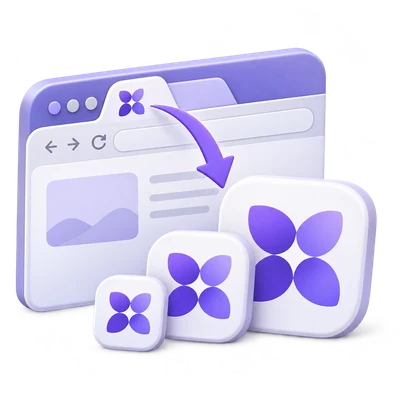
One clear mark becomes browser, bookmark and mobile website icons.
QUICK VIDEO TUTORIAL How to create a favicon and website icon package Choose an image, preview browser icons, set the website package and download all icon files in one ZIP. English narration Watch the video

How to create a favicon and website icon package

Features and controls

Start with an image or your initials

Upload an image, or choose Text on the tool page.

Image and text input

Image accepts PNG, JPG, JPEG, WebP or GIF. Text opens the same editor with your letters ready to style. Create from lets you switch between the uploaded image and a monogram. Use one or two simple characters for the clearest result at 16 pixels. GIF input uses a still frame; the result is not animated.

Judge the icon where it will appear

Light and dark browser previews show the same icon against different surfaces.

Actual-size previews

The editor shows a 16-pixel browser tab preview, separate 16, 32 and 48 pixel icons, and an Apple Touch preview. Small icons reveal details that disappear when a large logo is reduced. Simplify the source or add space around it until the smallest preview is recognizable. The Apple Touch image is displayed smaller than its exported 180-pixel size.

Give your artwork a clear silhouette

Choose a rounded square, square or circle and adjust the space around the content.

Fit, spacing and transparency

Show the whole image keeps all source edges inside the icon. Fill the icon covers the available area and may crop the edges. Space around content adjusts the padding from 0 to 35 percent. Choose Background or enable Transparent background. Transparent pixels outside a rounded or circular silhouette remain clear. This does not remove an opaque background already present in your uploaded image.

Create a distinct monogram

Set the letters, font and contrasting colors.

Text styling

Text / monogram supports up to three characters with the included Modern sans, Classic serif and Monospace styles. On supported desktop browsers, select Use system fonts and allow font access to populate the Font list with families installed on your device. Choose a family to update the live preview, or use the previous and next chevrons to compare neighboring fonts. Font names and files are not uploaded. The text automatically fits the available space. Preview the smallest icon sizes after changing font or color.

Choose ICO or a complete website package

One Start action creates the selected download.

Files and sizes

Multi-size ICO includes 16, 24, 32, 48, 64, 128 and 256 pixel images in one favicon.ico file. Website icon package creates one ZIP containing that ICO, PNG icons at 16, 32 and 48 pixels, an Apple Touch icon at 180 pixels, Android icons at 192 and 512 pixels, a web manifest and INSTALL.txt. Website name supplies the manifest name.

Install the icons on your website

The ZIP includes the HTML link tags and the matching filenames.

Using the installation files

Upload the package contents to the site root and copy the link tags from INSTALL.txt into the page head. If you keep icons in a subfolder, update the HTML paths and the paths inside site.webmanifest. Clear a cached favicon or test in a new tab when checking an update. The generated manifest is an icon configuration, not a full installation of a progressive web app.

Files and processing

Input
PNG, JPG, JPEG, WebP, GIF, or a text monogram
Output
A multi-size ICO, or one ZIP of website icons and installation files

25 MB maximum per file. One input file per run.

One image up to 25 MB, with up to 60 megapixels and 16,000 pixels per side. ICO sizes range from 16 to 256 pixels; the largest packaged PNG is 512 × 512 pixels.

Icon generation and previews run on your device. The tool does not upload the selected image for conversion.

This tool processes and exports files in your browser. The downloaded image is a separate file; the source on your device is not overwritten.

Refreshing an editor or download page returns you to the tool page. Download the result before starting a new workflow. See our Privacy Policy for file handling.

FAQ

Good to know.

A few answers before you get started.

On your device
Can I create a favicon without uploading a logo?

Yes. Select Text, enter your initials, then choose the font, colors, shape and spacing in the editor.

Which sizes are inside the ICO file?

The ICO contains seven PNG-based frames: 16, 24, 32, 48, 64, 128 and 256 pixels square. The browser selects an appropriate frame.

What is included in the website ZIP?

It contains favicon.ico, six PNG icons for browser, Apple and Android use, site.webmanifest and INSTALL.txt with the HTML link tags.

Can my favicon have a transparent background?

Yes. Enable Transparent background. This preserves transparent areas around the source; it does not remove an opaque background from a photo.

Is the image uploaded for conversion?

No. This tool generates and packages the icon files in your browser. Keep the downloaded files because the editor is not permanent project storage.

Can I use fonts installed on my computer?

Yes, when your browser supports local font access. Choose Text / monogram, select Use system fonts and allow the browser permission. Your available font families appear in the Font list. The included styles remain usable if permission is declined or local font access is unavailable.

Advertisements

Language38

English العربية Français Italiano Deutsch Español Português Nederlands Русский Türkçe 日本語 中文 हिन्दी Bahasa Indonesia Bahasa Melayu 한국어 Tiếng Việt ไทย Polski Svenska Українська Norsk বাংলা Ελληνικά فارسی اردو Čeština Dansk Magyar Română Suomi Български Filipino ქართული Slovenčina Azərbaycanca עברית Slovenščina

Choose your language. Video tutorials currently use English narration.