

Follow this worked example, then adapt the same controls to your own image. Open Favicon / ICO Generator.
Choose a clear logo or start with initials
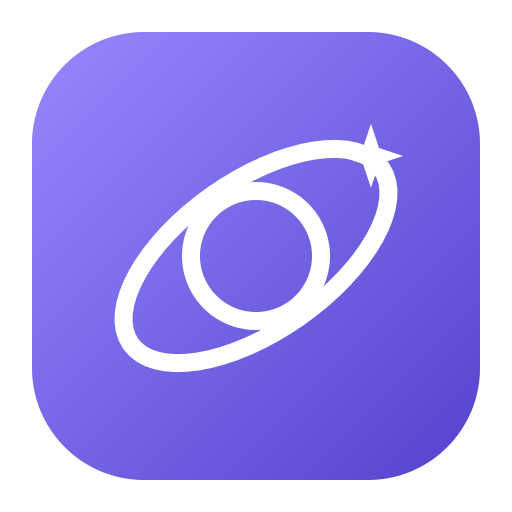
Open Favicon / ICO Generator and choose Image. Upload a PNG, JPG, JPEG, WebP or GIF, or select Try a sample. The worked example uses favicon-orbit.png, a 512 × 512 pixel violet orbit mark with transparent corners. The input is 202,491 bytes.
For a brand without a finished logo, select Text on the tool page. Enter one or two letters and choose Continue. The editor offers Modern sans, Classic serif and Monospace fonts, plus separate text and background colors. Up to three characters are accepted, but extra characters can become difficult to recognize at small sizes.
Keep the original artwork. The generator creates new icon files and does not overwrite the source. GIF input becomes a still icon rather than an animated favicon.
For a monogram, the Font menu starts with three included styles. Select Use system fonts on a supported desktop browser and allow access to add the fonts installed on your device. Use the previous and next chevrons to compare adjacent fonts, or pick a family and inspect the live preview, especially at 16 pixels. Fonts stay on your device; the included styles work without permission.
Use a simple silhouette. A detailed photograph can look attractive at 512 pixels but become an indistinct spot at 16 pixels.
Refine the framing and inspect small previews
The editor displays light and dark browser tabs plus previews at common icon sizes. Check the 16-pixel example first; it is the strictest test of whether the mark remains recognizable. The Apple Touch preview represents a 180-pixel export and is displayed smaller in the workspace.
On a phone, open Settings. Leave Create from set to Uploaded image and Image fit set to Show the whole image. For this sample, set Space around content to 0 and enable Transparent background. The source already contains its own rounded violet shape and clear margins, so it does not need an additional colored background.
With a different source, Show the whole image keeps its edges, while Fill the icon may crop them. Rounded square, Square and Circle define the outer shape. Transparent background preserves clear areas but cannot remove an opaque background already drawn into a photo. Review the smallest preview after every framing change.
A logo with transparent corners can pick up an unwanted second frame if you add a separate opaque background. Preview both background choices.
The example in this guide
Try a sample: favicon-orbit.png, 512 × 512 px. Uploaded image; Show the whole image; Rounded square; Space around content 0%; Transparent background enabled; Website icon package (ZIP); Website name My website.
- Source image
- 512 × 512 PNG · 202,491 bytes
- ICO frames
- 16, 24, 32, 48, 64, 128 and 256 px
- Package
- 9 files · 304,351 bytes
- Shown result
- Real 256 × 256 ICO frame
Choose a multi-size ICO or the website package
Under Download, choose Website icon package (ZIP) for this example. Leave Website name at My website for the sample, or replace it with the real brand name for your own project. This name is used in site.webmanifest; it is not added as text over the image.
Select Start. The browser generates a seven-frame favicon.ico with square images at 16, 24, 32, 48, 64, 128 and 256 pixels. It also creates PNG icons at 16, 32, 48, 180, 192 and 512 pixels, a manifest and installation instructions. The result is one ZIP rather than a separate download button for every icon.
If you only need a classic favicon.ico, choose Multi-size ICO instead. This is useful when a website platform accepts an ICO upload and does not need a separate package.
The package is a set of website icon assets. It does not automatically turn the site into a progressive web app.
Download, install and verify the icon files
Download saves website-icons.zip. The actual worked example contains nine files and is 304,351 bytes. The comparison above shows the 512-pixel source beside the genuine 256-pixel frame extracted from the exported ICO, rather than a simulated browser screenshot.
Extract the ZIP, upload the icon files to your website root and read INSTALL.txt. It includes HTML link tags for the ICO, PNG icon, Apple Touch icon and web manifest. If you place the files in a subfolder, update both the HTML paths and the icon paths inside site.webmanifest.
Check your site in a fresh browser tab and on the devices you care about. Browsers can cache favicons, so an old icon does not immediately prove the installation failed. Keep the source image and downloaded package before refreshing the editor, because a refresh returns to the main tool page.
Choose one canonical icon location and keep the HTML paths consistent. The generator creates assets; publishing them remains part of your website workflow.
Common questions
Can I create a favicon without uploading a logo?
Yes. Select Text, enter your initials, then choose the font, colors, shape and spacing in the editor.
Which sizes are inside the ICO file?
The ICO contains seven PNG-based frames: 16, 24, 32, 48, 64, 128 and 256 pixels square. The browser selects an appropriate frame.
What is included in the website ZIP?
It contains favicon.ico, six PNG icons for browser, Apple and Android use, site.webmanifest and INSTALL.txt with the HTML link tags.
Can my favicon have a transparent background?
Yes. Enable Transparent background. This preserves transparent areas around the source; it does not remove an opaque background from a photo.
Is the image uploaded for conversion?
No. This tool generates and packages the icon files in your browser. Keep the downloaded files because the editor is not permanent project storage.
Can I use fonts installed on my computer?
Yes, when your browser supports local font access. Choose Text / monogram, select Use system fonts and allow the browser permission. Your available font families appear in the Font list. The included styles remain usable if permission is declined or local font access is unavailable.
Give your next website a clear small signature.
Try a sample or use your own file, and review the result before sharing.