Extract the example palette first, then use precise picking and manual edits to decide which colors belong in your own project. Open Image Color Picker.
Upload and extract a starting palette
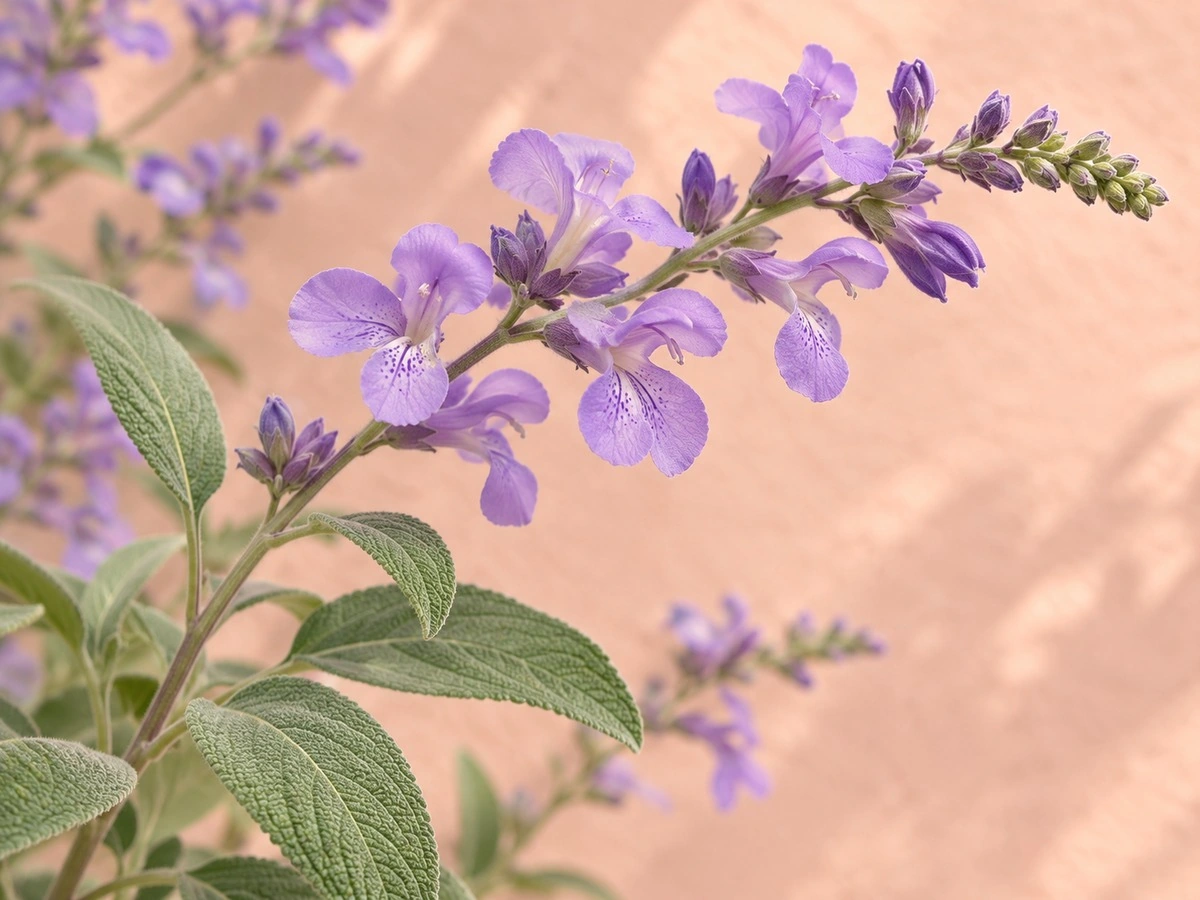
Open Image Color Picker and upload one supported image, or try the sample. Automatic extraction uploads the source to the server. The sample in this guide is collage-botanical.jpg, a 1200 x 900 photo of flowers, leaves and a peach-colored background.
Leave Colors to extract at 6 and select Dominant for the example. Dominant favors the main image colors, while Vibrant gives colorful accents more influence. A request can use 3 to 12 colors; an image with fewer distinct visible groups may return fewer.
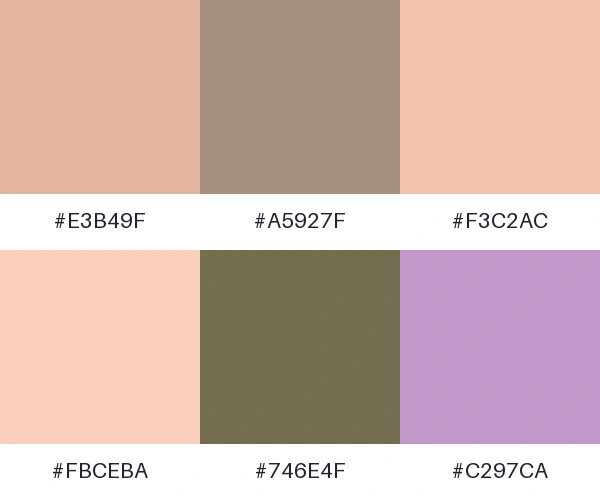
The actual Dominant result contains #E3B49F, #A5927F, #F3C2AC, #FBCEBA, #746E4F, #C297CA. The largest group is #E3B49F at approximately 28.88% of the sampled visible pixels. The extraction used a 512 x 384 sample; those percentages are not an exact census of the full-resolution image.
A palette color can be an average of nearby colors. Pick a particular pixel when you need the value of one small detail.
Pick and refine individual colors
Click or tap the image to inspect a pixel with the magnifier. Focus the image and use arrow keys to move one pixel, Shift plus an arrow to move ten, then Enter to pick. Copy HEX, RGB or HSL with its individual copy button, or use Add to palette.
Select a swatch to change its HEX value or color, move it left or right, or remove it. Add a custom color accepts a HEX value of your choice. Lock color preserves a selected swatch when Refresh palette or a changed extraction setting generates another starting palette.
Sampling & transparency offers Source color and Composite over a background. Source color includes opacity in copied codes when relevant; Composite shows the pixel blended over the chosen Sample background. Palette swatches themselves are opaque RGB values. Edited and picked colors have no estimated source percentage.
Browser-decodable images use browser sRGB samples. If a normalized preview is used, the picker explicitly labels its colors and coordinates as approximate.
The example in this guide
Colors to extract: 6; Dominant; no manual changes or locks; Save as: PNG. Automatic extraction sampled 512 x 384 pixels.
- Source image
- 1200 x 900 px
- Extracted colors
- 6 opaque colors
- Palette card
- 600 x 500 px
- Downloaded PNG
- 9,163 bytes
Check a text and background pair
Open Check color contrast. Set Text and Background with the color controls, enter HEX codes, or use the picked color for either side. The live text sample lets you compare the pair, and the ratio is accompanied by separate Normal AA, Normal AAA, Large AA and Large AAA results.
Choose a pair for the intended purpose rather than assuming every extracted color can be used as text. A light peach and a light purple can work together in a photo while making a poor text-and-background combination.
This control checks only that pair of colors for text contrast. It is not a complete accessibility audit and does not decide whether typography, keyboard interaction or the rest of the design is usable.
A passing contrast ratio is a useful check, not a guarantee that a whole page is accessible.
Copy values or export the palette
For a quick handoff, copy an individual code or use Copy palette HEX colors. For a file, choose Save as and select Start. PNG makes a labeled palette image; SVG keeps the swatches and labels as vector content; CSS provides numbered color variables; JSON contains HEX, RGB and HSL values.
The unedited six-color example exports palette.png at 600 x 500 pixels and 9,163 bytes. Its swatch order matches the palette. Your final palette may contain 1 to 12 colors after editing, even when the automatic starting count was different.
Download before leaving or refreshing. The final export uploads the source and chosen colors for server processing. It creates a new palette file and does not recolor or replace the original photo.
PNG and SVG are convenient visual references. CSS and JSON are useful when the next step needs reusable color values.
Common questions
Does the eyedropper return the same colors as automatic extraction?
Not necessarily. A picked value describes a particular source or preview pixel. Automatic extraction groups sampled pixels and can return averaged colors.
Are transparent pixels counted?
Fully transparent pixels are excluded from extraction. Partially transparent pixels have reduced weight. Source sampling can show opacity, but exported palette swatches are opaque.
What happens to locked colors when I refresh?
Locked colors remain in the palette while new extracted colors fill the other positions. A retained or edited color is not assigned a made-up image percentage.
Can I use this for an exact brand color?
Enter a known HEX value directly or pick a suitable source pixel. Photo lighting, compression, color management and normalized previews can change sampled values, so an automatic photo palette is not proof of an original brand specification.
Build a palette you can carry into your next design
Try a sample or use your own file, and review the result before sharing.