

Tools95

MAKE SOMETHING GREAT

Passport & ID Photo Maker.

Size printed passport and ID photos with movable head guides, make 4x6 or A4 print sheets, or check an original online application photo. Free, no AI retouching.

Advertisements
Your image workspace
On your device
or drag and drop here
JPG, JPEG, PNG, WEBP, GIF, BMP
Choose your image to get started.IMAGE
Advertisements
Blog How to size an ID photo and create a print sheet Read the guide

Size printed ID photos or check an online passport photo

Choose the passport-issuing country and application type. Printed photo mode provides crop, head-measurement and print-sheet controls. Online mode checks the original file against the selected file requirements and keeps it unchanged.

Prepare a measured printed photo or review an original file for an online application.
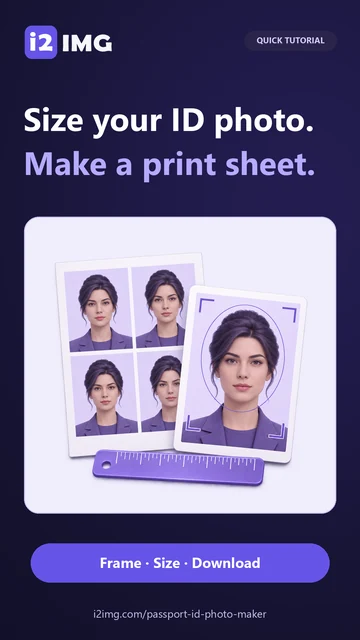
QUICK VIDEO TUTORIAL Size your ID photo. Make a print sheet. Use movable head, chin and face-center guides, fit the marked head, choose a six-copy 4 by 6 inch print sheet and download the real JPG at 300 DPI. Manual sizing does not establish passport acceptance. English narration Watch the video

Size your ID photo. Make a print sheet.

Features and controls

Choose your country and application type

Use the flag-labelled country list, then choose Printed photo or the available online application option.

Country, application type and dimensions

In the Application card, choose the country issuing the passport, not the country where the photo was taken. Select Printed photo for physical sizing, Online renewal for the US or Canada, or Online application for the UK. Custom ID size is available for other physical dimensions. The selected application type changes the controls and official requirements link. Printed sizes are US 2 × 2 inches (50.8 × 50.8 mm), UK 35 × 45 mm and Canada 50 × 70 mm. Their printed head-height ranges are respectively 25.4–34.925 mm, 29–34 mm and 31–36 mm. Custom width is 10–100 mm and height is 10–150 mm. These printed measurements are not digital-upload requirements. Official guidance reviewed on 10 November 2026; use the source link for the current rules.

Choose the crop and measure your head

Start with the whole photo visible, then place the head, chin and optional face-centre guides for printed-photo framing.

Placing the guides and fitting the marked head

Printed photo mode initially shows the whole source image inside the photo frame. White space may appear where its proportions differ from the chosen size. Drag the handles labelled Drag to head top and Drag to chin onto the anatomical head top and bottom of the chin, excluding high hair or a beard. Move Drag to face center horizontally through the middle of the face or nose to mark its centre. Head top and chin are required for Fit marked head; the face-centre marker is optional. Fit marked head scales the marked height to the middle of the selected printed-photo range, centres it vertically and uses your marked face centre for horizontal positioning when supplied. Review the result yourself. For a different source region, choose Crop photo above the preview, adjust its frame, then Apply crop. Its proportions follow the selected physical size. Cancel leaves the photo unchanged. Photo zoom remains 10% to 350%; drag the photo or use position sliders for adjustments. Fit photo shows the selected source area. Reset framing or Home clears the crop and all markers and restores the whole original photo. Arrow keys move the focused photo; + / - changes zoom. These are manual measurements, not face detection or approval. Guides never appear in downloads. Online mode keeps the complete original and has no crop or framing controls.

Preview a sheet before printing

Choose the number of photos to repeat on one 4 × 6 inch or A4 sheet, with an immediate layout preview.

Sheet capacity and number of copies

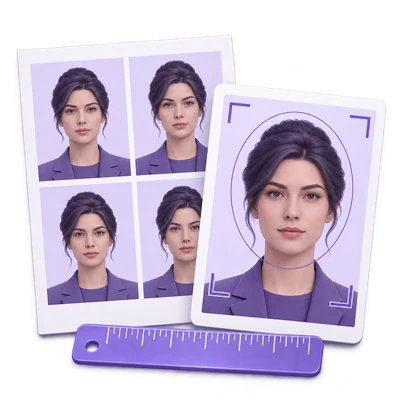
In Printed photo mode, copies per sheet controls repeated photos inside one downloaded image, not separate image files. Choosing a print layout or changing copies or gaps automatically shows the print sheet. Six US 2-inch photos fit a 4 × 6 inch sheet only with zero gaps; even a small positive gap reduces that layout to two. If the requested count does not fit, the settings show the actual capacity and Start remains disabled. Use Remove gaps to fit 6, choose an A4 sheet when offered, or explicitly choose a lower count. No photo is silently reduced in size, and export never silently drops requested copies. Photo and Print sheet toolbar buttons let you inspect either view.

Keep the intended print dimensions

Choose 150, 300 or 600 DPI and save as JPG or PNG.

DPI, export dimensions and printing

Printed photo mode: The pixel dimensions are calculated from millimetres and the selected DPI, rounded to the nearest pixel. Sheet capacity and positions use physical millimetres, so changing preview resolution does not change the photo layout. A US 2-inch photo at 300 DPI is 600 × 600 pixels. A 4 × 6 sheet at that resolution is 1800 × 1200. PNG stores a pHYs density field and JPG stores JFIF density. Print at actual size or 100%; a printer’s fit-to-page option changes the result. A4 at 600 DPI exceeds the 32-megapixel output budget, so use 300 DPI for that sheet. Download saves only the selected photo or print-sheet image; no separate attributes text file is included. Size, copy count and DPI remain visible in settings.

Start with a suitable source photo

Use a recent, sharp portrait with even light and the required background.

Source photo requirements

No background removal, skin smoothing, face reshaping or other AI edits are applied. A correct crop cannot repair an unsuitable expression, background, lighting or source image. Canada requires a commercial photographer and professional printing and does not accept home-printed photos. Follow the issuer’s requirements before using any output for an official application. UK printed photos must not be a cut-down version of a larger picture and must be unaltered by computer software; use its preset as a sizing reference, not a claim that editing makes a photo acceptable.

Check an original photo for an online application

Review file checks and country-specific instructions without cropping or re-encoding your original.

Checks for online application files

Online mode shows File checks and Download cards. The US publishes a 54 KB–10 MB file-size range and lets you crop or reposition within its renewal application; it does not publish a fixed pixel or head-height target on that guidance page. UK digital photos need at least 600 pixels width and 750 pixels height, within 50 KB–10 MB; for your own-device photo, leave the head, shoulders and upper body visible and let the official service crop it. Canada online renewal requires an original JPEG supplied by a commercial photographer: portrait width-to-height ratio 2:3, between 1200 × 1800 and 3000 × 4500 pixels, and 200 KB–5 MB. Its head-height reference is 45–50% of image height; this tool does not automatically measure the face. File checks cover supported numerical and format requirements, not expression, lighting, photo age, photographer provenance or acceptance. The original file is kept unchanged, with no crop, print sheet, DPI conversion or re-encoding. Follow the linked official instructions before submitting it.

Official photo requirements

Check the issuing authority's instructions for your application type before submitting a photo.

Files and processing

Input
JPG, JPEG, PNG, WebP, GIF and BMP
Output
Printed mode: one JPG or PNG photo or sheet. Online mode: the unchanged original file.

25 MB maximum per file. One input file per run.

25 MB per image, up to 32 megapixels and 16,384 pixels per side. Animated inputs use their first still frame.

Image decoding, editing and export run in your browser without AI or uploading the image for processing. The site may use other network services; browser image processing is separate from those services. Refreshing the editor or results page returns to the tool page.

This tool processes and exports files in your browser. The downloaded image is a separate file; the source on your device is not overwritten.

For an image result, use Continue to below the download results to choose a compatible next step. You can select which images to carry over; the next tool starts with its own settings.

Refreshing an editor or download page returns you to the tool page. Download the result before starting a new workflow. See our Privacy Policy for file handling.

FAQ

Good to know.

A few answers before you get started.

On your device
Is a 2 × 2 inch photo always 600 × 600 pixels?

It is 600 × 600 pixels at 300 DPI. At 150 DPI it is 300 × 300, and at 600 DPI it is 1200 × 1200. The selected density is embedded in the exported JPG or PNG.

Does the tool guarantee passport acceptance?

No. Printed mode provides sizing, crop and layout aids; online mode checks supported file-format and numerical requirements. The issuer also considers the source photograph, age, expression, lighting, background, photographer and application method. Read the official link for your selection.

Does Copies per sheet create separate image files?

No. It repeats your photo inside one print-sheet image. For example, six copies on a 4 × 6 sheet downloads one image containing a 3-by-2 arrangement of six photos.

Can I make six photos on a 4 × 6 sheet?

Yes, six US 2-inch photos fit on a 4 × 6 inch sheet with Gap between copies set to zero. Larger photos or gaps reduce the fitted count.

Do the guides appear in my saved photo?

No. The head, chin and movable face-centre guides and measurements are editor-only aids. Cutting outlines appear on a print sheet only when enabled.

Can I make a Canadian passport photo at home?

Canada’s printed-passport requirements call for a commercial photographer and professional printing. The preset helps with dimensions but does not replace that service.

How do I make the head the right size?

In Printed photo mode, the entire original is visible when you start. Place Drag to head top and Drag to chin on those points. Optionally move Drag to face center through the middle of the face or nose, then choose Fit marked head. The calculation uses your markers and the selected print dimensions; a marked face centre also guides horizontal positioning. Check that the required area remains visible. If it cannot fit within the zoom limits, adjust the crop or use a suitable original. Online mode keeps the original photo unchanged instead.

Should I crop a photo for a UK online passport application?

For a photo taken on your own device, GOV.UK says to include the head, shoulders and upper body and not crop it yourself. The application service handles cropping. Choose United Kingdom and Online application to review the original file without changing it.

Do online mode and printed mode produce the same file?

No. Printed photo mode renders a JPG or PNG at the selected physical size and DPI, either alone or on a sheet. Online mode preserves the original file and its dimensions; it does not convert a printed-size crop into an online application photo.

Advertisements

Language38

English العربية Français Italiano Deutsch Español Português Nederlands Русский Türkçe 日本語 中文 हिन्दी Bahasa Indonesia Bahasa Melayu 한국어 Tiếng Việt ไทย Polski Svenska Українська Norsk বাংলা Ελληνικά فارسی اردو Čeština Dansk Magyar Română Suomi Български Filipino ქართული Slovenčina Azərbaycanca עברית Slovenščina

Choose your language. Video tutorials currently use English narration.