

Tools95

MAKE SOMETHING GREAT

Image to Pixel Art.

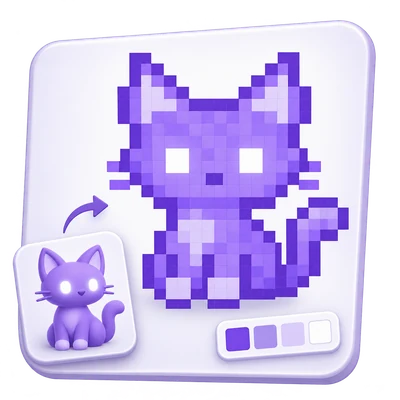
Turn a photo or illustration into pixel art. Set the grid, choose a retro or custom palette, add dithering and download a sharp PNG or pixel-based SVG.

Advertisements
Your image workspace
On your device
or drag and drop here
JPG, JPEG, PNG, WEBP, GIF, BMP, AVIF
Choose your image to get started.IMAGE
Advertisements
Blog How to turn an image into pixel art with a color palette Read the guide

Convert photos and illustrations into crisp pixel art

Reduce an image to a small grid, choose its colors and preview a retro treatment. Select a whole-number output scale, then create a PNG or an SVG made from colored pixel cells.

A clear subject, a small grid and a deliberate palette
QUICK VIDEO TUTORIAL How to turn an image into pixel art Choose an image, set a 32-cell grid and Ocean palette in Settings, then download a crisp PNG at an 8x output scale. English narration. English narration Watch the video

How to turn an image into pixel art

Features and controls

Choose how much detail to keep

Set the longest grid edge from 8 to 256 cells.

Grid size and proportions

Grid size controls the number of cells before enlargement. The shorter edge follows the source aspect ratio. Quick buttons offer 16, 32, 64, 128 and 256. A small grid gives a bold silhouette; a larger grid keeps facial features and lettering more recognizable.

Build a limited palette

Use colors from your image, a preset or your own HEX values.

Palette choices

From your image derives 2 to 32 colors. Original colors keeps sampled colors without palette reduction. Soft retro, Handheld, Black and white, Dusk and Ocean provide fixed palettes. Choose Custom colors, then enter 2 to 32 six-digit HEX colors in Custom palette separated by spaces, commas or semicolons. Palette choices change the image immediately.

Choose how pixels are sampled

Smooth the image first, or preserve nearest sampled pixels.

Smooth versus nearest

Smooth before reducing blends details into each cell and often works well for photos. Nearest original pixels keeps a sampled pixel without that blending and can suit existing pixel graphics. Compare both when thin outlines disappear or fine textures look noisy.

Use dithering deliberately

Create texture with ordered or error-diffusion patterns.

Dithering options

None produces cleaner blocks of color. Ordered introduces a repeated pattern; Floyd-Steinberg distributes color error into nearby cells to suggest extra tones. Dithering is available with a reduced palette and is hidden for Original colors. It can help gradients but may add noise to small faces or text.

Preview the grid without exporting it

Check cell placement and compare with the original.

Preview and transparency

Pixel grid in preview overlays cell boundaries for grids up to 128 cells on the longest edge; the overlay is not part of the export. Original, Undo and Redo help compare choices. With a reduced palette, pixels below the alpha cutoff become transparent and the others become opaque, so soft translucent edges are simplified.

Export crisp squares

Enlarge by 1, 2, 4, 8 or 16 and save PNG or SVG.

Output scale and SVG

Whole-number scaling repeats each pixel as a square without smoothing. For example, a 32 by 24 grid at 8x becomes 256 by 192 pixels. PNG is convenient for sharing. SVG stores colored rectangular cell runs, not traced curves or an AI reconstruction. The preview grid is omitted from both formats.

Files and processing

Input
One JPG, JPEG, PNG, WebP, GIF, BMP or AVIF that your browser can decode. Animated inputs use a still frame.
Output
One PNG or an SVG made from colored pixel rectangles.

25 MB maximum per file. One input file per run.

Up to 25 MB per uploaded image. Decoded sources must be within 64 megapixels and 16,384 pixels per edge.

Image editing and export run in your browser; the source file stays unchanged.

Files are processed on the server. Preview preparation may also upload a file when browser decoding is unavailable or a document preview is needed. Server downloads are available to your session for up to two hours.

For an image result, use Continue to below the download results to choose a compatible next step. You can select which images to carry over; the next tool starts with its own settings.

Refreshing an editor or download page returns you to the tool page. Download the result before starting a new workflow. See our Privacy Policy for file handling.

FAQ

Good to know.

A few answers before you get started.

Temporary server processing
Is this an AI pixel-art generator?

No. It samples an uploaded image into a grid and optionally reduces its colors. It does not invent new objects or redraw the subject with AI.

What grid size should I start with?

Try 32 or 64 cells on the longest edge. Use a smaller grid for a simple silhouette or a larger grid when the subject needs more detail.

Can I enter my own palette?

Yes. Choose Custom colors, then enter 2 to 32 six-digit HEX colors in Custom palette separated by spaces, commas or semicolons.

Why does the PNG look blurry in another app?

Some viewers smooth enlarged images. Export at a whole-number scale and use nearest-neighbor scaling if you enlarge the result elsewhere.

Will the preview grid appear in the download?

No. Pixel grid in preview is an editor aid and is excluded from PNG and SVG exports.

Is the SVG a smooth vector tracing?

No. It contains colored rectangular pixel cells. Use Image to SVG when you want a separate vector-tracing workflow.

Advertisements

Language38

English العربية Français Italiano Deutsch Español Português Nederlands Русский Türkçe 日本語 中文 हिन्दी Bahasa Indonesia Bahasa Melayu 한국어 Tiếng Việt ไทย Polski Svenska Українська Norsk বাংলা Ελληνικά فارسی اردو Čeština Dansk Magyar Română Suomi Български Filipino ქართული Slovenčina Azərbaycanca עברית Slovenščina

Choose your language. Video tutorials currently use English narration.