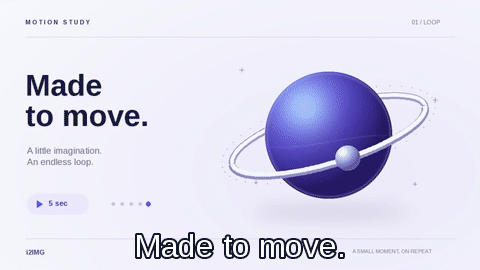

Follow this video example, then adapt the selected interval, frame rate and playback speed to your own recording. Open GIF Maker.
Choose a video clip
Open GIF Maker and select Video. Upload your clip or choose Try an example to load a prepared sample. Video mode works with one source file and gives you a trim timeline before GIF export.
Video mode accepts one MP4, MOV, M4V or WebM file up to 100 MB, with a source duration of up to five minutes and supported dimensions up to 4K. The video inside the file must use a supported encoding. A filename ending in .mp4 alone does not guarantee it can be decoded.
For this example, choose Video and Try an example. The source is gif-video-orbit.mp4: a five-second, 640 × 360 animation at 24 frames per second. The server prepares the timeline and keeps a temporary private source for export. Browser-supported videos play locally; some videos need a compatible server preview.
Start with a short source and a clear subject. A GIF usually works best when one movement or small sequence communicates the idea.
Trim the clip and set its timing
In Video mode, drag the purple handles on the filmstrip to select the useful interval. Start and End accept exact times in seconds; Use playhead sets an edge to the current preview position. Zoom to clip makes a small selection easier to adjust, and Reset trim restores the initial selection.
Set Start to 1 and End to 3 for the example. This selects two seconds from the original five-second video. Set Smoothness to 20 FPS and Playback speed to 2× · double speed. The converter samples 40 frames from that selection and plays them in one second.
Video selections can be up to 20 seconds, but the final animation is also limited to 200 rendered frames. A 20-second selection fits at 10 FPS; at 20 FPS, a forward-playing selection must be no longer than ten seconds. Bounce adds frames on the return journey and can reach the limit sooner.
Smoothness changes how many video frames are sampled. Playback speed changes how quickly those frames play. Increasing speed does not reduce the frame count or bypass the 200-frame limit.
The example in this guide
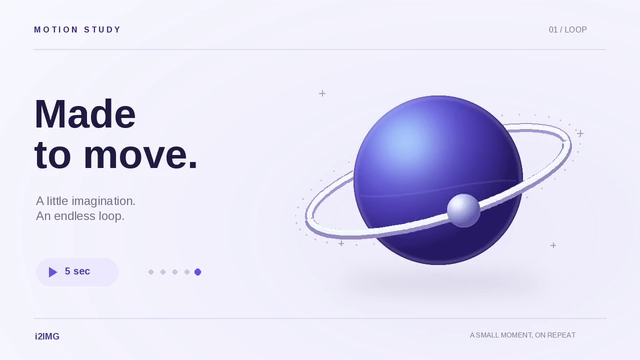
Video sample; Start 1 s; End 3 s; 20 FPS; 2× speed; Balanced 480 px; original crop; Forward; Repeat forever; caption: Made to move. Bottom placement; 32 px; white; 256 colors; Smooth color gradients and Optimize GIF enabled.
- Source video
- 640 × 360 px · 5 seconds
- Selected interval
- 1–3 seconds · 20 FPS
- Downloaded GIF
- 480 × 270 px · 40 frames
- Animation cycle
- 1 second · repeats forever
Choose size, framing, captions and playback
For the worked video example, leave Size at Balanced · 480 px, Playback at Forward and Loop at Repeat forever. Keep the original aspect ratio and enter Made to move. in Caption. Leave its position at Bottom, text size at 32 px and text color white. The finished dimensions are 480 × 270 pixels.
Size limits the longest output edge while preserving the selected crop shape. Video choices are 320, 480, 640 and 960 px; smaller sources are not automatically enlarged. Under Crop & framing, choose a square, portrait, story or landscape ratio when the destination needs it. Use Zoom and drag the preview to reframe the subject; the trash icon resets the crop.
Forward keeps the original direction. Reverse plays backward. Bounce plays forward and returns without repeating both endpoint frames. Loop controls whether the sequence repeats forever or a chosen number of times. Preview the transition from the end back to the beginning; a convincing loop depends on that join.
Under File optimization, Colors offers 32, 64, 128 or 256 colors. Smooth color gradients uses dithering to soften color steps, while Optimize GIF reduces redundant encoded information where possible. The example keeps 256 colors and both options enabled. Fewer colors can reduce size but may create visible bands or alter fine details.
For a lighter GIF, shorten the selection first, then try a smaller Size or lower FPS. Higher playback speed can make the loop shorter without making the file substantially smaller.
Create the GIF, inspect it and download
Use the Play button above the preview to check the selected animation. Video trimming, framing and caption adjustments update the browser preview. Select Create GIF when you are happy with the result; the final GIF is encoded on the server and opens on the download page.
The example downloads animation.gif at 480 × 270 pixels, with 40 frames and a one-second animation cycle. It repeats forever. The article comparison shows the source video frame at one second and the corresponding first frame of the genuine output, including the added caption. These still previews demonstrate appearance; they do not play the animation.
Check the downloaded GIF in an app that supports animation. Confirm the crop, caption, pacing and loop join. GIF uses a limited color palette and centisecond timing, so the final colors and motion can differ slightly from the video preview. The result contains no audio.
Download before refreshing or leaving. Refreshing the editor or download page returns to the main tool page. To revise the same video during the current workflow, go Back, change the settings and create another result; the staged source can be reused without uploading the video again.
A short GIF can be much larger than its source MP4. Video compression and GIF compression work differently; trimming a clip is not a promise that the resulting file will be smaller.
Common questions
Can I animate photos instead of using a video?
Yes. GIF Maker also has an Images mode with frame ordering, duration and transition controls. The separate images tutorial explains that workflow.
Which video formats can I upload?
MP4, MOV, M4V and WebM are supported when their internal video encoding is compatible. Upload one file up to 100 MB, up to five minutes long and within the supported 4K resolution limit. AVI and MKV uploads are not offered in this version.
Can I paste a YouTube or movie URL?
No. Video mode accepts an uploaded file. It does not fetch videos from a website or download a clip from a streaming service.
Why does the editor ask me to shorten a clip that is already under 20 seconds?
The animation must also fit within 200 rendered frames. More FPS or Bounce playback uses that budget sooner. Reduce the selected duration or FPS, or change Bounce to Forward.
Can I keep sound in the GIF?
No. GIF output contains image frames and timing, not an audio track. The source video's audio is not included.
Why does the final GIF look different from the preview?
The preview draws the source video or images. GIF encoding reduces colors to the selected palette and rounds timing to centiseconds. Lower color counts and small output dimensions can make these differences more noticeable.
Is the whole conversion performed on my device?
No. Browser playback and ordinary preview adjustments happen locally when supported, but the source is uploaded for validation and final server encoding. A compatible preview may also be prepared on the server when the browser cannot decode the video.
Make a loop with a clear beginning and a satisfying return
Try a sample or use your own file, and review the result before sharing.