
Upload a GIF and extract all frames or a numbered selection as separate PNG or JPG images. Open GIF Frame Extractor.
Choose a frame range
Open GIF Frame Extractor and select Choose images, drag in a supported file, or use the sample. On a phone, open Settings to reach the same controls.
Enter one-based frame numbers in Frames. Use a single number for one still, a range such as 1-3, or a list such as 1, 4, 7.
Frame numbers refer to animation frames, not seconds. Different frames can have different durations.
Choose PNG or JPG
Use PNG when you need the clearest edges or transparency; choose JPG for a conventional photographic still.
The saved result is a still image. Extracting frames does not retain the GIF's playback timing.
The example in this guide
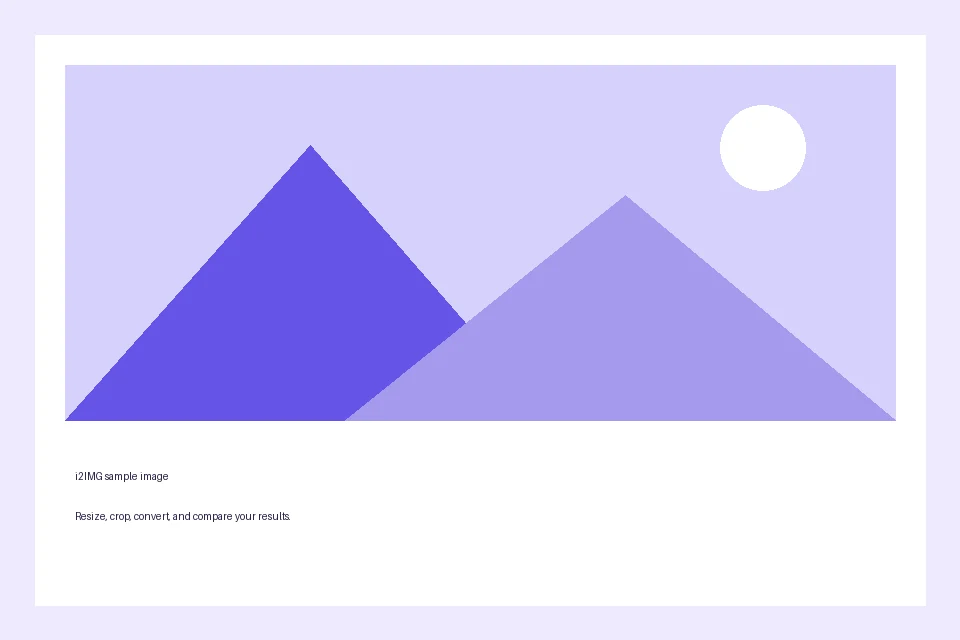
Frames: 1
- Input
- 960 x 640 px
- Output
- 960 x 640 px
- Input file
- 18,118 bytes
- Downloaded file
- 8,933 bytes
Save the selected stills
Select Start. Download one image for a single result or the ZIP when several frames are extracted.
Keep the downloaded copy before starting a new task. Refreshing an editor or download page returns to the main tool page; normal Back navigation can restore the current workflow.
Open the selected output to confirm it is the intended moment; a still preview cannot explain the complete animation.
Common questions
What should I check in the downloaded result?
Open the selected output to confirm it is the intended moment; a still preview cannot explain the complete animation.
How does GIF Frame Extractor work?
Upload a GIF and extract all frames or a numbered selection as separate PNG or JPG images.
Can I extract just one GIF frame?
Yes. Enter its number in Frames, starting at 1, and choose PNG or JPG before Start.
Try this with your own file.
Try a sample or use your own file, and review the result before sharing.