
Select the useful area of a GIF, choose an aspect ratio, and save a cropped copy. Open GIF Cropper.
Frame the content to keep
Open GIF Cropper and select Choose images, drag in a supported file, or use the sample. On a phone, open Settings to reach the same controls.
Drag the crop frame's edge or corner handles. Drag inside the frame to move the selection without changing its size.
Keep a little room around faces, lettering and important edges. A tight preview can hide a cut that becomes obvious when the image is printed.
Choose proportions before fine-tuning
Use Free form for an unrestricted rectangle, or select an aspect-ratio preset when the destination requires a particular shape.
A ratio controls the shape, not the final number of pixels. Crop first; use Resize Image afterward if the destination specifies exact dimensions.
The example in this guide
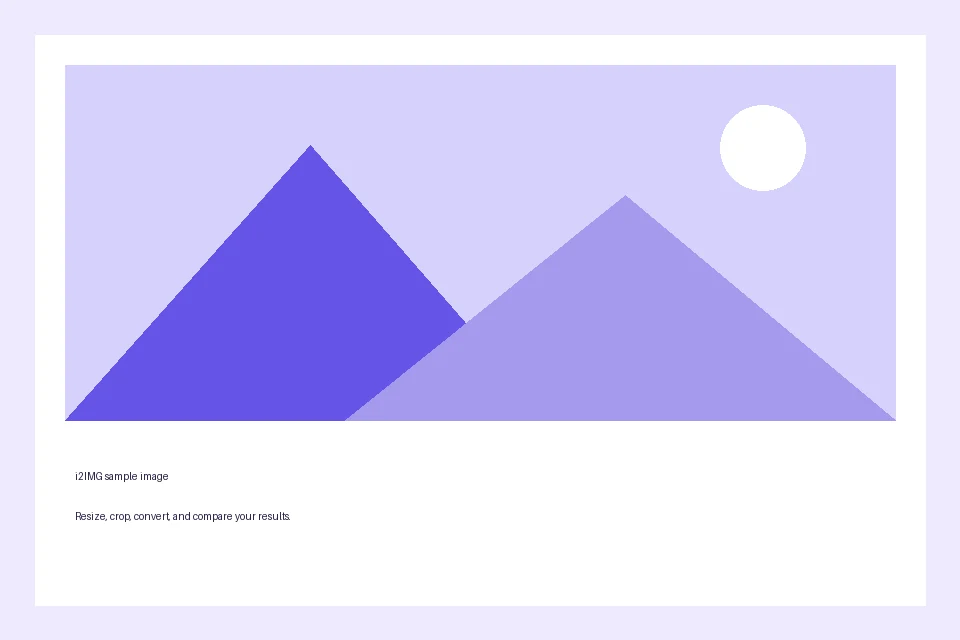
Selection: Drag bottom-right crop handle inward; Cropsummary: 732 × 463 px selected
- Input
- 960 x 640 px
- Output
- 732 x 463 px
- Input file
- 18,118 bytes
- Downloaded file
- 10,249 bytes
Check the cropped result
Use the toolbar trash action to reset the frame if needed. Select Start when the kept area is correct.
Keep the downloaded copy before starting a new task. Refreshing an editor or download page returns to the main tool page; normal Back navigation can restore the current workflow.
The downloaded image contains the crop. Save your original separately if you may need the removed edges later.
Common questions
What should I check in the downloaded result?
The downloaded image contains the crop. Save your original separately if you may need the removed edges later.
How does GIF Cropper work?
Select the useful area of a GIF, choose an aspect ratio, and save a cropped copy.
Does cropping also resize the selected region?
No. The crop chooses source pixels. Use Resize Image afterward when you need a specific output width or height.
Try this with your own file.
Try a sample or use your own file, and review the result before sharing.