

Tools95

MAKE SOMETHING GREAT

Colorize Image.

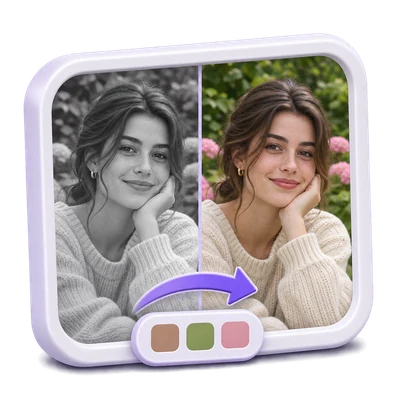
Upload a JPG or PNG, adjust the crop if needed, choose a color treatment, and generate a colorized PNG while keeping your original monochrome photo.

Advertisements
Your image workspace
Temporary server processing
or drag and drop here
JPG, JPEG, PNG, WEBP, HEIC
Choose your image to get started.IMAGE
Advertisements
Blog How to colorize a black-and-white image Read the guide

Add a color interpretation to a black-and-white photo

Upload a JPG or PNG, adjust the crop if needed, choose a color treatment, and generate a colorized PNG while keeping your original monochrome photo.

Colorize Image — from source to finished result
QUICK VIDEO TUTORIAL How to colorize a black-and-white image Start with a clear monochrome image. English narration Watch the video

How to colorize a black-and-white image

Features and controls

Frame the area to colorize

Resize and move the crop frame, or leave the full image selected.

How to adjust and reset the crop

Drag an edge or corner handle to resize the frame, then drag inside to move it. Arrow keys move the focused frame or resize a focused handle; hold Shift for larger steps. The Reset crop trash button in the image toolbar restores the full image and resets Aspect ratio to Freeform.

Choose an aspect ratio

Use Freeform, a standard ratio or a grouped social-media preset.

What the aspect-ratio presets change

Freeform is the default. Fixed choices include 1:1, 4:3, 4:5, 3:4, 2:3 and 9:16, followed by Facebook, Instagram, LinkedIn, Twitter, YouTube, TikTok and Pinterest groups. Selecting a preset fits the frame to that ratio and keeps it while resizing. Dimensions shown in social presets describe the ratio; they do not set the downloaded pixel dimensions.

Choose a color treatment

Select Natural colors, Vivid colors, or Balanced colors.

How to choose a treatment

Natural colors is selected initially. These choices guide the colorization request; they do not reveal the original colors of clothes, objects or surroundings.

Let the photograph guide the result

Start with a clear, well-lit scan or photograph.

How source quality affects color

Distinct edges and readable detail give the service more information. Strong damage, clipped highlights and heavy shadows can lead to uncertain colors. Use Restore Image separately if you also want to work on faded details.

Choose the file you will use

Select File format before Start, then download the finished result.

What is saved

Download the colorized PNG and compare skin, fabric and background regions with the source. The original upload remains unchanged.

Work with WebP and HEIC

Use common web and phone image formats.

Input preparation and output behavior

WebP and HEIC can be uploaded alongside the other formats listed for this tool. HEIC uses its first image with orientation applied. Full-resolution HEIC pixels are prepared with temporary server processing when a browser editor needs them.

Choose image export options

For a single image result: review a raster result and choose its download format.

Formats, quality, animation and saving

These controls are available for a supported single image result, not a ZIP archive. Above the image results, choose a file if needed and open Image options. Original keeps the current file bytes and format until you explicitly choose an export or change an image setting. PNG, JPG and WebP are available, with quality choices for JPG/WebP and the actual encoded file size. Opening the panel or cancelling does not replace your download. For animated PNG, GIF or WebP, first confirm that you want a separate still-image copy; the animated original remains available. PDF, TIFF, SVG, PostScript and DICOM files keep their native download path. Save changes updates the selected image and any existing ZIP archive. Other images in the batch retain their current contents. Multiple image results use one ZIP download. Use the image selector to review or adjust an individual image; image previews do not each add a Download button.

Prepare a print-sized image

For a single image result: set inches or centimeters and 150 or 300 PPI.

Actual print dimensions and placement

These controls are available for a supported single image result, not a ZIP archive. In Image options, open Print size assistant. Selecting 4 x 6, 5 x 7, 6 x 8, 8 x 10 inches or a custom size enables Apply print size to download. At 300 PPI, 4 x 6 creates 1200 x 1800 pixels and 6 x 8 creates 1800 x 2400 pixels. Fit with margins keeps the whole image on white paper; Fill and crop fills the page using a centered crop. Both preserve proportions. PNG, JPG and WebP exports include print density. Disable the setting to return to the original result dimensions. Resizing does not run AI again or guarantee additional detail.

Compare the image result

For a single image result: inspect matching before-and-after views and save a comparison card.

Alignment and reversible adjustments

These controls are available for a supported single image result, not a ZIP archive. When an aligned original is available, Image options shows a before-and-after divider, synchronized zoom and pan, Fit, 100%, Hold original and Full screen. Download comparison saves a separate PNG card of the current original/result view. No comparison is invented when the source is unavailable or no longer matches the frame. Blend with original starts at 100% result; lower values mix in the aligned source locally. The immutable result stays available, and this adjustment does not make another AI request.

Files and processing

Input
JPG, JPEG, PNG, WebP, HEIC
Output
PNG

25 MB maximum per file. One input file per run.

Images must stay within 60 million pixels each. Supported multi-frame processing is limited to 200 source frames; aggregate processing and output-size limits also apply. The selected image is prepared at up to 4,096 pixels along its longest side before recognition or AI processing.

The input is sent for AI processing when you select Start. Server downloads are available to your session for up to two hours.

For an image result, use Continue to below the download results to choose a compatible next step. You can select which images to carry over; the next tool starts with its own settings.

Refreshing an editor or download page returns you to the tool page. Download the result before starting a new workflow. See our Privacy Policy for file handling.

FAQ

Good to know.

A few answers before you get started.

Temporary server processing
How does Colorize Image work?

Upload a JPG or PNG, adjust the crop if needed, choose a color treatment, and generate a colorized PNG while keeping your original monochrome photo.

Can it recover the exact original colors?

No. Color is estimated from the image. Use known references if the historical color of an object matters.

How do I return to the full image?

Use the Reset crop trash button in the image toolbar. It restores the full crop frame and resets Aspect ratio to Freeform while keeping your selected color treatment.

Can I choose an image format or print size after processing?

Yes, for browser-supported raster results. Open Image options, choose PNG, JPG or WebP, or apply a print size. Save the result or download the separate copy indicated by the panel. Animated inputs require confirmation to create a still-frame copy; native document and vector downloads remain available.

Advertisements

Language38

English العربية Français Italiano Deutsch Español Português Nederlands Русский Türkçe 日本語 中文 हिन्दी Bahasa Indonesia Bahasa Melayu 한국어 Tiếng Việt ไทย Polski Svenska Українська Norsk বাংলা Ελληνικά فارسی اردو Čeština Dansk Magyar Română Suomi Български Filipino ქართული Slovenčina Azərbaycanca עברית Slovenščina

Choose your language. Video tutorials currently use English narration.