
Change a PNG’s pixel dimensions or scale, then save as PNG or another available image format. Open Resize PNG.
Choose dimensions for the destination
Open Resize PNG and select Choose images, drag in a supported file, or use the sample. On a phone, open Settings to reach the same controls.
Select Pixels when a form or website specifies exact dimensions. Enter Width and Height; keep the aspect ratio linked to avoid stretching. Choose Percentage for a proportional reduction.
A smaller file in bytes is a different target from a smaller image in pixels. Set dimensions first, then compress only if the destination also limits file size.
Review every image in the board
Use Add images to build a batch. With Use these settings for all images enabled, changes apply across it; turn this off to adjust one selected image.
Check the preview dimensions for portrait and landscape sources separately. An exact width and height with the ratio unlocked changes the proportions.
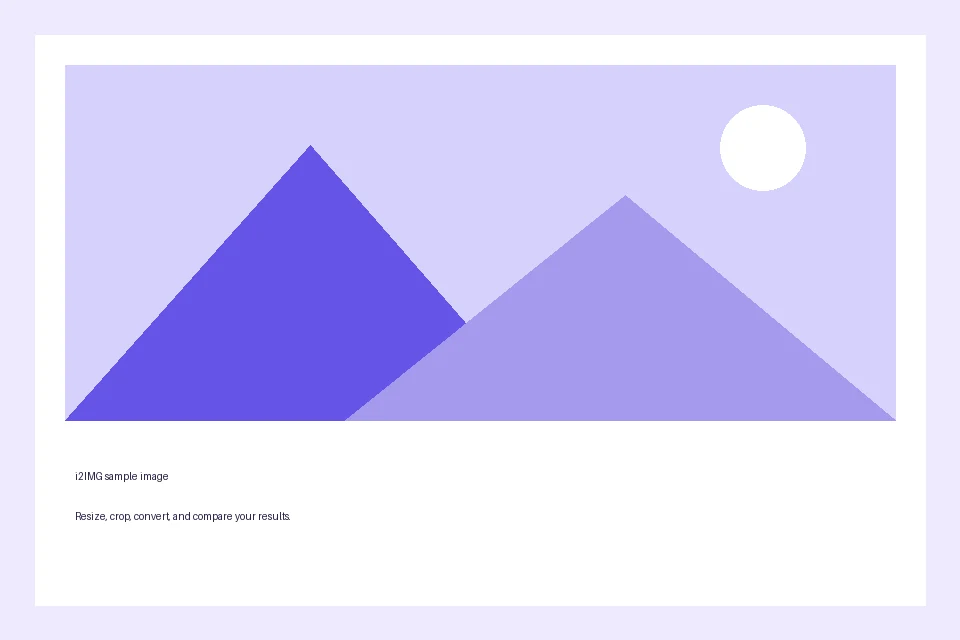
The example in this guide
Width: 640 px
- Input
- 960 x 640 px
- Output
- 640 x 427 px
- Input file
- 9,994 bytes
- Downloaded file
- 17,746 bytes
Choose a usable output
Keep Original when the current format suits the destination, or select the offered PNG, JPG or WebP option.
Keep the downloaded copy before starting a new task. Refreshing an editor or download page returns to the main tool page; normal Back navigation can restore the current workflow.
Resizing a still preview does not make it a complete preview of animation. Review the downloaded file in its intended viewer.
Common questions
What should I check in the downloaded result?
Resizing a still preview does not make it a complete preview of animation. Review the downloaded file in its intended viewer.
How does Resize PNG work?
Change a PNG’s pixel dimensions or scale, then save as PNG or another available image format.
How do I get an exact width and height?
Choose Pixels in Resize by, turn Keep aspect ratio off, and enter both dimensions. A Quick preset also uses exact dimensions and turns the lock off. With the lock on, changing one dimension updates the other to preserve the image proportions.
Try this with your own file.
Try a sample or use your own file, and review the result before sharing.