
Upload GIF frames, arrange the page previews, choose page layout settings, and download one PDF. Open GIF to PDF.
Arrange the page order
Open GIF to PDF and select Upload Files, drag in a supported file, or use the sample. On a phone, open Settings to reach the same controls.
Add the source images and arrange their cards in the order you want the PDF pages.
Check the orientation of each card. A batch can contain both portrait and landscape images; ordering and page size are separate decisions.
Choose page size and fit
Select a page size such as A4, or fit pages to the images. Set orientation, margins, fit and background as needed.
Fit the whole image when every edge matters. A fill-style fit can crop edges to occupy the page; inspect the preview before Start.
The example in this guide
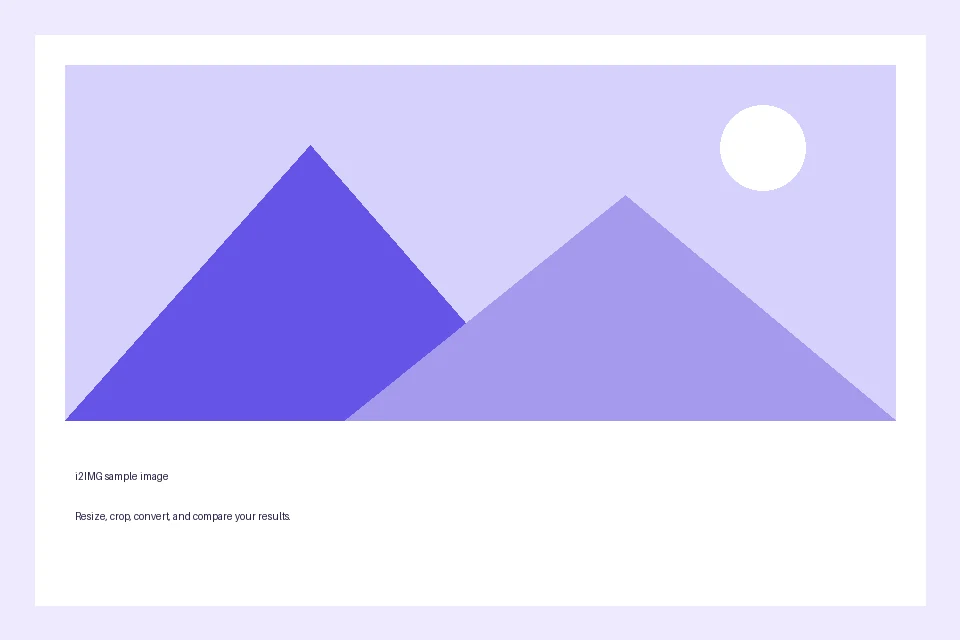
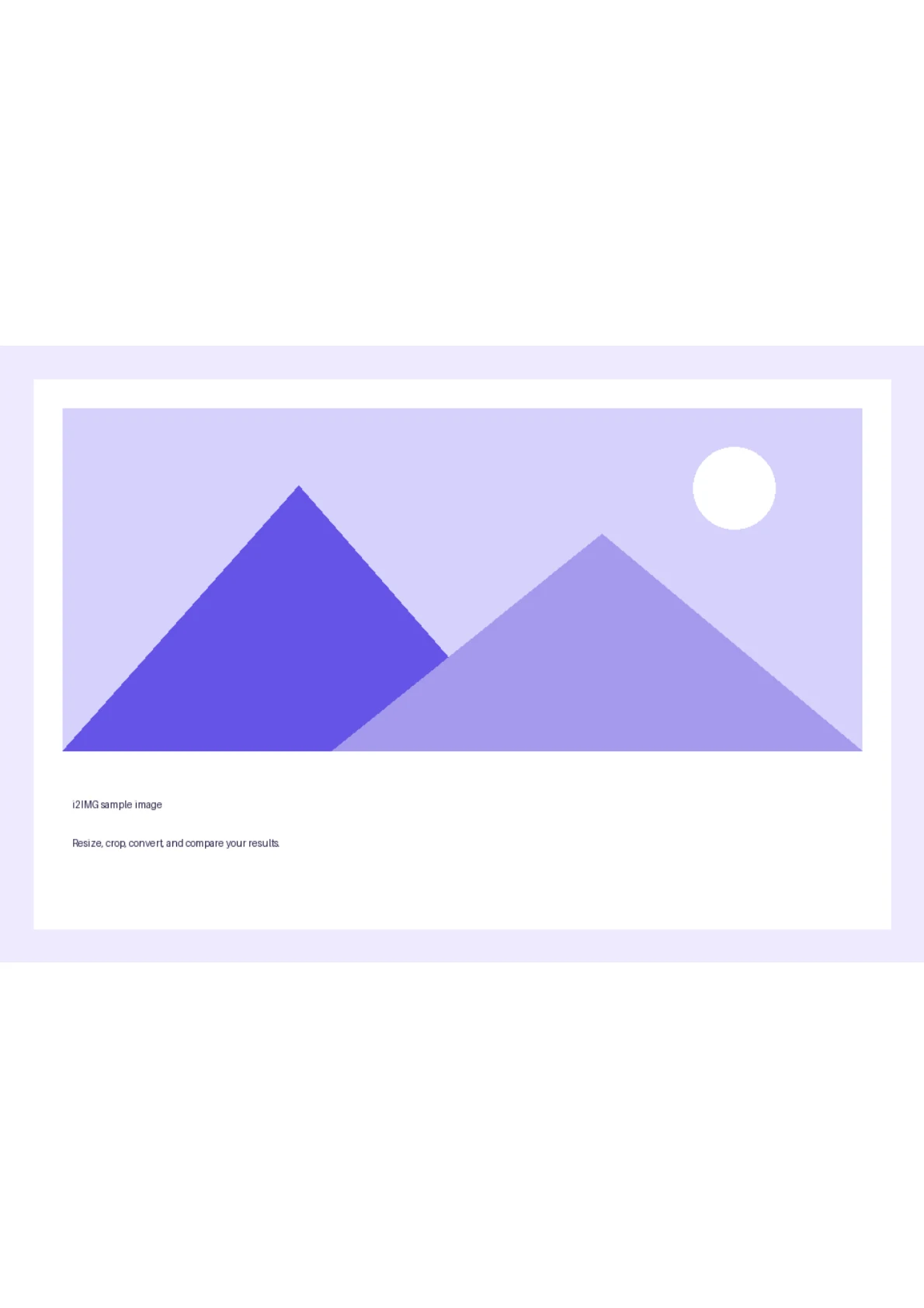
Page size: A4; Orientation: Portrait
- Input
- 960 x 640 px
- Output
- 2 PDF pages; 595 x 842 pt on page 1
- Input file
- 18,118 bytes
- Downloaded file
- 32,336 bytes
Save and inspect the PDF
Select Start, download the PDF and check its page order and page dimensions.
Keep the downloaded copy before starting a new task. Refreshing an editor or download page returns to the main tool page; normal Back navigation can restore the current workflow.
The image content is placed into PDF pages. Creating a PDF from a picture does not by itself make the pictured text searchable.
Common questions
What should I check in the downloaded result?
The image content is placed into PDF pages. Creating a PDF from a picture does not by itself make the pictured text searchable.
How does GIF to PDF work?
Upload GIF frames, arrange the page previews, choose page layout settings, and download one PDF.
Does this make text in the image editable?
No. The PDF contains the visual image pages. Use Image to Text for OCR when you need recognized text.
Try this with your own file.
Try a sample or use your own file, and review the result before sharing.