

Tools95

MAKE SOMETHING GREAT

Meme Generator.

Make memes with editable templates, captions you can move and rotate, and your own fonts. Replace each photo and download PNG, JPG or WebP without a watermark.

Advertisements
Your image workspace
On your device
or drag and drop here
JPG, JPEG, PNG, WEBP, GIF, BMP, AVIF
Choose your image to get started.IMAGE
Advertisements
Blog How to make a meme with editable text and templates Read the guide

Make a meme with editable captions and your own pictures

Start with your photo, Robot reaction or Two moods. Choose a layout, type directly on the image and use compact floating controls to style each caption. Select Start to create a PNG, JPG or WebP.

Your image, editable captions and a finished meme
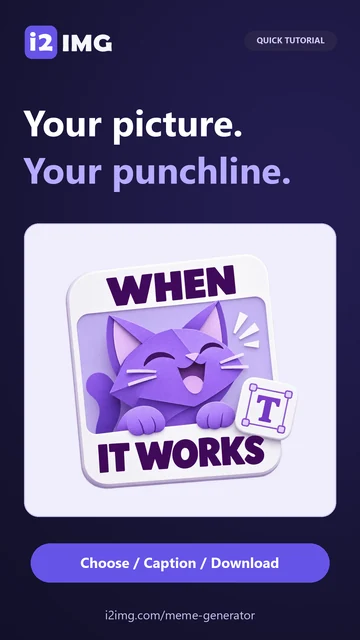
QUICK VIDEO TUTORIAL How to make a meme with editable captions Choose Robot reaction, type directly on the image, move a caption, set its pixel size and rotation, then download the actual PNG. English narration. English narration Watch the video

How to make a meme with editable captions

Features and controls

Start with a useful layout

Six arrangements cover classic memes, headlines and two-picture jokes.

What each template changes

Classic keeps captions over the image. Headline and The punchline add a white caption band above or below it. Expectation / reality uses two side-by-side images; What they think puts two pictures beside separate caption areas. Spotlight frames a picture with space for a headline. Changing a template replaces its starter captions and arrangement, so choose the layout before writing or use Undo to recover an earlier version.

Write directly on the image

Select a caption and edit its words in place.

How to edit and position captions

Click or tap the caption to type. Drag its move handle to reposition it, use the corner handles to resize it, or use the round rotation handle to tilt it. Font includes a pixel-size control, Text width, alignment and an exact Rotation value. Short captions are easier to read; check that long or rotated text stays within the canvas.

Give each caption its own style

Choose a font, color, outline or background without leaving the preview.

Font and appearance controls

The floating Font button opens typeface, bold, italic, uppercase, size and position controls. Text appearance holds color, opacity, outline and background. Choosing an outline or background color also enables that effect. Use system fonts requests access to installed fonts only in supported browsers; the included fonts remain available if access is unavailable or declined.

Replace every picture

Single-image and two-image templates both support your own photos.

Image replacement and fit

Use Replace image beneath a single-image canvas, or the replace button on either panel of a two-image layout. The Images settings card offers the same choices. Each panel can be replaced independently. Image fit fills the panel or shows the whole photo; Flip image horizontally mirrors the pictures. A filled panel may crop the source edges.

Build and revise the joke

Add, duplicate, layer or delete captions, with Undo and Redo.

Caption limits and history

Add text creates another caption, up to 16 layers and 1,000 characters per caption. Duplicate caption, Bring to front and Delete caption are directly in the floating toolbar. Bring to front changes the stacking order when captions overlap. Undo and Redo recover recent edits while you remain in the editor.

Save a finished meme

Export one static image with no added watermark.

Formats and editable layers

PNG keeps sharp lettering and transparent areas. JPG and WebP use image compression. Select Start, then Download. The result is flattened: caption objects do not remain editable in the downloaded file. Layouts keep their longest output edge within 4,000 pixels. Make any alternative versions before leaving the editor.

Files and processing

Input
One JPG, JPEG, PNG, WebP, GIF, BMP or AVIF that your browser can decode. Animated inputs use a still frame.
Output
One PNG, JPG or WebP image.

25 MB maximum per file. One input file per run.

Up to 25 MB per uploaded image. Decoded sources must be within 64 megapixels and 16,384 pixels per edge.

Image editing and export run in your browser; the source file stays unchanged.

Files are processed on the server. Preview preparation may also upload a file when browser decoding is unavailable or a document preview is needed. Server downloads are available to your session for up to two hours.

For an image result, use Continue to below the download results to choose a compatible next step. You can select which images to carry over; the next tool starts with its own settings.

Refreshing an editor or download page returns you to the tool page. Download the result before starting a new workflow. See our Privacy Policy for file handling.

FAQ

Good to know.

A few answers before you get started.

Temporary server processing
Is this meme maker free and watermark-free?

Yes. Create and download a meme without signing up or adding an i2IMG watermark.

Can I use two different photos?

Yes. Choose Expectation / reality or What they think, then replace image 1 and image 2 independently.

How do I edit text on a phone?

Tap a caption to type in place. Use its move handle to reposition it, and Font for size, width, alignment and rotation.

Can I use fonts installed on my computer?

Use system fonts requests browser permission to read available local font names where that browser supports the feature. Included fonts work without that permission.

Can I edit the captions after downloading?

The downloaded PNG, JPG or WebP is a flattened image. Keep the editor open to make alternatives; the download does not contain separate text layers.

Does uploading a GIF create an animated meme?

No. This tool uses a still frame and exports a static image. Choose GIF Maker when you need animation.

Advertisements

Language38

English العربية Français Italiano Deutsch Español Português Nederlands Русский Türkçe 日本語 中文 हिन्दी Bahasa Indonesia Bahasa Melayu 한국어 Tiếng Việt ไทย Polski Svenska Українська Norsk বাংলা Ελληνικά فارسی اردو Čeština Dansk Magyar Română Suomi Български Filipino ქართული Slovenčina Azərbaycanca עברית Slovenščina

Choose your language. Video tutorials currently use English narration.