Tools95

MAKE SOMETHING GREAT

Blur, Pixelate & Redact Image.

Blur or pixelate selected image areas, or cover private text with solid redaction. Move and resize regions, undo edits, and save PNG, JPG or WebP in your browser.

Advertisements
Your image workspace
On your device
or drag and drop here
JPG, JPEG, PNG, WEBP, GIF, BMP
Choose your image to get started.IMAGE
Advertisements
Blog How to blur, pixelate or redact part of an image Read the guide

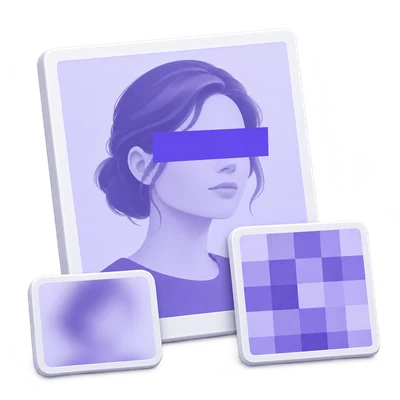
Blur or pixelate image areas, or cover them with solid redaction

Draw editable rectangles over details you want to hide, choose a different effect for each one and check the live preview. Export one flattened PNG, JPG or WebP image while keeping the original file unchanged.

Several sensitive areas are covered while the rest of the image stays readable.
QUICK VIDEO TUTORIAL Share the image. Hide the detail. Draw a rectangle over a fictional contact address, choose opaque redaction and download a permanently flattened PNG image. English narration Watch the video

Share the image. Hide the detail.

Features and controls

Mark several areas precisely

Draw rectangles on the image or choose Add region to start with a centered selection.

Drawing, moving and resizing regions

The tool supports up to 60 regions. Select an existing rectangle to move it and drag its lower-right handle to resize. The selected-region menu identifies each effect. Left, Top, Width and Height percentage fields offer precise positioning without a pointer gesture. Keep the complete sensitive detail inside the region.

Choose the effect for each region

Opaque redact, Pixelate and Blur can coexist in the same image.

Effect settings and defaults

New regions default to Pixelate at Strength 20. Opaque redact replaces every selected pixel with the chosen solid color. Pixelate groups detail into blocks; Blur softens it. Strength adjusts blur radius or pixel block size, relative to source dimensions, from 1 to 100. Switching regions restores that region’s own effect and strength. The effect preview is smaller than the exported original-resolution image.

Undo, refine and reset

Use Undo, Redo, Delete region and Clear all above the image.

Undo, redo and keyboard controls

Undo and Redo restore recent region edits. Delete region removes only the selected rectangle; Clear all removes every region and can itself be undone. A new source starts a new edit history. Keyboard users can focus the image, move a selected region with arrows, resize with Shift plus arrows and remove it with Delete.

Use solid redaction for sensitive details

Blurring and pixelating a detail do not reliably conceal its meaning.

When to choose opaque redaction

Strong patterns, short codes, faces or text can remain identifiable after blur or pixelation. Choose Opaque redact for information you need to remove from the shared image and cover the entire detail. Review the saved image, including every corner, before sharing it. The tool does not automatically locate private information.

Save flattened pixels

Select PNG, JPG or WebP, then Start and Download.

Image formats and flattened output

Export renders from the original image dimensions and applies each region in order. The output contains no editable region layers and no source EXIF metadata. PNG uses lossless encoding; JPG and WebP offer Image quality. A PNG can preserve source transparency outside your regions. JPG fills transparent areas with white. Keep the source separately if you want to edit it again.

Files and processing

Input
JPG, JPEG, PNG, WebP, GIF and BMP
Output
One flattened PNG, JPG or WebP image

25 MB maximum per file. One input file per run.

25 MB per image, up to 32 megapixels and 16,384 pixels per side. Animated inputs use their first still frame.

Image decoding, editing and export run in your browser without AI or uploading the image for processing. The site may use other network services; browser image processing is separate from those services. Refreshing the editor or results page returns to the tool page.

This tool processes and exports files in your browser. The downloaded image is a separate file; the source on your device is not overwritten.

For an image result, use Continue to below the download results to choose a compatible next step. You can select which images to carry over; the next tool starts with its own settings.

Refreshing an editor or download page returns you to the tool page. Download the result before starting a new workflow. See our Privacy Policy for file handling.


FAQ

Good to know.

A few answers before you get started.

On your device
Can I use blur and redaction on different areas?

Yes. Each region has its own mode, strength and color. Select the region before changing its effect.

Can someone remove the redaction layer?

The exported image has no editable redaction layer. Opaque redact replaces the covered pixels. The original file on your device still contains the original information, so share only the reviewed output.

Is blur suitable for private text?

Opaque redact is the appropriate choice when the text must be removed from the shared image. Blurring or pixelating can leave clues or readable detail.

Can I undo after downloading?

The editor retains recent region history while the current workflow remains open. The downloaded file is flattened and cannot restore the covered source pixels.

Does the original image leave my browser?

Not for this tool’s image processing. Supported files are decoded, previewed and exported locally. It does not require an AI service.

Why does a new rectangle look pixelated?

Pixelate is the default effect, with Strength 20. Select that region and change Effect to Blur or Opaque redact. Choose opaque coverage for sensitive text and check the saved result.

Advertisements

Language38

English العربية Français Italiano Deutsch Español Português Nederlands Русский Türkçe 日本語 中文 हिन्दी Bahasa Indonesia Bahasa Melayu 한국어 Tiếng Việt ไทย Polski Svenska Українська Norsk বাংলা Ελληνικά فارسی اردو Čeština Dansk Magyar Română Suomi Български Filipino ქართული Slovenčina Azərbaycanca עברית Slovenščina

Choose your language. Video tutorials currently use English narration.