
Upload images, set a rotation angle, and save new copies with the orientation you need. Open Rotate Images.
Choose the direction
Open Rotate Images and select Choose images, drag in a supported file, or use the sample. On a phone, open Settings to reach the same controls.
Use Left or Right for a quarter-turn, or enter Angle for a more specific rotation. Check the image after each change.
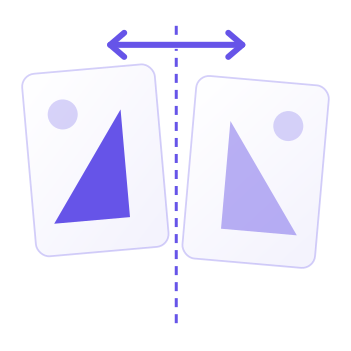
Turning a portrait sideways and mirroring it solve different problems. Use the flip controls only when you want the left and right or top and bottom exchanged.
Review each source
Select a thumbnail above the active image. Disable Use these settings for all images when only one image needs correction.
Inspect lettering and landmarks to confirm orientation. A mirror can make text backward even when the image looks balanced.
The example in this guide
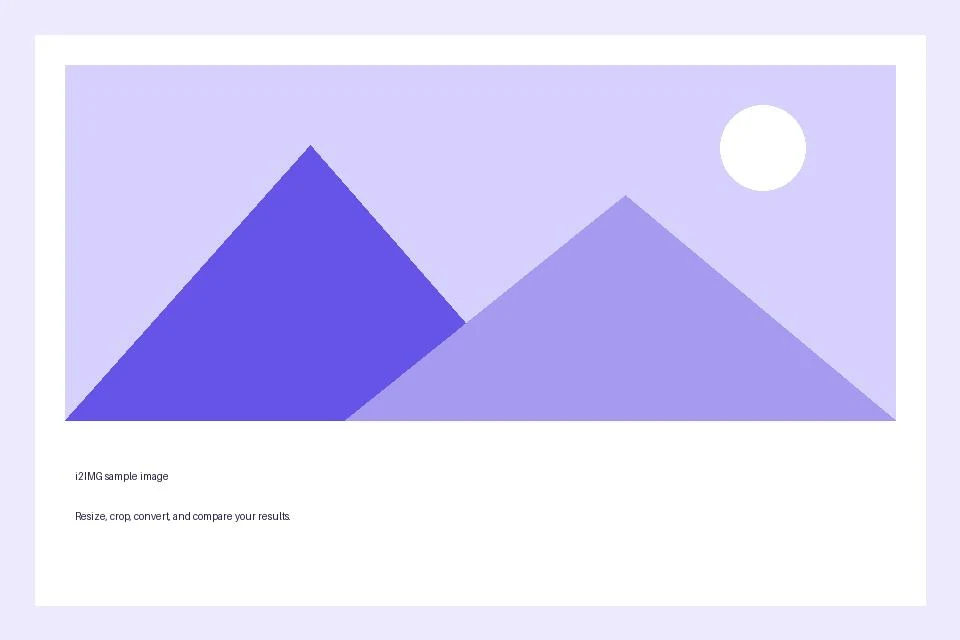
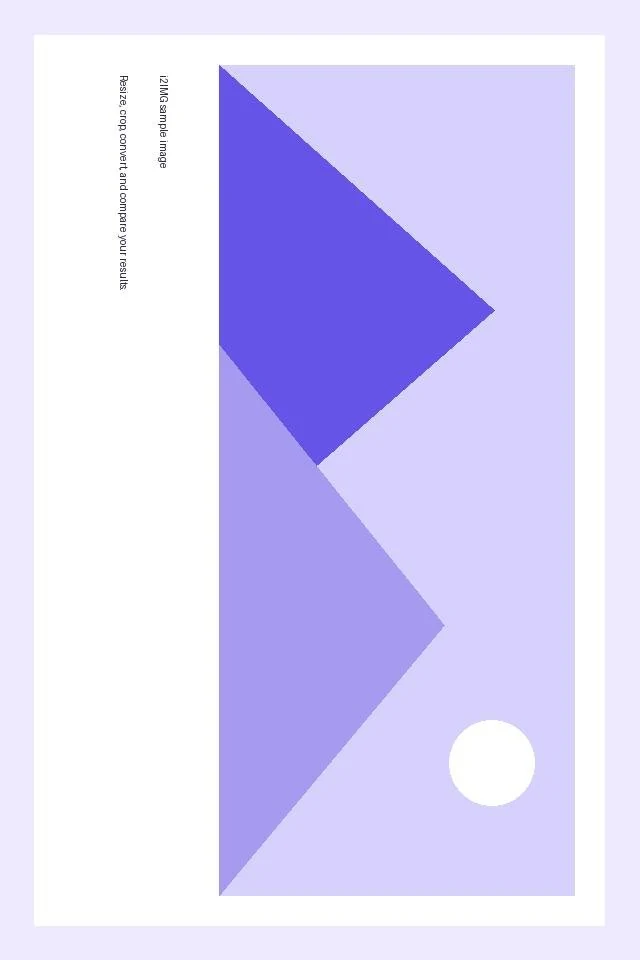
Rotation: Right (90 degrees)
- Input
- 960 x 640 px
- Output
- 640 x 960 px
- Input file
- 21,970 bytes
- Downloaded file
- 19,194 bytes
Keep the needed edges
Review the transformed preview before Start and choose the offered output format.
Keep the downloaded copy before starting a new task. Refreshing an editor or download page returns to the main tool page; normal Back navigation can restore the current workflow.
A precise-angle rotation can add space around the original picture. Check the exported corners rather than assuming the original rectangular crop is retained.
Common questions
What should I check in the downloaded result?
A precise-angle rotation can add space around the original picture. Check the exported corners rather than assuming the original rectangular crop is retained.
How does Rotate Images work?
Upload images, set a rotation angle, and save new copies with the orientation you need.
Can each image have a different rotation or flip?
Yes. Turn off Use these settings for all images, select a thumbnail, and set its controls before moving to the next image.
Try this with your own file.
Try a sample or use your own file, and review the result before sharing.