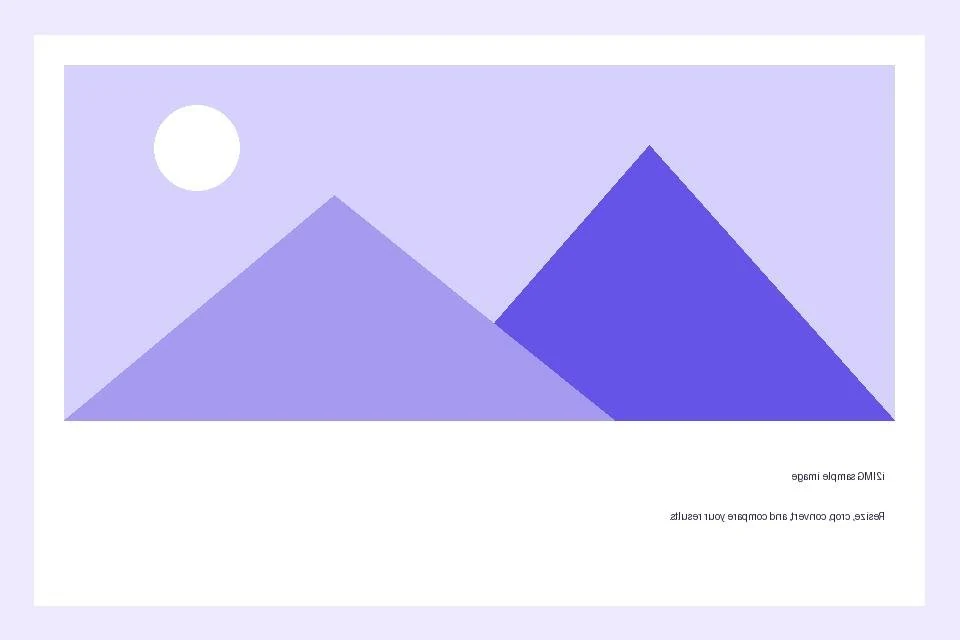

Upload images, choose a horizontal or vertical flip, and save a mirrored copy with optional rotation. Open Flip Images.
Choose the mirror direction
Open Flip Images and select Choose images, drag in a supported file, or use the sample. On a phone, open Settings to reach the same controls.
Enable Flip horizontally for a left-to-right mirror, or Flip vertically for an upside-down reflection.
Check any lettering or logos. A mirrored face may look natural while text in the same photo becomes backward.
Apply it to the right files
Use the thumbnails above the active image. Turn off Use these settings for all images for independent batch settings.
Leave Angle unchanged if you only need a mirror. Left and Right add rotation as a separate transformation.
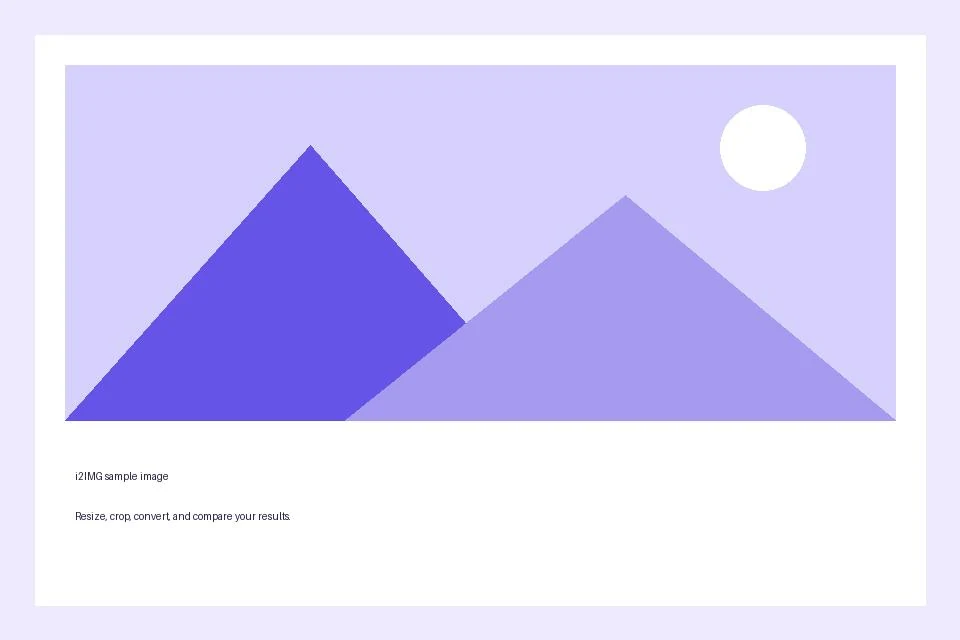
The example in this guide
Flip horizontally: On
- Input
- 960 x 640 px
- Output
- 960 x 640 px
- Input file
- 21,970 bytes
- Downloaded file
- 17,595 bytes
Check the exported orientation
Select Start and open the downloaded image in its intended destination.
Keep the downloaded copy before starting a new task. Refreshing an editor or download page returns to the main tool page; normal Back navigation can restore the current workflow.
For multiple results use the single ZIP download. The input files on your device are not overwritten.
Common questions
What should I check in the downloaded result?
For multiple results use the single ZIP download. The input files on your device are not overwritten.
How does Flip Images work?
Upload images, choose a horizontal or vertical flip, and save a mirrored copy with optional rotation.
Can each image have a different rotation or flip?
Yes. Turn off Use these settings for all images, select a thumbnail, and set its controls before moving to the next image.
Try this with your own file.
Try a sample or use your own file, and review the result before sharing.