
Open a PDF, select the pages you need, and download each selected page as GIF. Open PDF to GIF.
Select the pages you need
Open PDF to GIF and select Upload Files, drag in a supported file, or use the sample. On a phone, open Settings to reach the same controls.
Upload the PDF, select pages in the preview or enter a page range, and check their orientation.
Export only the needed pages to avoid an unnecessarily large image archive.
Choose format and resolution
Choose the offered image format and resolution. Use a moderate resolution for screen use and a higher one only when detail requires it.
Increasing resolution increases the number of pixels and often the file size. It cannot restore detail missing from the PDF's source images.
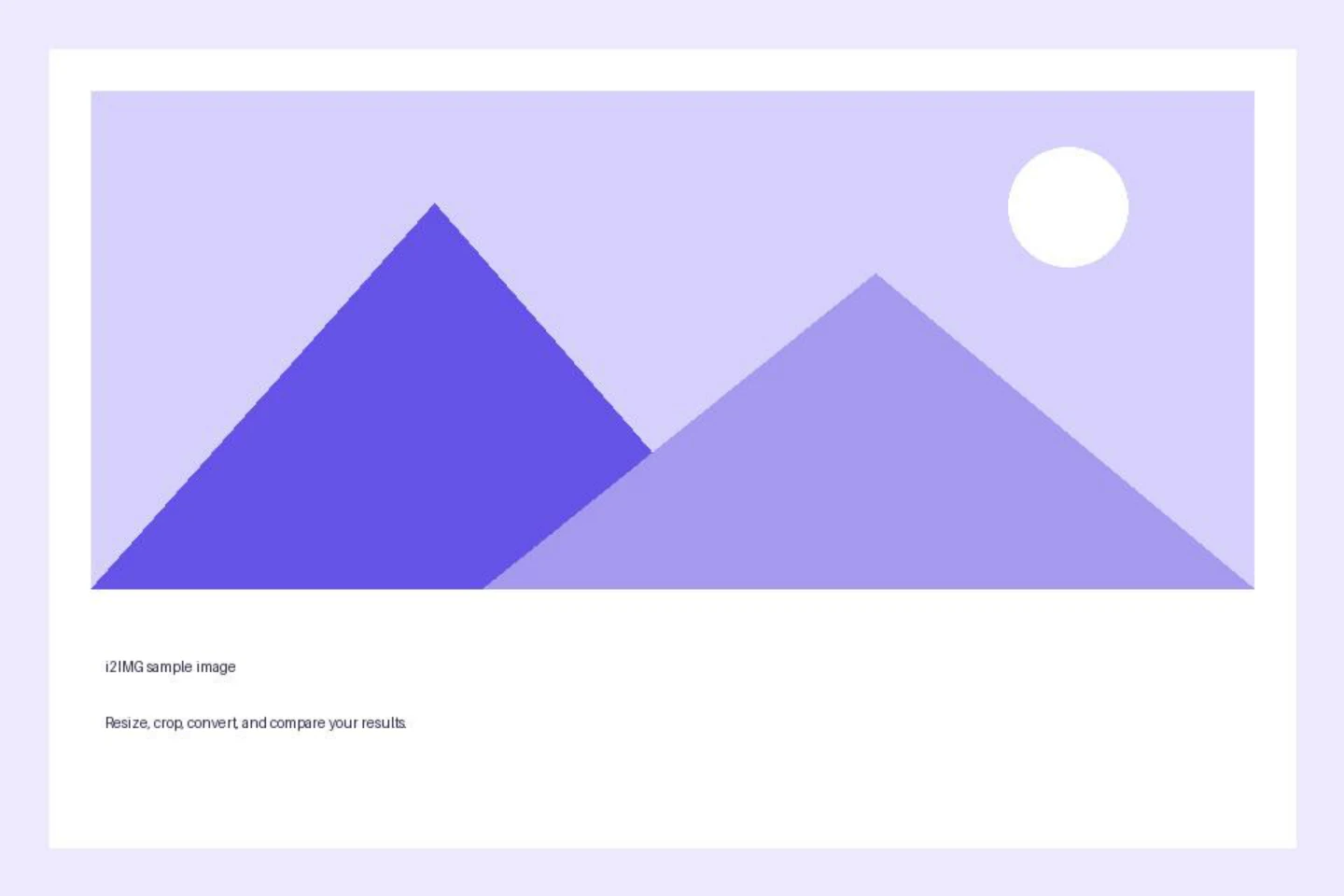
The example in this guide
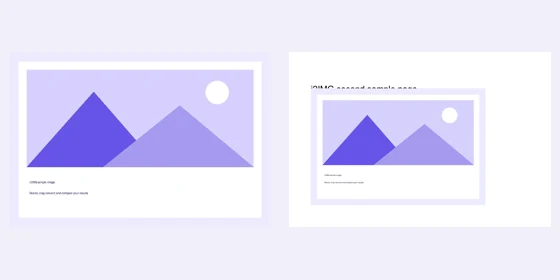
The available default settings were used.
- Input
- 2 PDF pages; 720 x 480 pt on page 1
- Output
- 2 archive members
- Input file
- 44,995 bytes
- Downloaded file
- 174,007 bytes
Review the exported pages
Select Start and download the single image or ZIP of selected pages.
Keep the downloaded copy before starting a new task. Refreshing an editor or download page returns to the main tool page; normal Back navigation can restore the current workflow.
These are rendered pages including visible text and graphics. Use Extract Images from PDF instead when you want individual embedded pictures at their native dimensions.
Common questions
What should I check in the downloaded result?
These are rendered pages including visible text and graphics. Use Extract Images from PDF instead when you want individual embedded pictures at their native dimensions.
How does PDF to GIF work?
Open a PDF, select the pages you need, and download each selected page as GIF.
Does this extract the original images inside the PDF?
No. It exports complete pages. Use Extract Images from PDF for embedded raster pictures without rendering the whole page.
Try this with your own file.
Try a sample or use your own file, and review the result before sharing.