
Open a PDF, choose the source pages and JPG, PNG or TIFF, then download the extracted images together in one ZIP. Open Extract Images from PDF.
Select the source pages
Open Extract Images from PDF and select Upload Files, drag in a supported file, or use the sample. On a phone, open Settings to reach the same controls.
Use the PDF page previews or range controls to choose where to look for embedded images.
An embedded picture is different from a whole PDF page. A page made from text and vector shapes may contain no extractable raster images.
Choose the picture format
Select JPG, PNG or TIFF for the extracted images.
The tool keeps the embedded image dimensions. It does not use the page rendering DPI to enlarge the pictures.
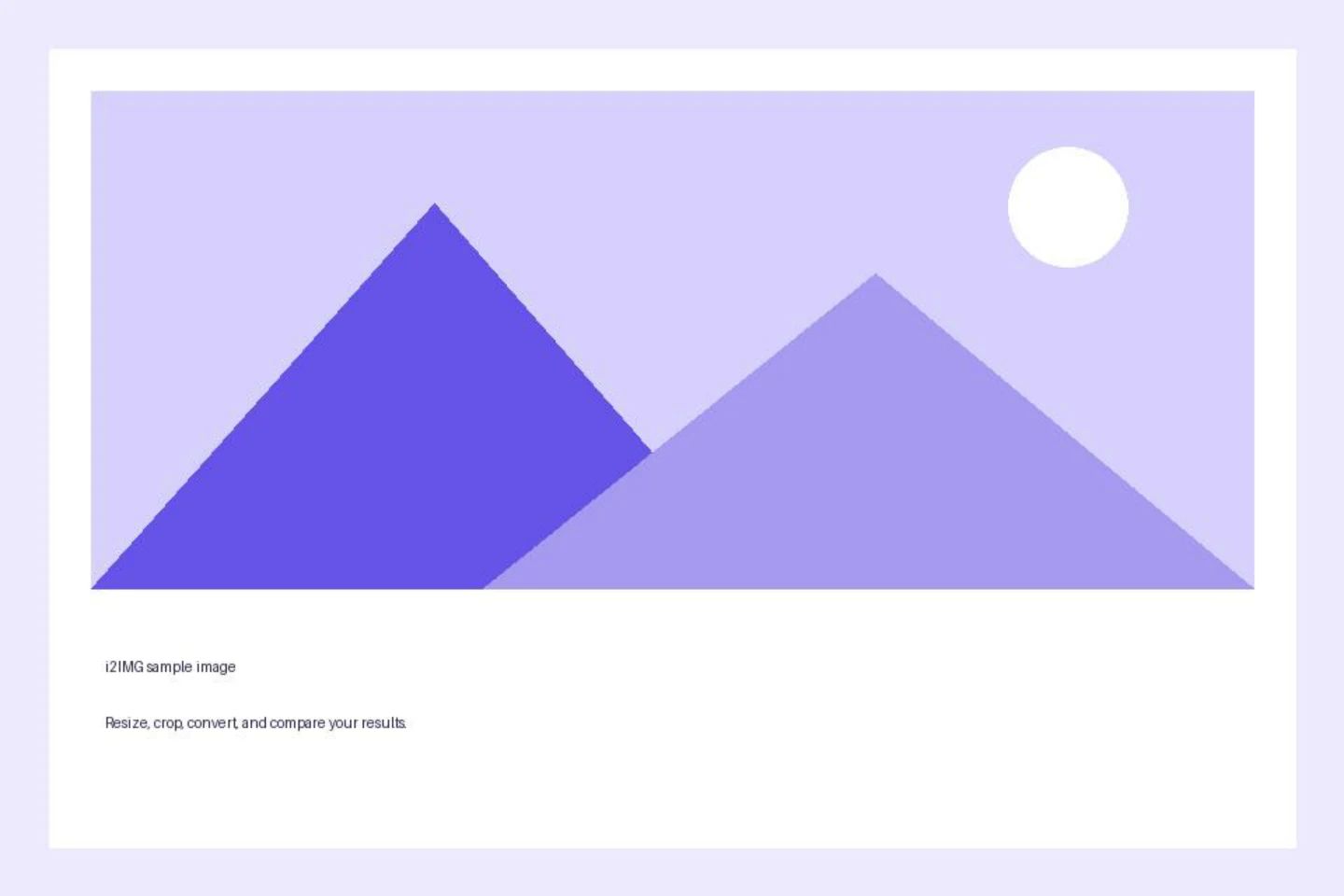
The example in this guide
The available default settings were used.
- Input
- 2 PDF pages; 720 x 480 pt on page 1
- Output
- 2 archive members
- Input file
- 44,995 bytes
- Downloaded file
- 31,760 bytes
Open the ZIP download
Select Start and download the single ZIP, then inspect the extracted files.
Keep the downloaded copy before starting a new task. Refreshing an editor or download page returns to the main tool page; normal Back navigation can restore the current workflow.
The same-looking picture may be used more than once in a document. Review the extracted files rather than assuming every page creates one image.
Common questions
What should I check in the downloaded result?
The same-looking picture may be used more than once in a document. Review the extracted files rather than assuming every page creates one image.
How does Extract Images from PDF work?
Open a PDF, choose the source pages and JPG, PNG or TIFF, then download the extracted images together in one ZIP.
Why are there no images to extract from a page that looks graphical?
A PDF can draw its graphics with vectors or text rather than embedded raster images. Use PDF to Images to render the complete page in that case.
Try this with your own file.
Try a sample or use your own file, and review the result before sharing.