
Follow this worked example, then adapt the same controls to your own image. Open AVIF Converter.
Choose a still image or a batch
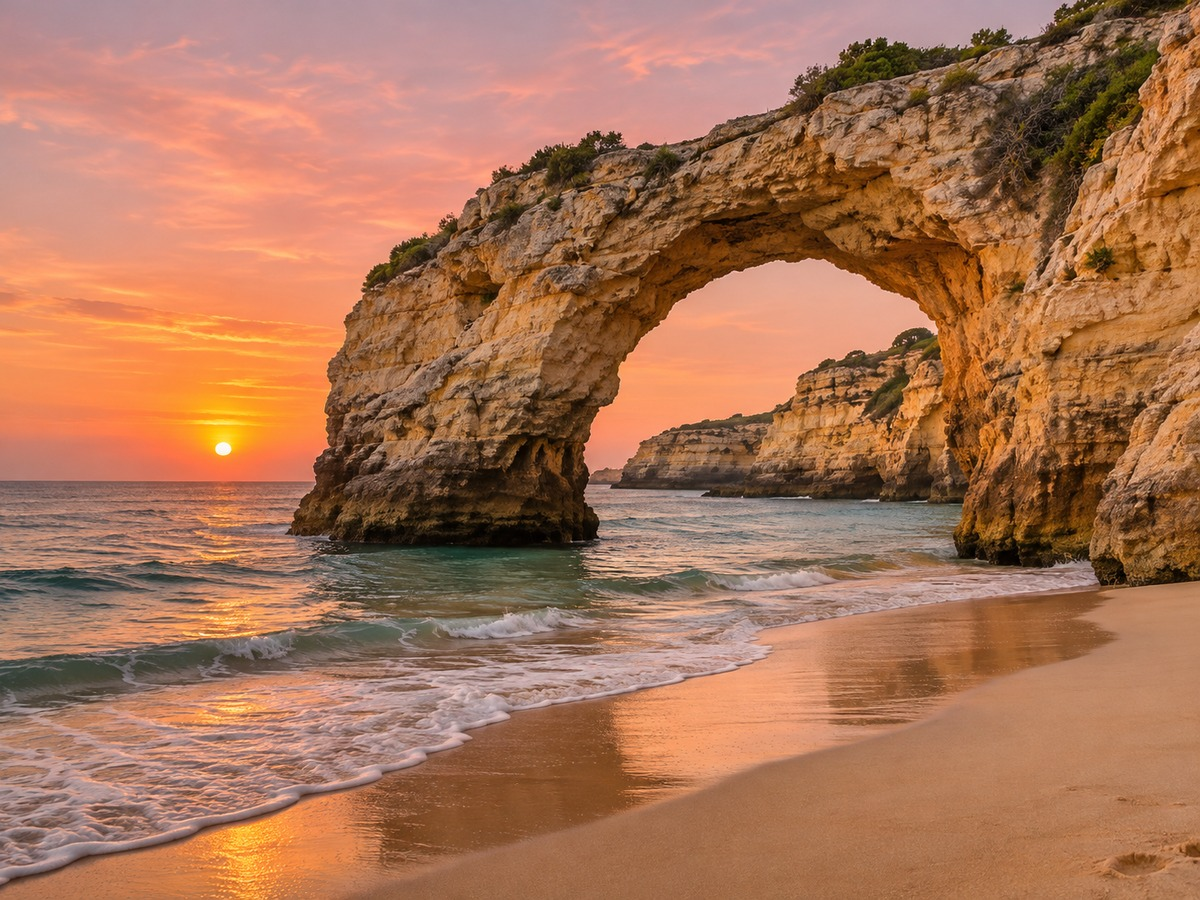
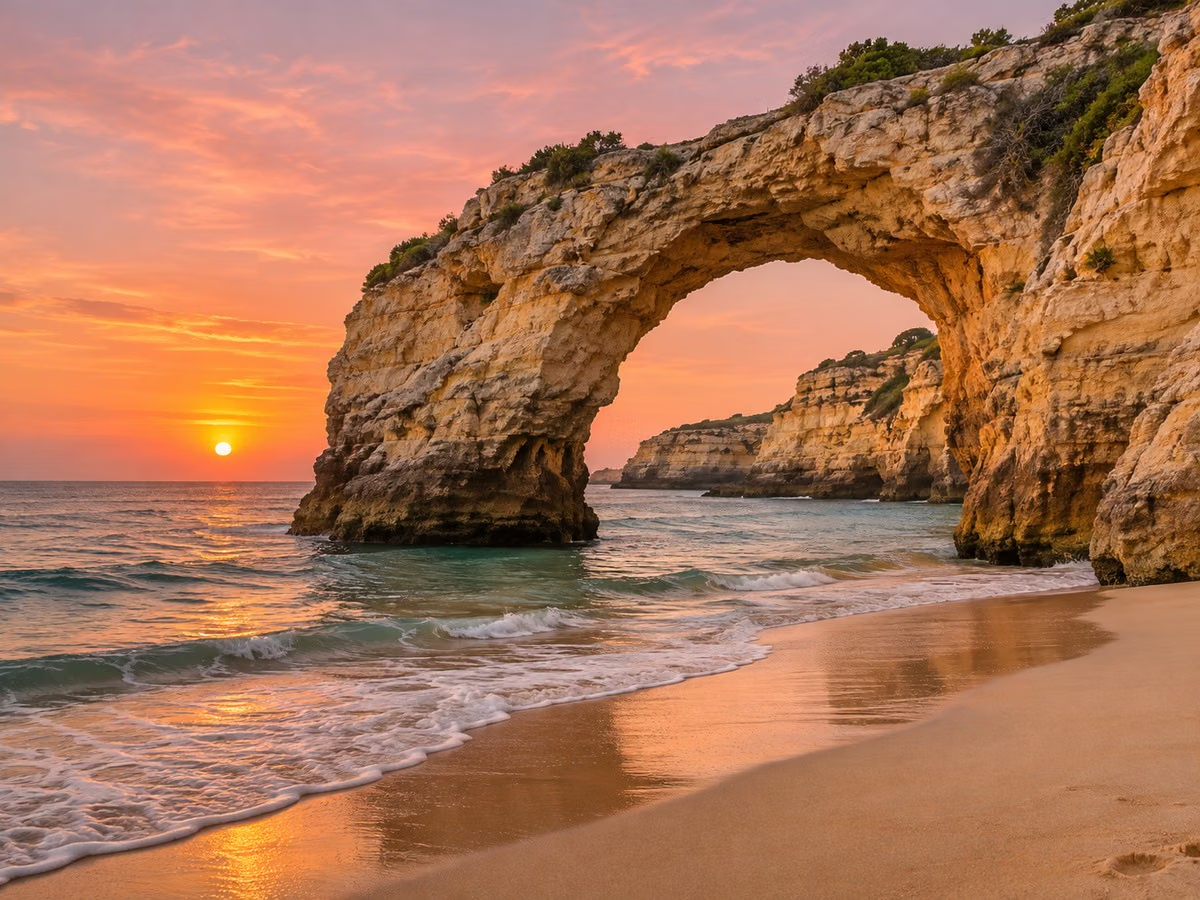
Open AVIF Converter and select JPG, JPEG, PNG, WebP or AVIF files. Use Try a sample to load collage-coast.jpg for this example. The original is 1,200 × 900 pixels and 344,468 bytes. Up to 20 files can be selected, with a 25 MB limit per file and additional decoded-image limits.
The editor shows the active source image. For a batch, select a thumbnail above the viewer to inspect another file. Settings apply to the entire batch, so use separate runs when different photos need different dimensions or quality levels.
This tool accepts still images. Animated AVIF, animated WebP and animated PNG sources are rejected rather than silently reduced to one frame. The final conversion is performed by the server through the site’s private file workflow.
Use a still frame from an animation when you need a still conversion. Renaming a video or animated container does not turn it into a valid still image.
Choose the format and set quality
Open Settings and leave File format at AVIF. Set Image quality to 65 for the worked example. The default is 75, and the available range is 1 to 100. Higher values generally retain more detail but can produce larger files.
To convert an uploaded AVIF to a familiar format, select JPG, PNG or WebP in the same menu. The output is encoded as the selected format; this is not a filename-only change. JPG and WebP also use the quality setting. PNG uses lossless output encoding, so its quality slider is hidden.
The editor preview shows your source. It is useful for choosing the correct image and dimensions, but the final compression must be judged from the downloaded output. Converting a previously compressed photo to PNG cannot restore detail already lost.
Quality 65 is a reproducible example, not a universal recommendation. Inspect fine texture, edges and gradients in your own result.
The example in this guide
Try a sample: collage-coast.jpg, 1,200 × 900 px, 344,468 bytes. File format AVIF; Image quality 65; Image size Original size. The genuine download is 151,211 bytes with the same pixel dimensions.
- Source JPG
- 1,200 × 900 px · 344,468 bytes
- Output AVIF
- 1,200 × 900 px · 151,211 bytes
- Selected quality
- 65 / 100
- Measured size change
- 56.1% smaller in this example
Set dimensions and handle transparent pixels
Keep Image size at Original size for the example so that both files remain 1,200 × 900 pixels. The fit presets constrain dimensions to 1,280, 1,920 or 2,560 pixels. Custom maximum dimensions lets you enter one or both bounds.
Resizing preserves the source aspect ratio and never enlarges a smaller image. A 1,200 × 900 image fitting within 600 × 600 becomes 600 × 450 rather than a stretched square. The settings change actual pixel dimensions, not only a print-resolution tag.
AVIF, PNG and WebP preserve transparent pixels. When JPG is selected, JPG background fills clear areas with the chosen color, starting at white. It does not replace an opaque background that already exists in a photo. Source orientation is applied to pixels and camera/location metadata is removed.
If a transparent logo gains a white box after conversion, check whether JPG was selected. Choose PNG, WebP or AVIF when transparency is needed.
Download and inspect the measured result
Select Start, then Download. The worked result is collage-coast.avif at 1,200 × 900 pixels and 151,211 bytes, about 56.1% smaller than the 344,468-byte JPG source. This is an actual measured example, not a guarantee for other pictures or settings.
Open the downloaded AVIF in a compatible viewer and inspect it at the intended display size. If it loses too much detail, return with the source and try a higher quality value. If the destination cannot use AVIF, convert the source or AVIF to JPG, PNG or WebP instead.
A single source downloads as one image. Multiple outputs are grouped into one ZIP and keep their source basenames where possible, with new extensions and numbered suffixes for duplicate names. Download before refreshing or leaving because editor and result pages are temporary workflows.
Compare like-for-like dimensions when judging compression. A file can become smaller because of a resize as well as a change in format or quality.
Common questions
Can I convert PNG or JPG to AVIF?
Yes. Upload your PNG or JPG, leave File format set to AVIF, choose quality and select Start.
Can I open an AVIF as JPG?
Yes. Upload AVIF and choose JPG under File format. Transparent areas use the selected JPG background color.
Does AVIF support transparency here?
Yes. AVIF, PNG and WebP outputs preserve transparent source pixels. JPG uses an opaque background.
Will every AVIF be smaller than the source?
No. Size depends on the source, image dimensions, format and quality. Inspect the downloaded file instead of assuming that a format guarantees smaller output.
Are the original filenames preserved?
The source basename is retained when possible. The extension changes to the selected format, and duplicate names receive numbered suffixes.
Can I convert an animated AVIF?
No. This converter rejects animated inputs rather than silently discarding the animation. Use a still source for this workflow.
Convert the image, then judge the result.
Try a sample or use your own file, and review the result before sharing.