Tools95

MAKE SOMETHING GREAT

AVIF Converter.

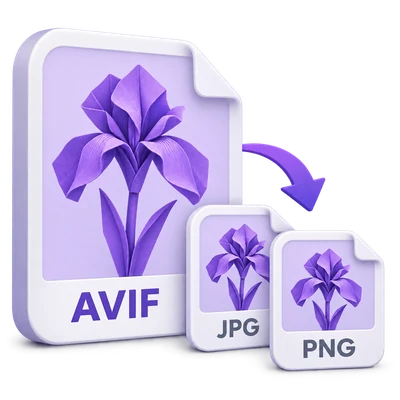
Convert AVIF to JPG, PNG or WebP, or create AVIF from your images. Set quality and size, retain transparency where supported, and download batches as one ZIP.

Advertisements
Your image workspace
Temporary server processing
or drag and drop here
AVIF, JPG, JPEG, PNG, WEBP
Choose your image to get started.IMAGE
Advertisements
Blog How to convert images to AVIF Read the guide

Convert AVIF images with control over quality and size

Convert JPG, PNG and WebP images to AVIF, or turn AVIF files into JPG, PNG or WebP. Choose a format, quality and optional maximum size, then save one image or a batch ZIP.

Choose AVIF for a modern image format or convert it to a familiar JPG, PNG or WebP.
QUICK VIDEO TUTORIAL How to convert a photo to AVIF Upload a photo, adjust AVIF quality, select Start and download the converted image. English narration Watch the video

How to convert a photo to AVIF

Features and controls

Convert to and from AVIF

One tool handles both directions.

Inputs and output formats

Upload AVIF, JPG, JPEG, PNG or WebP still images. File format selects AVIF, JPG, PNG or WebP output for the entire batch. The processor validates and decodes the real image contents before encoding the selected format. Output files contain the selected format rather than only receiving a new filename extension.

Balance quality and file size

The quality slider starts at 75.

Lossy and lossless output

Image quality ranges from 1 to 100 for AVIF, JPG and WebP. Higher values generally retain more detail but can create larger files. PNG uses lossless output encoding, so its quality slider is hidden. Converting an already lossy image to PNG does not restore detail lost before upload. Compare the downloaded result at its intended viewing size.

Keep the source size or scale down

Choose Original size, a fit preset or custom maximum dimensions.

Dimensions and proportions

The fit presets limit the longest dimensions to 1,280, 1,920 or 2,560 pixels. Custom maximum dimensions can constrain one or both sides. The source proportions are preserved and a smaller image is never enlarged, so the result can be smaller than one of the entered bounds. These settings change pixel dimensions rather than only print metadata.

Preserve transparency where supported

AVIF, PNG and WebP keep transparent pixels.

JPG background handling

JPG cannot store an alpha channel. When JPG is selected, JPG background lets you choose the color behind transparent source pixels. It starts at white. This setting does not replace an opaque background that is already part of a photograph.

Convert a batch with original names

The same settings apply to every selected input.

Files, naming and ZIP download

Select thumbnails above the active image to review the batch. One source produces one image download; multiple sources are grouped into one ZIP. The original basename is retained where possible and the extension changes to the output format. Duplicate basenames receive a suffix so files do not overwrite each other when extracted.

Export a clean still image

Orientation is applied and camera metadata is removed.

Processing and compatibility

The final conversion runs on the server through the existing private file workflow. Source orientation is applied to pixels; camera and location metadata are omitted. Animated sources are rejected because this tool produces still images. The output is an 8-bit rendered image, not a preservation workflow for HDR or a multi-image AVIF container.

Files and processing

Input
AVIF, JPG, JPEG, PNG, WebP
Output
AVIF, JPG, PNG or WebP; multiple outputs in one ZIP

25 MB maximum per file. Up to 20 input files per run. 500 MB maximum combined upload.

Up to 20 files, with 25 MB per file. Sources are limited to 60 megapixels each and the batch to 240 megapixels of decoded work; additional worker and output limits apply.

Source files are uploaded for private server conversion. Preview and settings run in your browser. Download links are associated with your session and are temporary.

Files are processed on the server. Preview preparation may also upload a file when browser decoding is unavailable or a document preview is needed. Server downloads are available to your session for up to two hours.

For an image result, use Continue to below the download results to choose a compatible next step. You can select which images to carry over; the next tool starts with its own settings.

Refreshing an editor or download page returns you to the tool page. Download the result before starting a new workflow. See our Privacy Policy for file handling.


FAQ

Good to know.

A few answers before you get started.

Temporary server processing
Can I convert PNG or JPG to AVIF?

Yes. Upload your PNG or JPG, leave File format set to AVIF, choose quality and select Start.

Can I open an AVIF as JPG?

Yes. Upload AVIF and choose JPG under File format. Transparent areas use the selected JPG background color.

Does AVIF support transparency here?

Yes. AVIF, PNG and WebP outputs preserve transparent source pixels. JPG uses an opaque background.

Will every AVIF be smaller than the source?

No. Size depends on the source, image dimensions, format and quality. Inspect the downloaded file instead of assuming that a format guarantees smaller output.

Are the original filenames preserved?

The source basename is retained when possible. The extension changes to the selected format, and duplicate names receive numbered suffixes.

Can I convert an animated AVIF?

No. This converter rejects animated inputs rather than silently discarding the animation. Use a still source for this workflow.

Advertisements

Language38

English العربية Français Italiano Deutsch Español Português Nederlands Русский Türkçe 日本語 中文 हिन्दी Bahasa Indonesia Bahasa Melayu 한국어 Tiếng Việt ไทย Polski Svenska Українська Norsk বাংলা Ελληνικά فارسی اردو Čeština Dansk Magyar Română Suomi Български Filipino ქართული Slovenčina Azərbaycanca עברית Slovenščina

Choose your language. Video tutorials currently use English narration.