
Follow a verified example, then adapt the controls to your own image. Open Screenshot Beautifier.
Start with a readable screenshot
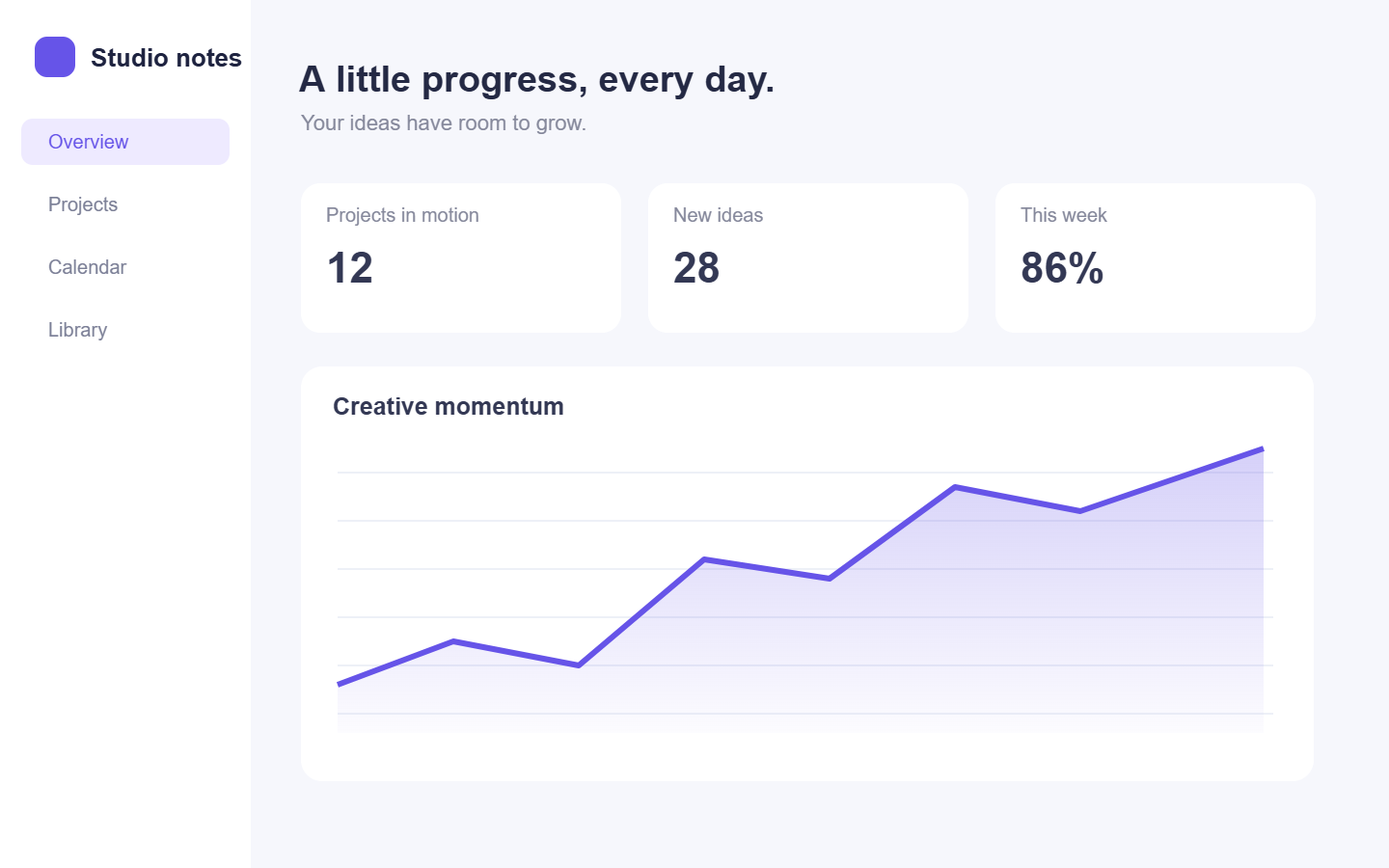
Open Screenshot Beautifier and choose Try an example to load the fictional dashboard used here, or upload your own image. The example source is a 1440 by 900 pixel PNG. Use an original capture rather than a screenshot copied from a compressed chat preview when small lettering matters.
The tool styles an image; it does not browse a website or capture a URL. For that workflow, create the capture with URL to Image first and then open the saved image in Screenshot Beautifier.
Crop irrelevant page areas before styling if the screenshot would otherwise become too small to read.
Choose a complete template
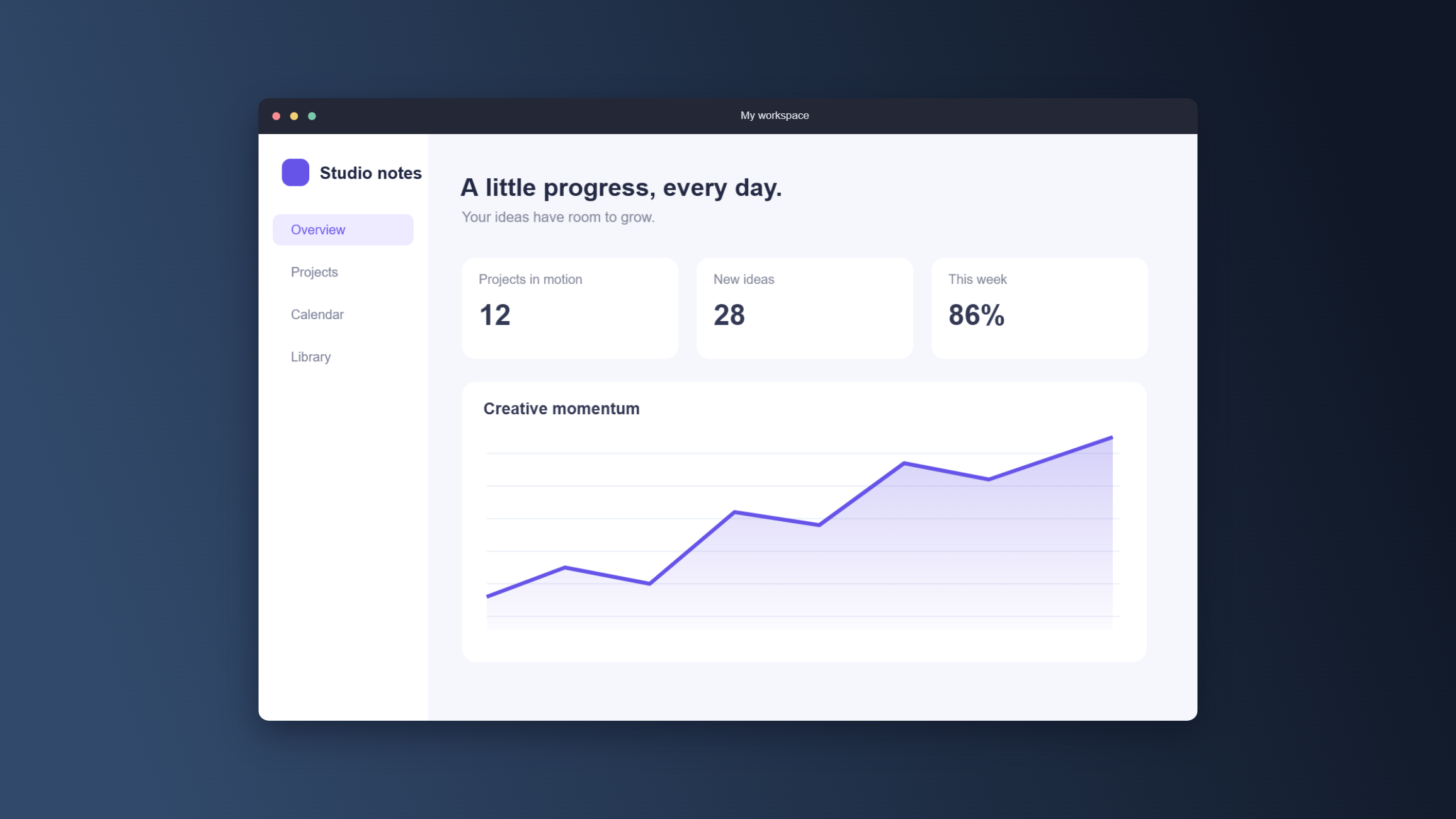
On a phone, open Settings. Choose Midnight in the design gallery. It applies a dark blue gradient, a dark browser frame, coordinated padding, rounded corners and a widescreen canvas together. The preview updates immediately.
The other designs are Studio, Minimal, Floating, Ocean, Social card, Soft rose and Warm paper. They are editable starting points rather than locked mockups. Pick the closest composition first, then adjust only what needs changing. Undo returns to the previous settings.
Midnight suits a bright interface because the darker surround makes the screenshot edges easy to see.
The example in this guide
Included 1440 x 900 fictional dashboard; Midnight template with its unchanged coordinated settings; Export scale 1x; PNG. The 2312 x 1301 output was downloaded from the current tool.
- Source
- 1440 x 900 px
- Output
- 2312 x 1301 px
- Format
- PNG
- Processing
- In your browser
Adjust the composition for its destination
Background can be a gradient, a solid color, your own image or transparency. For a custom image, use Choose background image. That background fills the canvas and may be cropped; the screenshot is fitted without losing its source edges. Window frame can be Light browser, Dark browser or None. Window title is a decorative label.
Padding controls the breathing room around the screenshot. Rounded corners and Shadow shape the card. Canvas shape includes square, widescreen, portrait, story and social formats, plus Custom size. A very tall screenshot will look small inside a wide frame; choose a taller canvas or reduce padding instead of expecting more detail from enlargement.
Leave the Midnight settings and Export scale at 1x to match this example. Export scale offers 1x, 2x and 3x within the 8,000-pixel-edge and 32-megapixel output limits. Larger dimensions do not recreate detail absent from the uploaded image.
Use Original to compare the styled image with the original capture, and review small text at a useful zoom level.
Export a crisp image
Choose PNG and select Start. Use Download on the result page to save the actual file. With the example source and unchanged Midnight design, the result is 2312 by 1301 pixels. Its rounded card, shadow, frame and background are all included in that one image.
PNG is a useful default for interface text. WebP supports transparent areas with lossy compression, and JPG is useful for solid-background images when smaller size matters. JPG replaces transparency with white. The export is flattened, so keep the source screenshot if you may need another composition.
Inspect the downloaded image before publishing, especially fine text and logos.
Common questions
Can this tool capture a webpage from a link?
It styles an image you provide. Use URL to Image to capture a webpage first, then open the result here.
Which templates are included?
Studio, Midnight, Minimal, Floating, Ocean, Social card, Soft rose and Warm paper. Every design remains adjustable.
Will the screenshot be cropped?
The screenshot is fitted inside the design with its edges preserved. A custom background image fills the canvas and may be cropped to fit.
Can I use my own background image?
Yes. Choose Your own image in Background, select a supported local image, and review the fitted background in the preview.
Can I export a transparent background?
Yes. Select Transparent and use PNG or WebP. JPG uses a white background because it does not support transparency.
Does Export scale sharpen a small screenshot?
No. It enlarges the output dimensions. Use a higher-resolution source when small text must remain clear.
Make the screenshot easier to share.
Try a sample or use your own file, and review the result before sharing.