


Tools95

MAKE SOMETHING GREAT

HEIC to PNG.

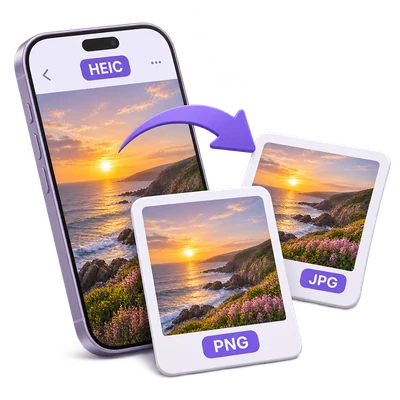
Convert HEIC and HEIF photos to PNG with lossless output encoding. Preview each photo, keep or reduce its dimensions and download a single file or a ZIP.

Advertisements
Your image workspace
Temporary server processing
or drag and drop here
HEIC, HEIF
Choose your image to get started.IMAGE
Advertisements
Blog How to convert HEIC to PNG without another lossy export Read the guide

Convert HEIC photos to PNG with a clear preview

Turn HEIC and HEIF photos into PNG images with lossless output encoding. Preview the decoded photo, keep its dimensions or fit it to a smaller size, and download the finished files.

A HEIC photo becomes a PNG while keeping its proportions and supported transparency.
QUICK VIDEO TUTORIAL How to convert HEIC to PNG with a maximum image size Upload a HEIC image, choose a 1,280-pixel maximum size, select Start and download the PNG result. English narration Watch the video

How to convert HEIC to PNG with a maximum image size

Features and controls

Save PNG without another lossy encoding step

PNG is useful for an editing workflow that accepts PNG but not HEIC.

How the output format works

PNG uses lossless output encoding. The conversion still decodes the source HEIC into an 8-bit image, so lossless PNG encoding does not mean the HEIC container, HDR data or every source representation is preserved.

Preview the main photograph

Select a thumbnail above the viewer to inspect that photo.

Orientation, multiple images and HDR

The server prepares a browser-compatible preview from your HEIC or HEIF file. Orientation is applied to the pixels. Each input produces its primary or first still image as an 8-bit standard-dynamic-range result; Live Photo motion, depth maps and additional container images are not exported.

Keep dimensions or fit a smaller size

Image size offers Original size, common fit sizes and a custom bounding box.

Size, proportions and print density

Original size keeps the decoded image dimensions. Fit presets and the custom bounding box keep the image proportions, so the result fits inside the requested width and height without enlarging a smaller source. More options also lets you keep the source resolution value or set DPI from 36 to 600. Changing DPI alone changes print metadata, not the number of image pixels or the available detail.

Choose how to handle metadata

Photo metadata starts at Remove metadata. Keep available EXIF metadata is available in More options.

What these choices mean

Remove metadata omits source EXIF details such as camera information and location. Keep available EXIF metadata retains supported EXIF metadata when the output encoder can store it. Orientation is already applied to the pixels. A chosen output DPI remains useful for printing regardless of the metadata choice.

Keep supported transparency

PNG can retain transparency present in the decoded source image.

How transparency is handled

A PNG output can store transparent pixels. This preserves transparency that already exists in the decoded source; it does not detect the subject or remove the background from an ordinary photo.

Convert the whole batch together

The visible settings apply to all uploaded photos.

Filenames, ZIP files and saving

Each input creates one output image. One result has a normal image download; several results are collected into one ZIP download. Original basenames are retained when possible, including Unicode names, and repeated names receive a numbered suffix. Your original files on the device are not overwritten.

Files and processing

Input
HEIC, HEIF
Output
PNG

25 MB maximum per file. Up to 20 input files per run. 500 MB maximum combined upload.

Each source image is limited to 60 megapixels. Combined decoded-image work and output-size limits also apply; unusually large batches may need to be split.

Files are processed on the server. Preview preparation may also upload a file when browser decoding is unavailable or a document preview is needed. Server downloads are available to your session for up to two hours.

For an image result, use Continue to below the download results to choose a compatible next step. You can select which images to carry over; the next tool starts with its own settings.

Refreshing an editor or download page returns you to the tool page. Download the result before starting a new workflow. See our Privacy Policy for file handling.

FAQ

Good to know.

A few answers before you get started.

Temporary server processing
Can I convert HEIF as well as HEIC?

Yes. This converter accepts .heic and .heif files containing a supported HEIF image. The file is decoded and validated before a result is created.

Why can my PNG be larger than the HEIC file?

HEIC is designed for efficient image compression. PNG uses a different, lossless output encoding, so an equivalent photo can take more space. A larger PNG does not recover extra detail.

Does this preserve Live Photos or HDR?

No. Each source produces its primary or first still image, rendered as an 8-bit standard-dynamic-range image. Motion, depth data and additional container images are not included.

Will my photos keep their filenames?

The output keeps the original basename when possible and changes the extension to the selected format. Duplicate names receive a suffix. Multiple outputs are saved together in one ZIP.

Can I remove photo location information?

Yes. Leave Photo metadata set to Remove metadata, its default. Keep available EXIF metadata is available when you want supported EXIF details carried into the result.

Advertisements

Language38

English العربية Français Italiano Deutsch Español Português Nederlands Русский Türkçe 日本語 中文 हिन्दी Bahasa Indonesia Bahasa Melayu 한국어 Tiếng Việt ไทย Polski Svenska Українська Norsk বাংলা Ελληνικά فارسی اردو Čeština Dansk Magyar Română Suomi Български Filipino ქართული Slovenčina Azərbaycanca עברית Slovenščina

Choose your language. Video tutorials currently use English narration.