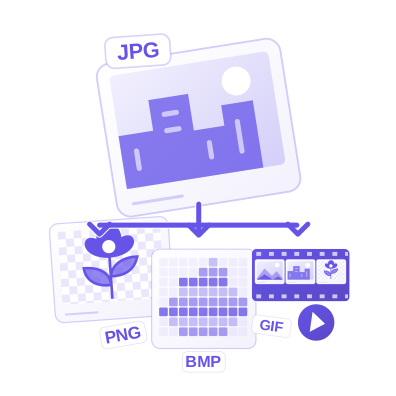


Upload WebP images and save them as JPG, an opaque photo format. Open WebP to JPG.
Choose the destination format
Open WebP to JPG and select Choose images, drag in a supported file, or use the sample. On a phone, open Settings to reach the same controls.
Upload WEBP images and check File format before processing. JPG is a practical photographic format without transparency. Transparent areas need a solid background, and a multi-frame source becomes a still image.
Choose the format accepted by the receiving website, editor or document workflow. A new extension alone does not prove the file was converted.
Check the image and batch
Select a source thumbnail above the active image to inspect it. Add other supported files if you need a batch.
Conversion keeps the source dimensions unless you deliberately use a separate image resize or finishing control. Check transparency and any animation or multi-frame behavior.
The example in this guide
File format: JPG
- Input
- 960 x 640 px
- Output
- 960 x 640 px
- Input file
- 6,592 bytes
- Downloaded file
- 19,727 bytes
Convert and verify the saved file
Select Start, then download the single result or the ZIP for a batch. Output names retain the source name where possible.
Keep the downloaded copy before starting a new task. Refreshing an editor or download page returns to the main tool page; normal Back navigation can restore the current workflow.
Open the actual saved file in the intended destination. For a batch, extract the archive first; the ZIP itself is not an image.
Common questions
What should I check in the downloaded result?
Open the actual saved file in the intended destination. For a batch, extract the archive first; the ZIP itself is not an image.
How does WebP to JPG work?
Upload WebP images and save them as JPG, an opaque photo format.
Will this restore quality or keep every animation frame?
No. Conversion cannot recover detail absent from the source. JPG is opaque and keeps only the first frame of a multi-frame input; a single still image remains a still image.
Try this with your own file.
Try a sample or use your own file, and review the result before sharing.