
Follow the measured quality-80 example, then adjust dimensions and quality for the destination that will receive your JPG. Open HEIC to JPG.
Upload and choose JPG quality
Open HEIC to JPG and upload a HEIC or HEIF image. Inspect the decoded preview; when using multiple photos, choose a thumbnail to change the active image.
File format is fixed to JPG. Image quality defaults to 90 and ranges from 1 to 100. Higher values generally preserve more visible detail at a larger size. Lower values can introduce blocks or ringing. The example uses 80 as a test setting, not a universal recommendation.
Quality 100 is still a JPG export; it cannot recover detail absent from the HEIC.
Fit dimensions and review metadata
Choose Original size or a fit preset. For the example, select Custom maximum size and enter 640 for Max. width and Max. height. The 960 x 640 source becomes 640 x 427, preserving its proportions.
Open More options. Set Resolution (DPI) to 300 and leave Photo metadata at Remove metadata to reproduce the example. The JPG still contains 640 x 427 pixels: DPI changes suggested print density, not detail. Keep available EXIF metadata can retain supported source tags.
JPG background starts at white and fills transparent source regions because JPG cannot store transparency. It has no visible effect on an opaque photograph.
Custom dimensions are maximum bounds, so a landscape photo is not stretched into a square.
The example in this guide
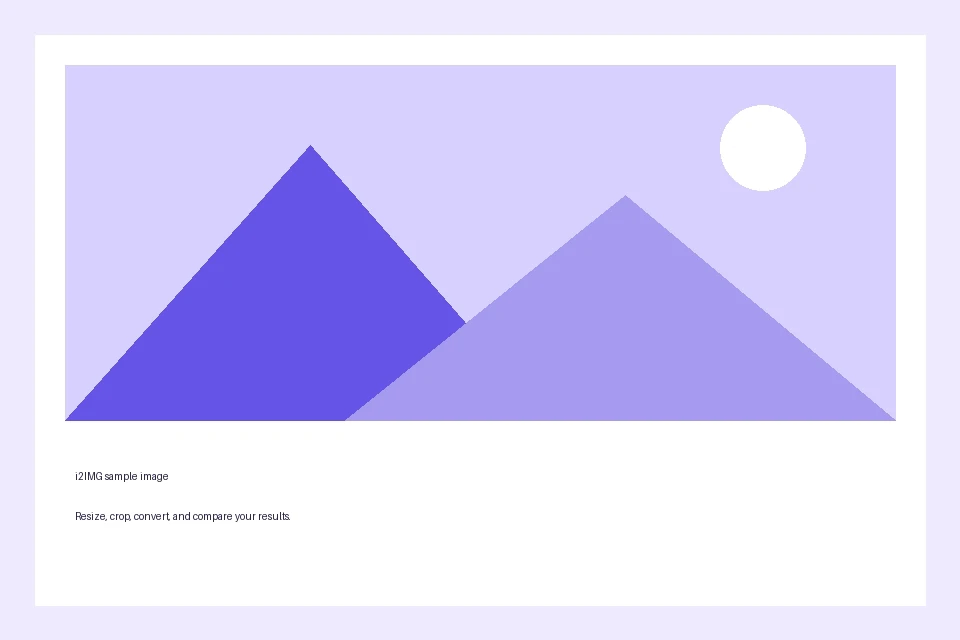
Image quality: 80; Custom maximum size: 640 x 640 px; Resolution: 300 DPI; Photo metadata: Remove metadata; JPG background: white.
- Input
- 960 x 640 px
- Output
- 640 x 427 px
- Input file
- 27,779 bytes
- Downloaded file
- 11,325 bytes
Inspect the downloaded JPG
Select Start, then download the JPG or batch ZIP. The example produced a 640 x 427 JPG of 11,325 bytes from a 27,779-byte HEIC. Both the resize and encoding settings contribute to that result.
Open the download and inspect important details. If lettering or edges show artifacts, return to your source and try a higher quality or larger dimensions. Keep the original HEIC rather than repeatedly re-encoding the JPG.
All batch files use the same settings and retain source basenames where possible, with suffixes for duplicate names.
Common questions
Are JPG and JPEG different?
JPG and JPEG refer to the same image format. This tool saves the output with a .jpg extension.
Does 300 DPI add resolution?
No. DPI is print-density metadata. Pixel width and height determine the number of pixels; setting 300 DPI adds none.
Why does a 640 x 640 fit produce 640 x 427?
Fit settings preserve source proportions and use your values as maximum bounds, without stretching or cropping.
Will JPG keep HDR or Live Photo motion?
No. It exports the primary or first still image as an 8-bit SDR result. Motion, HDR representations and depth data are not exported.
Try the workflow with your own image, and keep your original file for future edits.
Try a sample or use your own file, and review the result before sharing.