
Follow a verified example, then adapt the controls to your own image. Open Signature Image Maker.
Choose draw, type or a signature photo
Open Signature Image Maker. Draw signature opens a blank pad and needs no upload. Type signature creates a name in an included handwriting style. Import signature photo is for an existing handwritten mark on plain light paper.
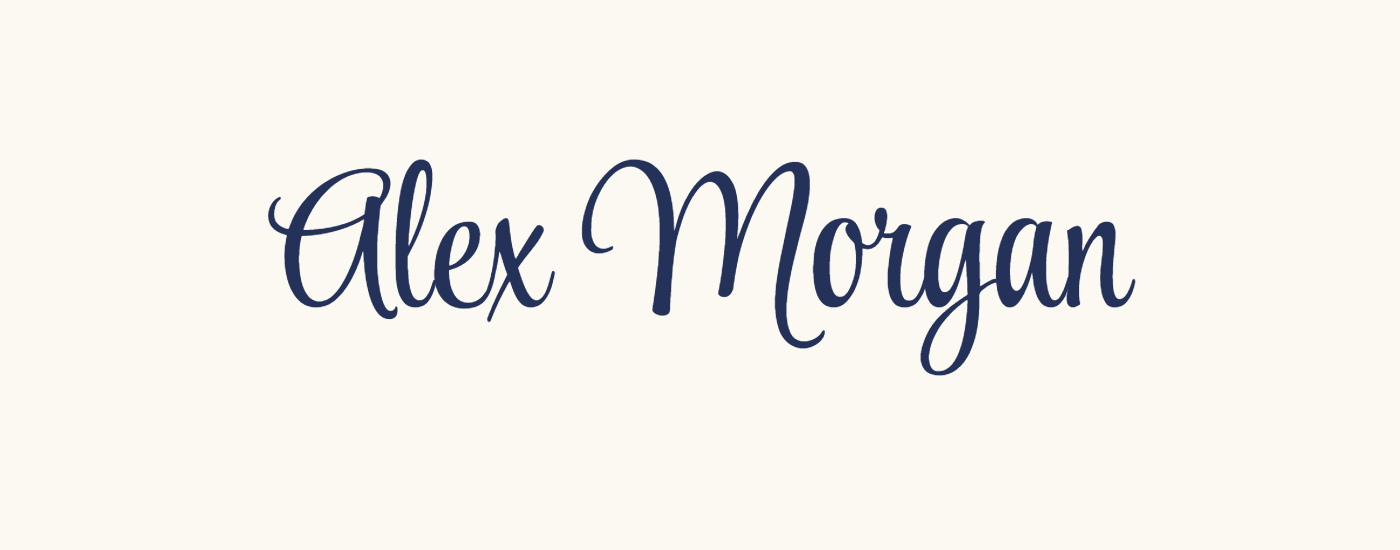
The before-and-after example in this article uses the included fictional Alex Morgan signature scan, a 1400 by 550 pixel image. The video demonstrates the alternative drawing workflow, including selection and rotation. These are different starting methods in the same tool.
For a photo, use dark ink on evenly lit white paper. Shadows, ruled lines and textured paper make color-based cleanup less precise.
Clean the paper or edit the ink
For the article example, import the signature sample and keep Clean up a signature photo selected. Enable Remove light paper background and keep Paper removal strength at 215. Enable Use selected ink color and choose #244EB8 for the blue ink.
The cleanup makes light pixels transparent; it does not recognize handwriting. Lowering the threshold removes more light and midtone pixels and can remove faint ink too. Turn off recoloring if you need to preserve the original ink colors.
For a drawn signature, use Select to choose the object before changing Ink color or Pen thickness. With no object selected, those controls apply to the next signature. New signature creates another object. The pad supports up to 200 strokes and 8,000 recorded points.
Zoom in on thin strokes before exporting: clean paper is not worth losing part of the signature.
The example in this guide
Included fictional Alex Morgan scan; Clean up a signature photo; background removal enabled; threshold 215; selected ink #244EB8; Trim empty space enabled; padding 30; output width 1600; rotation 0; PNG. Downloaded from the current tool.
- Source
- 1400 x 550 px
- Output
- 1600 x 446 px
- Format
- PNG
- Processing
- In your browser
Position and size the signature
Select the signature and drag it to move it. Use its corner handles to resize it and the round upper-right handle to rotate it. Hold Shift for 15-degree rotation steps, or enter an exact Rotation value in Settings. Left and Right make quarter turns. Undo and Redo recover recent changes.
For a typed signature, enter up to 100 characters and compare the included fonts with the previous and next buttons. Use system fonts requests local-font access only when the browser supports it; the included choices remain available without permission.
To reproduce the photo example, keep rotation at zero, enable Trim empty space, set Padding to 30 and Output width to 1600. Trimming follows the visible mark, so the final height depends on the signature and the surrounding padding.
Keep the whole signature inside the canvas before trimming; rotation does not restore content moved outside it.
Download a transparent PNG
Keep PNG and select Start. Download the result and place it over a colored background to verify that the paper has become transparent. The comparison uses the actual downloaded blue signature, with its transparent area preserved in the WebP illustration.
JPG uses a white background. SVG is available for Draw mode because it exports the drawn stroke paths; typed text and imported photos use raster output. The result is a signature image, not identity verification or a certificate-backed document signature.
Use your own signature or one you have permission to reproduce, and keep the original for future edits.
Common questions
Do I need to upload a signature photo?
No. Choose Draw signature for a blank pad or Type signature for a name. Import signature photo is for cleaning ink already written on paper.
Can I change the ink after drawing?
Yes. Select the drawn signature object, then change Ink color or Pen thickness. New signature creates another independently editable object.
How do I rotate my signature?
Select it and drag the round handle at its upper-right, or enter a Rotation angle. Hold Shift while rotating for 15-degree steps.
Why does some paper remain in my photo?
The cleanup removes light pixels rather than recognizing a signature. Start with evenly lit, plain paper and adjust Paper removal strength carefully; removing too much can erase faint ink.
Why is SVG unavailable for a typed or uploaded signature?
SVG export represents the stroke paths from Draw mode. A typed or imported signature is exported as a PNG or JPG image.
Is this a digital-signature certificate?
No. The result is an image of a signature. It does not prove identity, certify a document or provide a signing audit trail.
Keep the signature. Remove the spare paper.
Try a sample or use your own file, and review the result before sharing.