
Upload WebP images and use the quality setting to reduce encoded size while keeping the original dimensions. Open WebP Compressor.
Choose a quality level
Open WebP Compressor and select Choose images, drag in a supported file, or use the sample. On a phone, open Settings to reach the same controls.
Move Image quality while watching the active image preview and size estimate. Start with a moderate reduction, then inspect fine edges, lettering and flat color areas.
The preview is an estimate from the browser. The final server encoder can produce a different file size; judge the downloaded result.
Handle a batch deliberately
Use the source thumbnails above the image to select a file. Keep Use these settings for all images enabled for one shared setting, or disable it for individual values.
A photograph and a diagram often need different settings. Do not force the smallest value across a mixed batch without reviewing it.
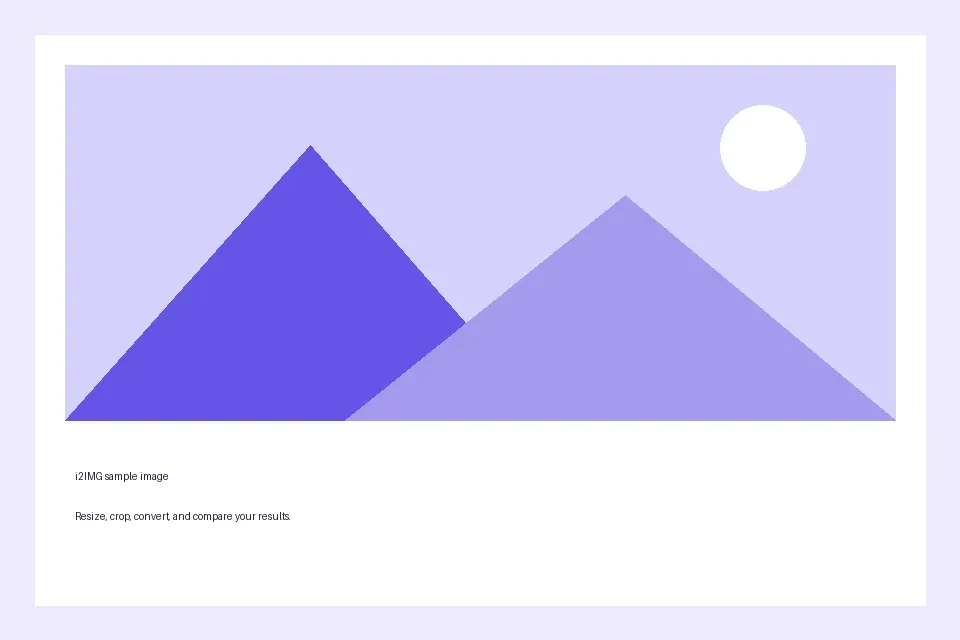
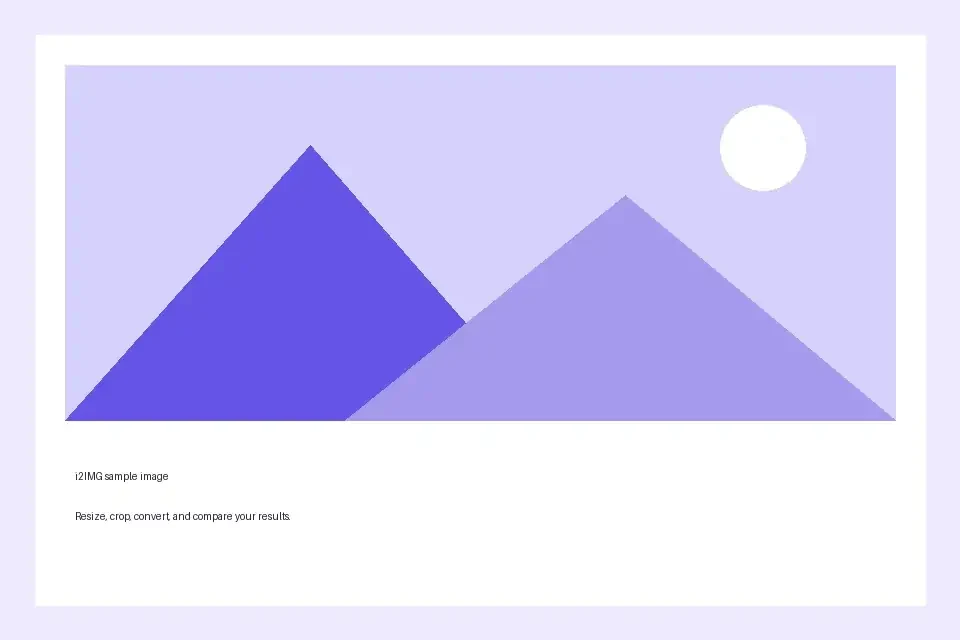
The example in this guide
Image quality: 65
- Input
- 960 x 640 px
- Output
- 960 x 640 px
- Input file
- 6,592 bytes
- Downloaded file
- 5,424 bytes
- Measured size change
- 17.7% smaller
Read the compression result
Select Start, then compare the original and output byte counts in the compression summary.
Keep the downloaded copy before starting a new task. Refreshing an editor or download page returns to the main tool page; normal Back navigation can restore the current workflow.
An already optimized image can have little room for reduction. A larger output is possible; the actual measured result matters more than a slider position.
Common questions
What should I check in the downloaded result?
An already optimized image can have little room for reduction. A larger output is possible; the actual measured result matters more than a slider position.
How does WebP Compressor work?
Upload WebP images and use the quality setting to reduce encoded size while keeping the original dimensions.
Is the preview size the exact downloaded file size?
No. The preview is an estimate from a bounded browser rendering. The final file is produced separately; check its downloaded size and visual quality.
Try this with your own file.
Try a sample or use your own file, and review the result before sharing.